
Cloning a Drawing Set
There are two ways to clone a drawing set:- Manually
- Using a Template
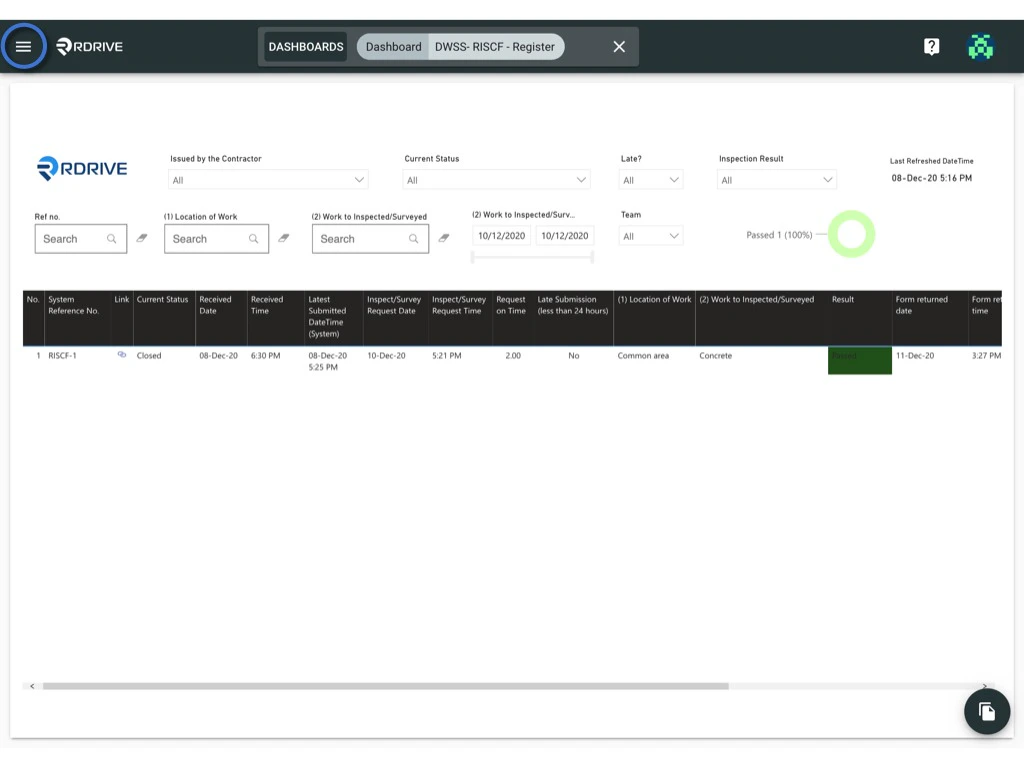

1. Manually Cloning a Drawing Set
- Select the desired drawing set.
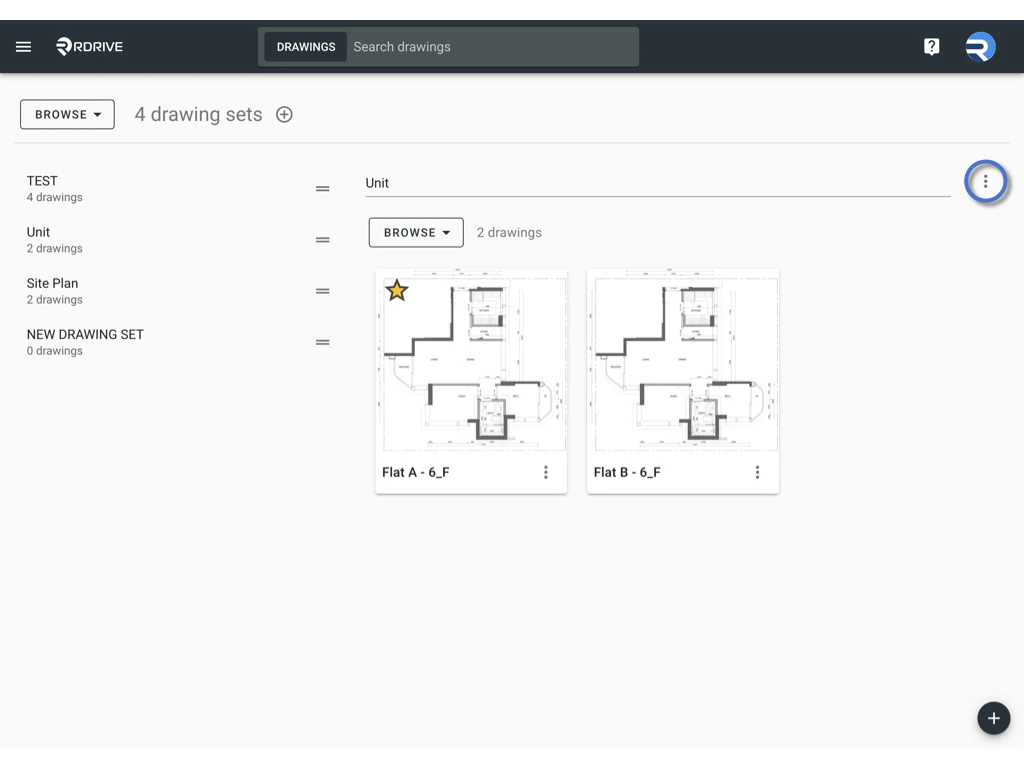
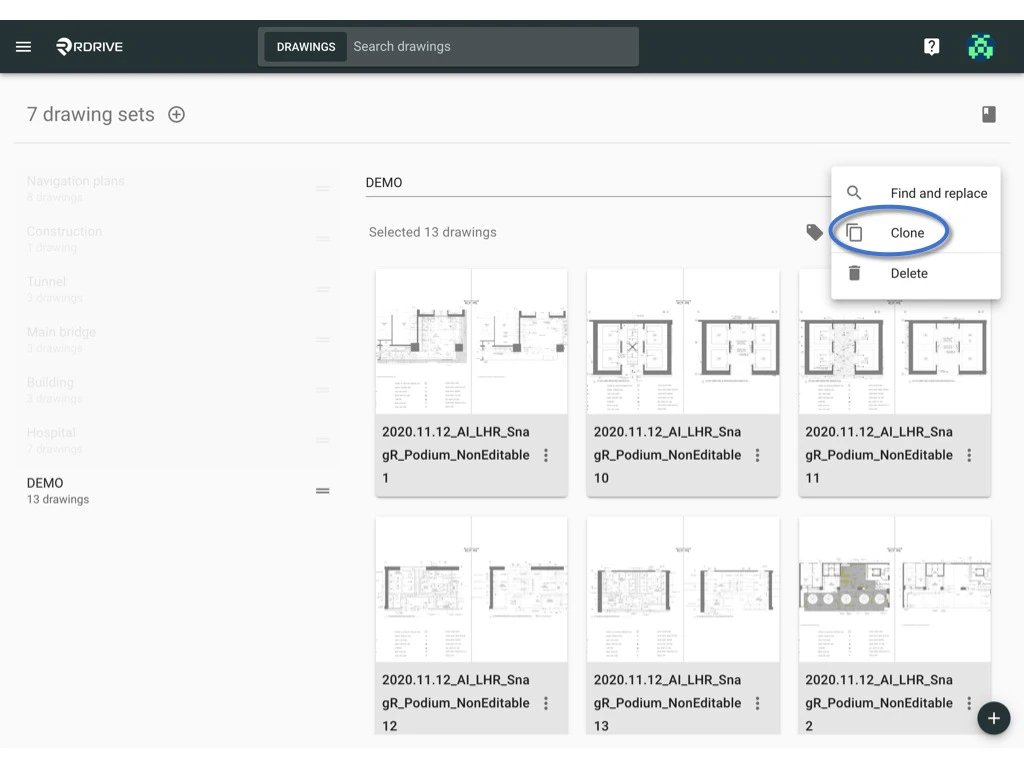
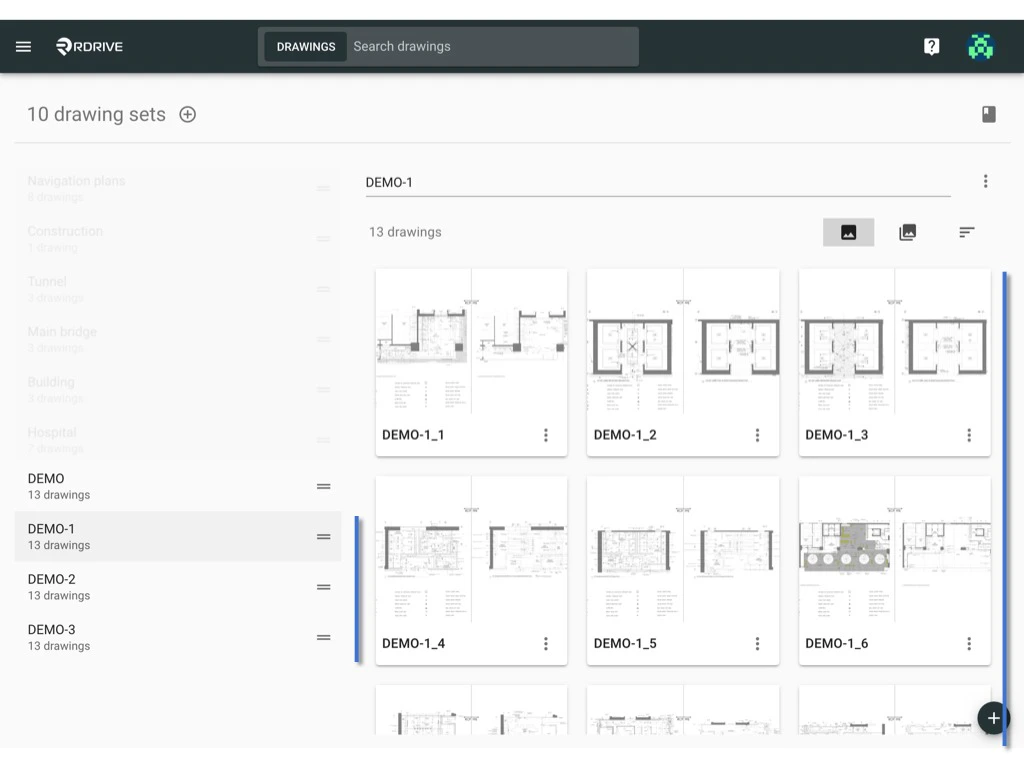
- Click the ⋮ button on the right side of the drawing set title and select Clone.
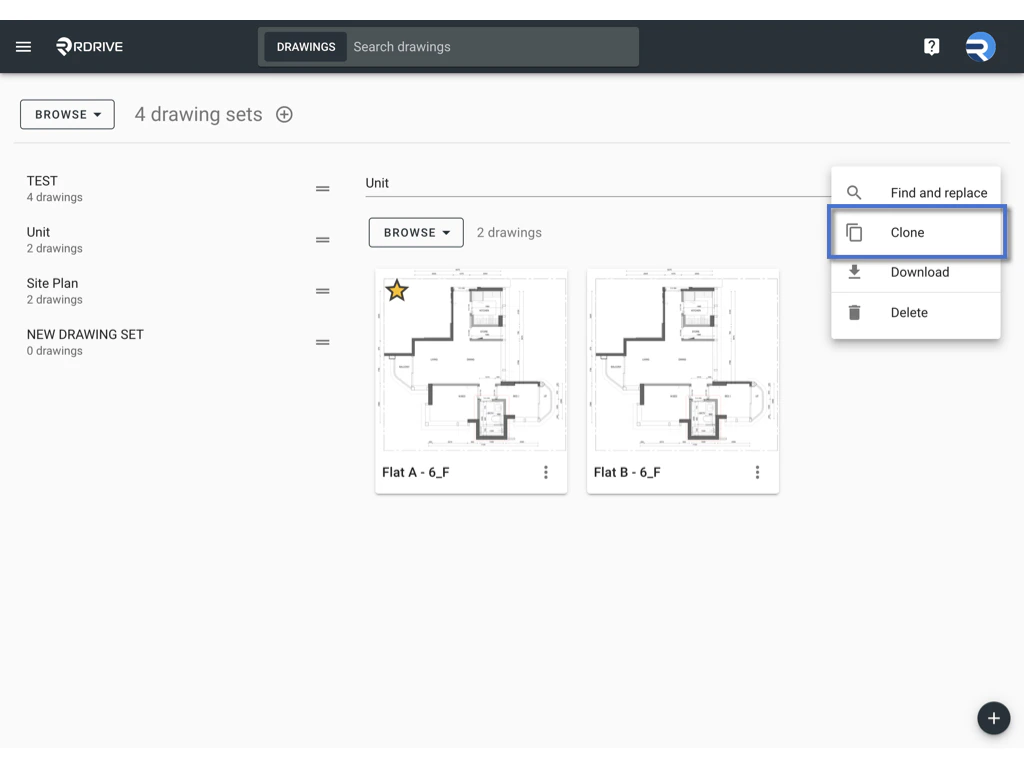
- In the dialog box, input the number of copies you wish to create.
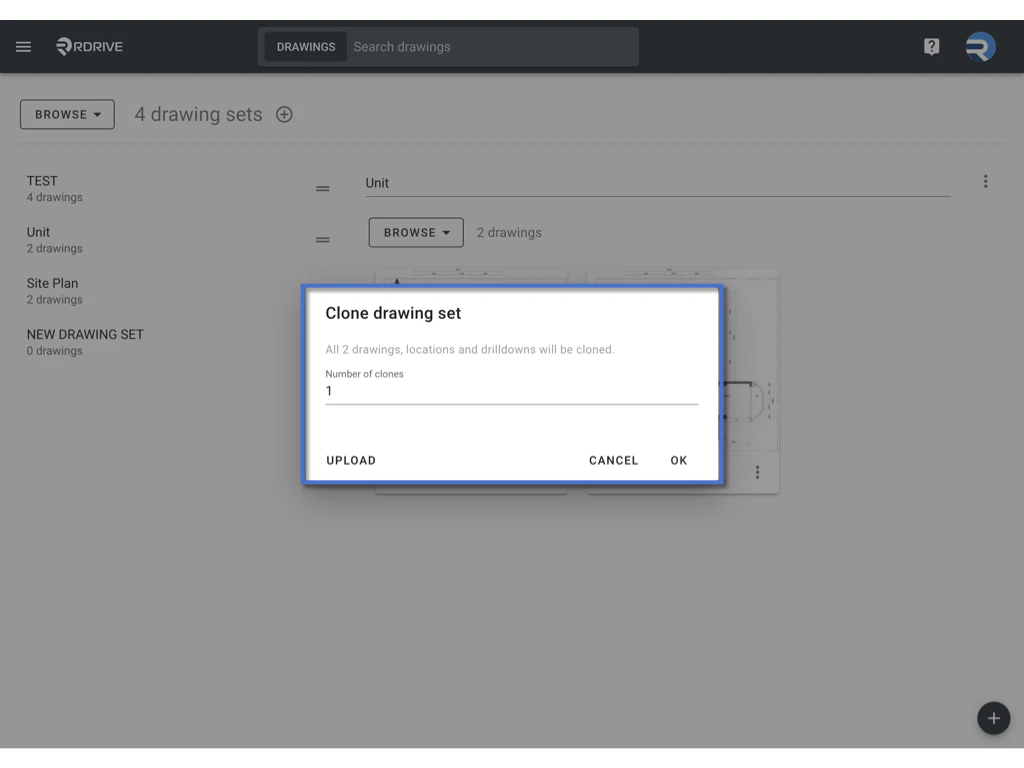
- Click OK to start the process.
2. Cloning a Drawing Set Using a Template
- Select the drawing set and click the ⋮ button on the right side of the title, then choose Clone.
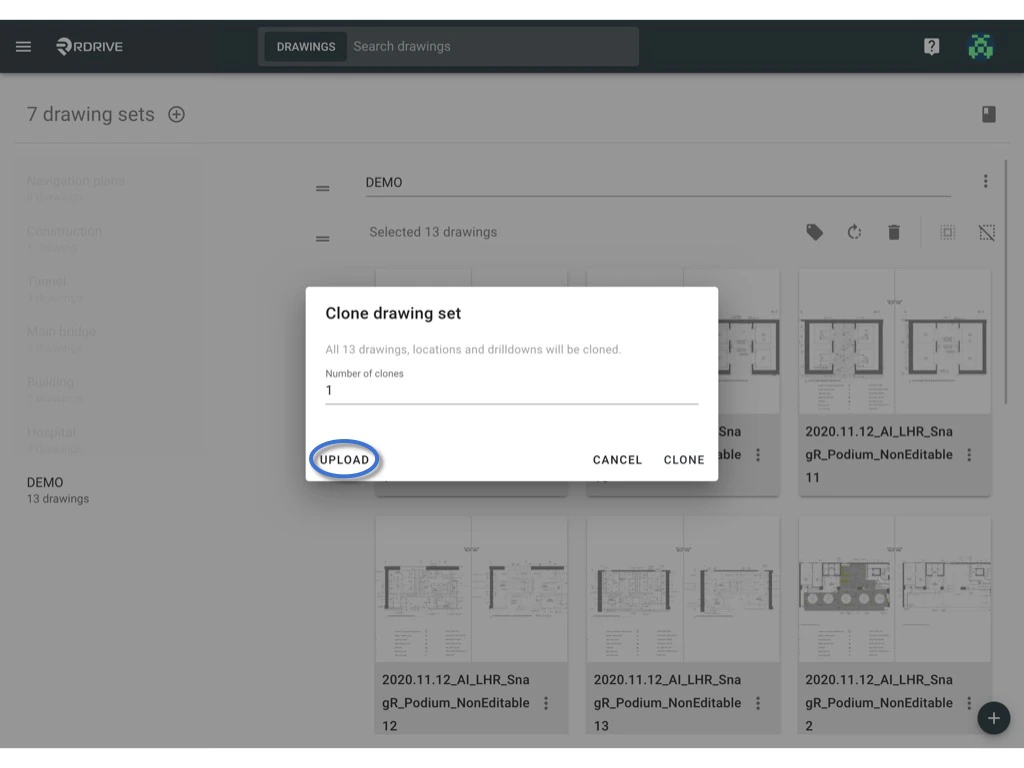
- In the dialog box, click the UPLOAD button located at the bottom left corner.
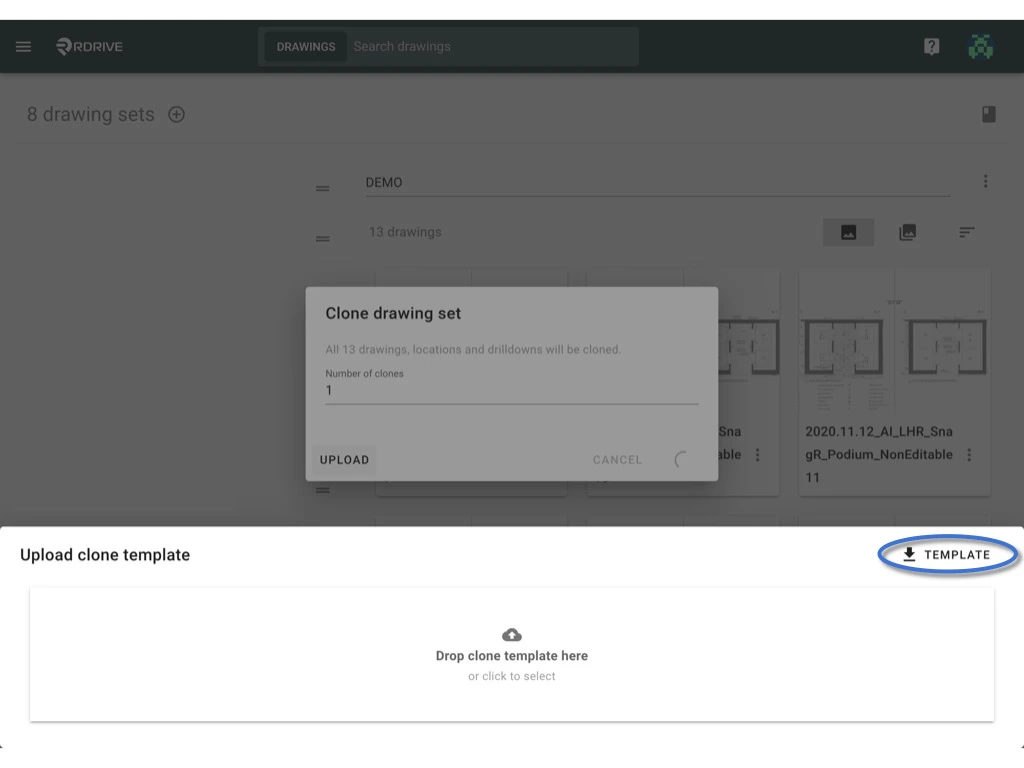
- Download the provided template and fill it in with the necessary information (a sample is provided for reference).

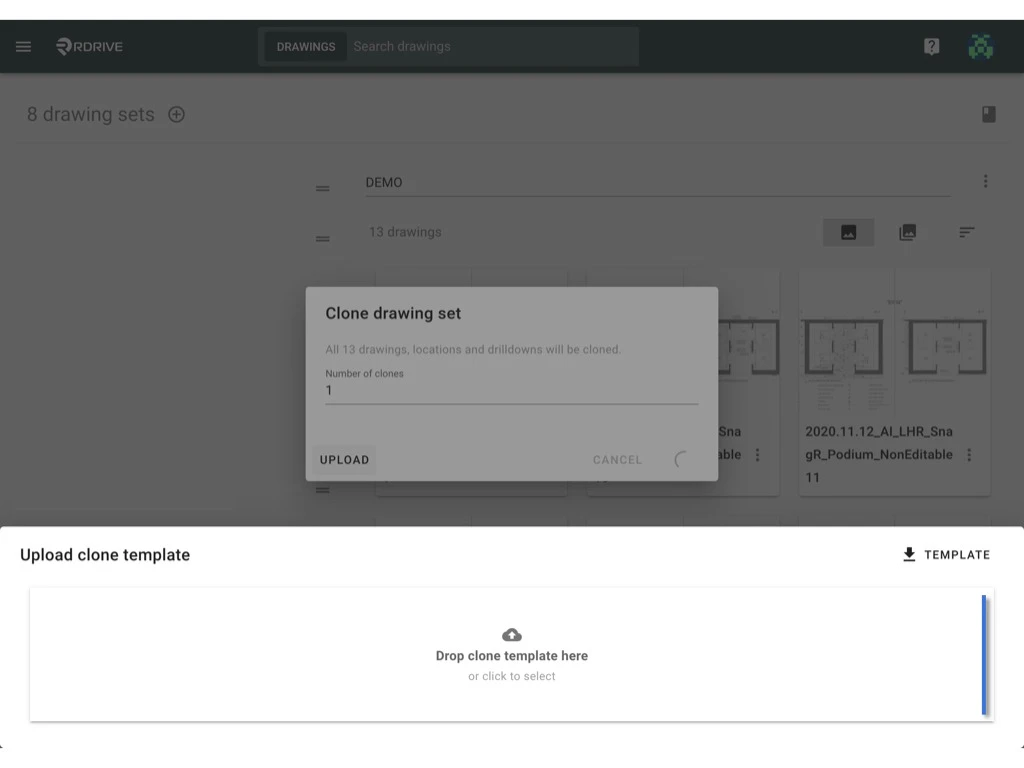
- Once the template is complete, upload the file.
- The system will clone the drawings based on the data you entered in the template.
Cloning a Single Drawing
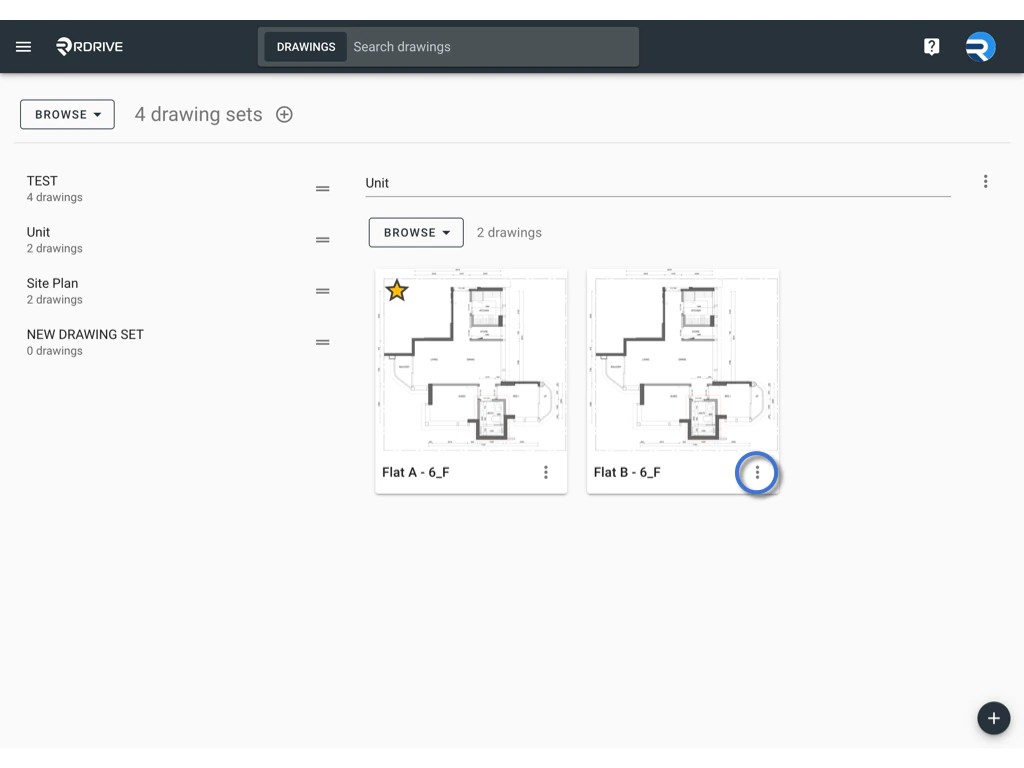
To clone a specific drawing within a set:- Locate the drawing you want to clone.
- Click the ⋮ button on the right side of the drawing title and select Clone.
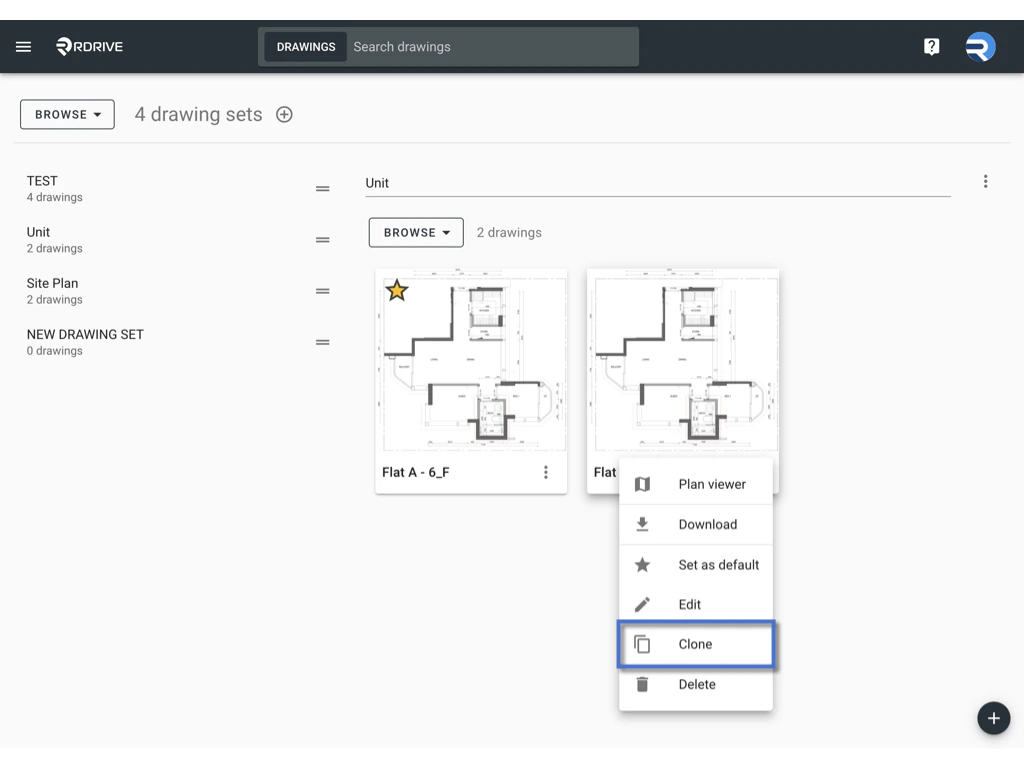
- In the dialog box, click the Add Clone button if you need to increase the number of clones. Choose the drawing set, edit the drawing title, and click OK to confirm.
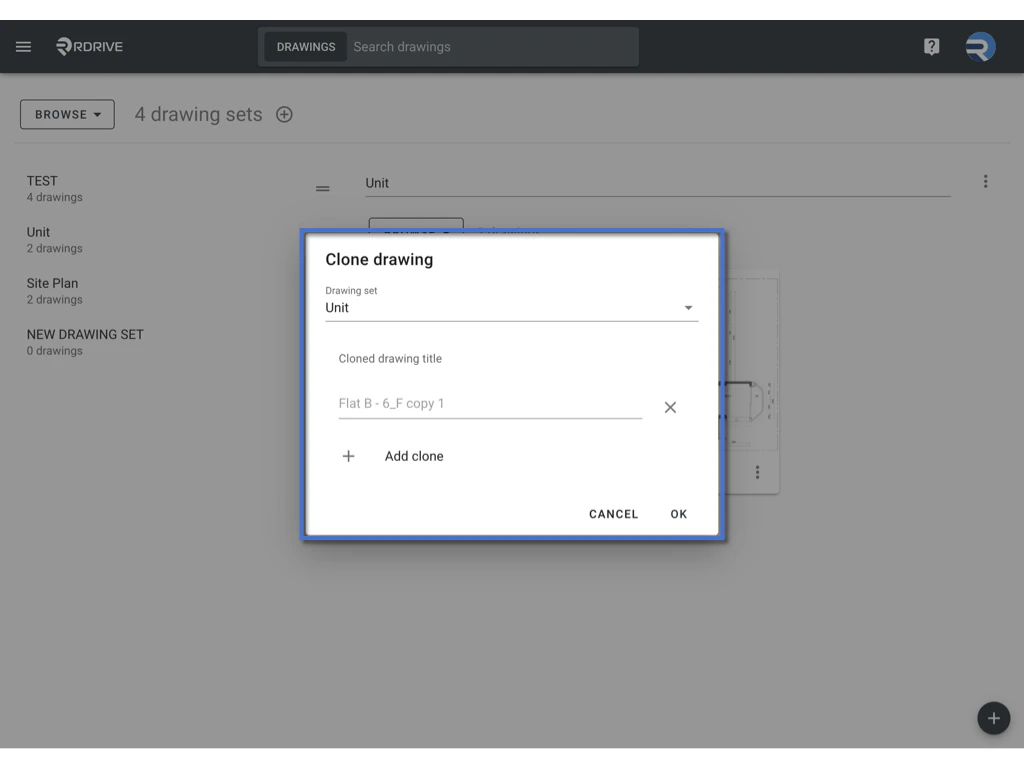
- The drawing will be cloned.
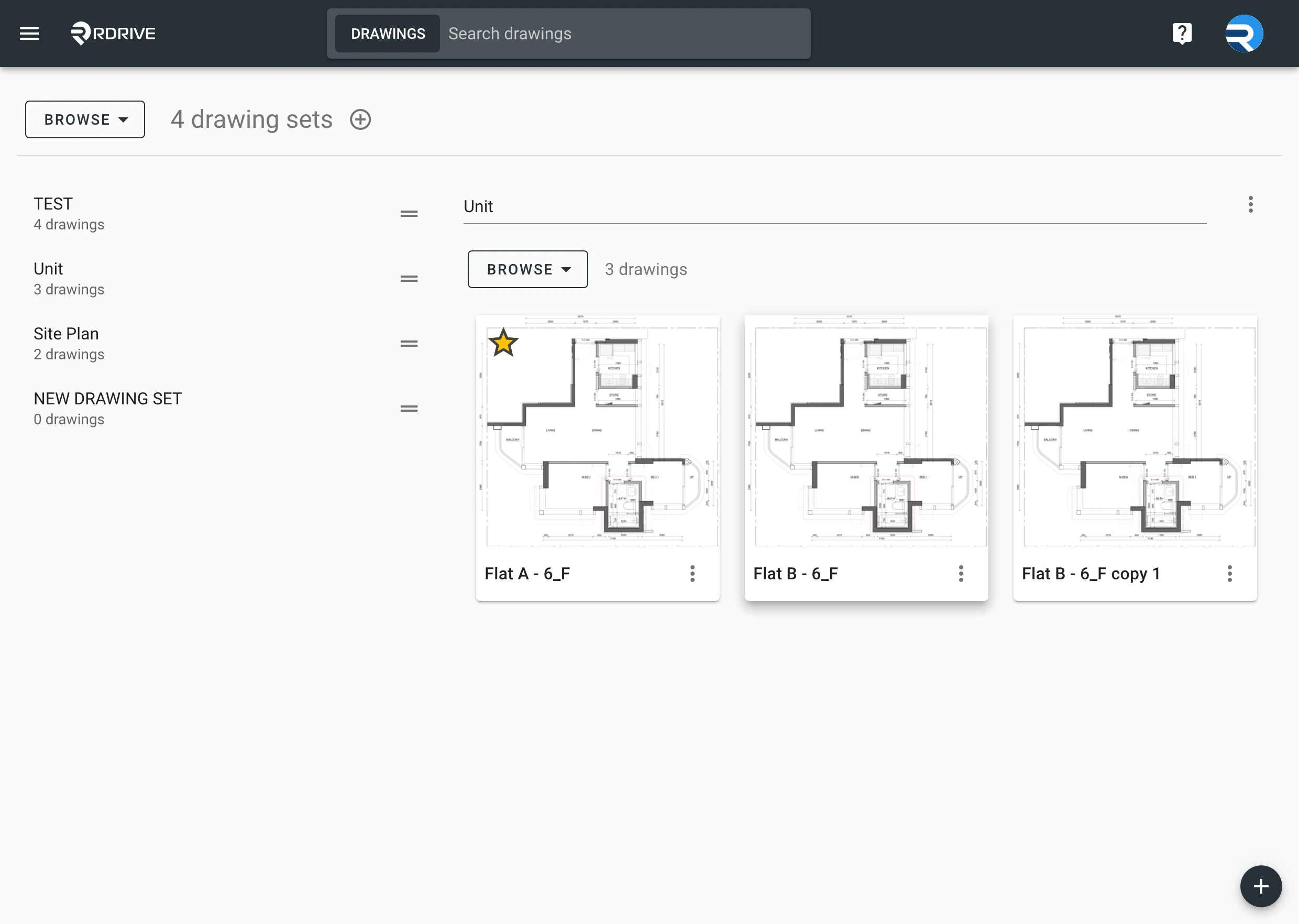
This process helps streamline the duplication of drawings or drawing sets, making it easier to manage and maintain consistency across projects.