
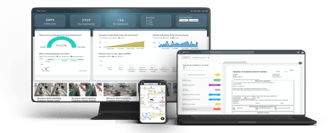

Overview
This guide explains how to update an existing Navigation Plan in RDrive. A Navigation Plan helps users easily navigate between drawings by setting up structured locations and drill-down links. Keeping it updated ensures smooth access and reflects any project changes.- Purpose: To guide users through updating the Navigation Plan, including updating locations, layers, and drill-down titles.
- Who It’s For: Project Admins with permission to manage Drawings.
Prerequisites: Access to the Plan Viewer, Settings > Drawings, and edit rights for Navigation Plans.
TABLE OF CONTENTS
Step-by-Step Instructions
✅ Step 1: Access the Navigation Plan
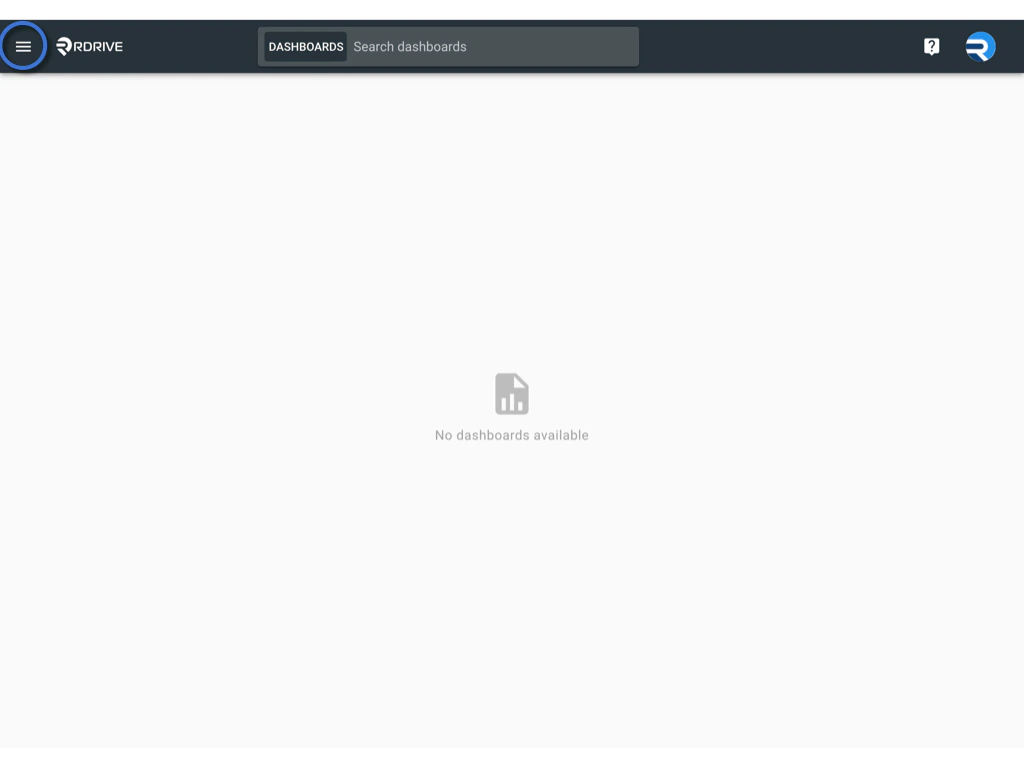
- Click the Menu icon (≡) at the top left of your screen to open the main menu.
- Navigate to Settings and select Drawings.
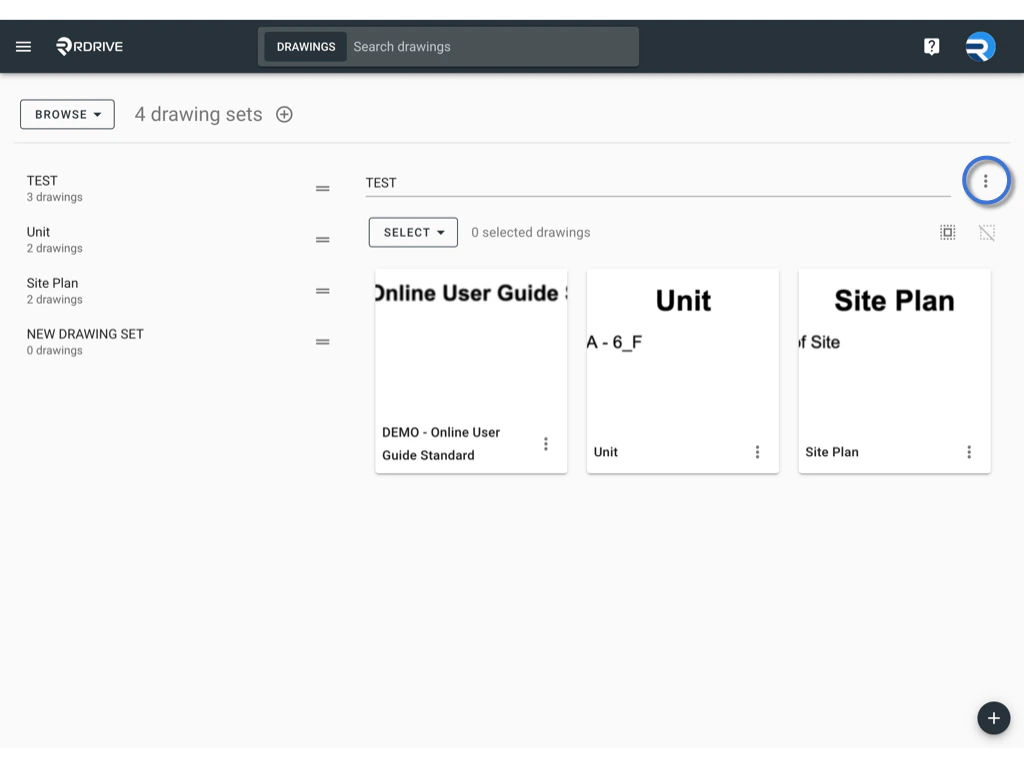
- Locate your Navigation Plan in the Drawing Sets list.
-
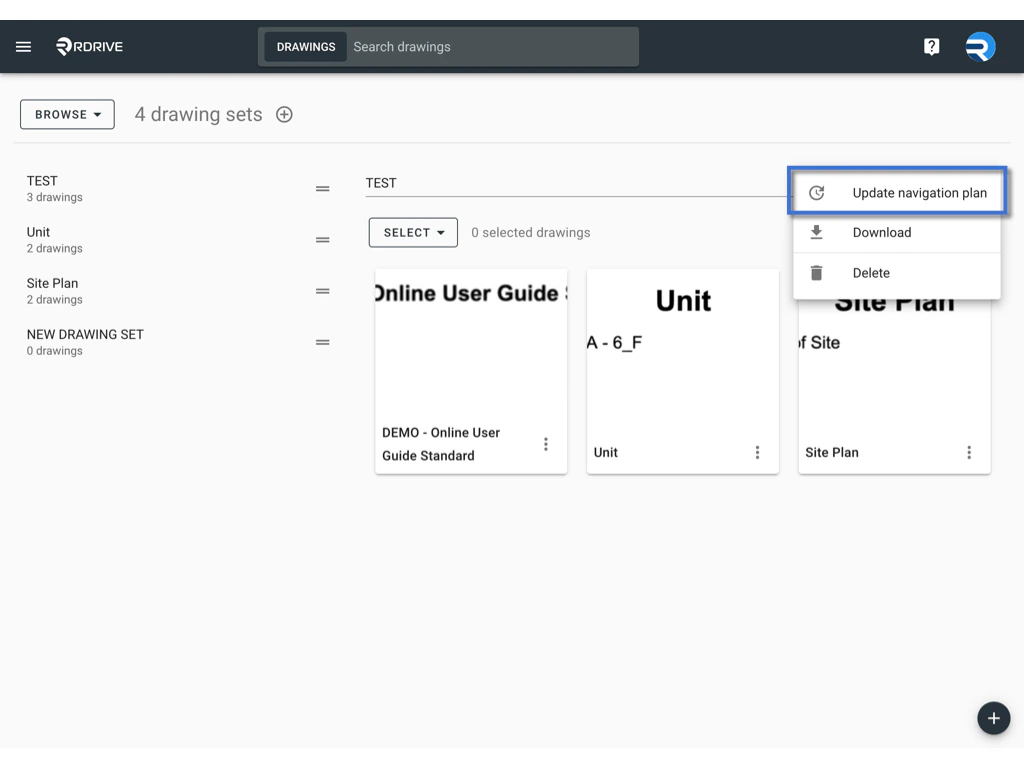
Click the ⋮ (three dots) next to it and select Update Navigation Plan to enter editing mode.
 \
\
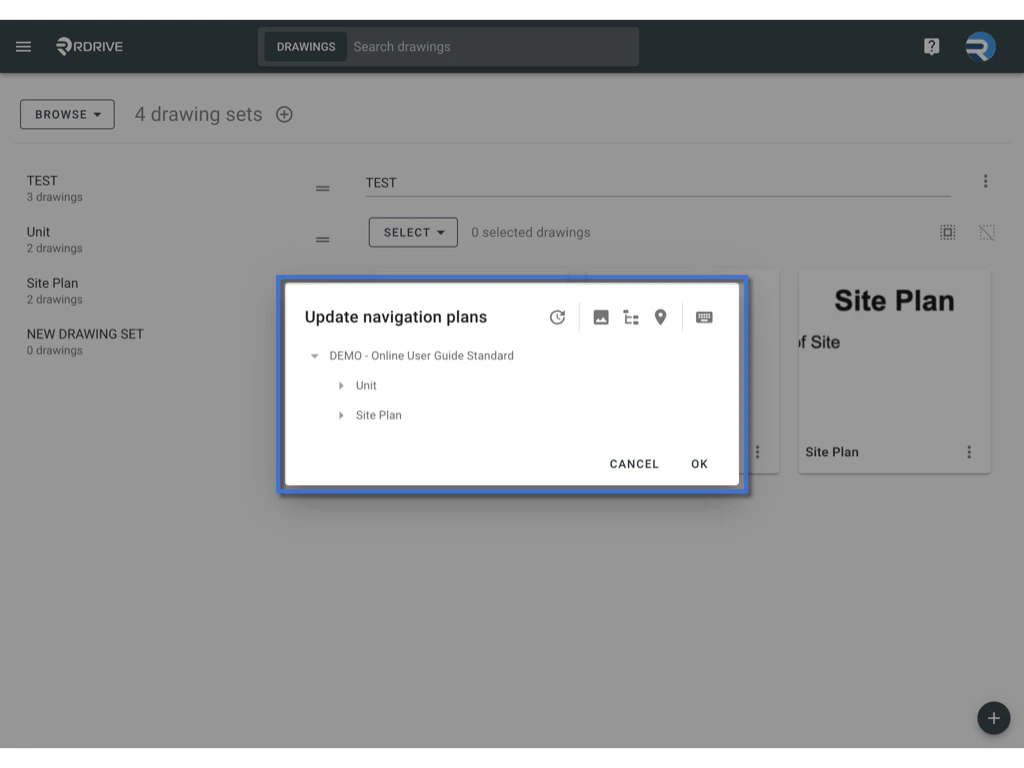
✅ Step 2: Update the Navigation Plan
Automatic Update:
- If you just need to refresh the Navigation Plan with any newly added Drawing Sets, click the UPDATE button.
-
The system will automatically update and generate a new version of the Navigation Plan.
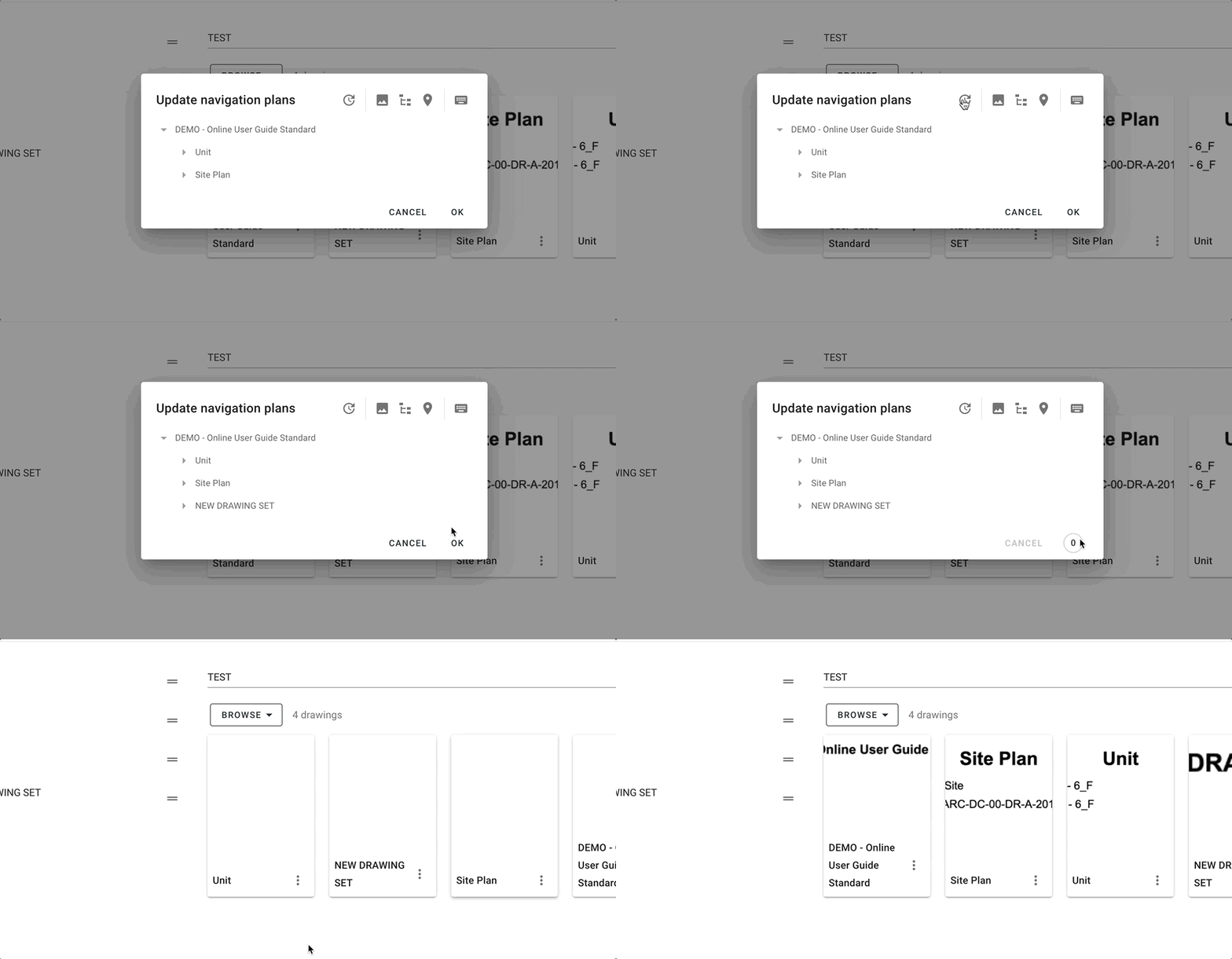
Edit Locations or Layers:
-
To update locations:
Double-click on a location pin in the plan, make the necessary edits, then click on a blank space to save.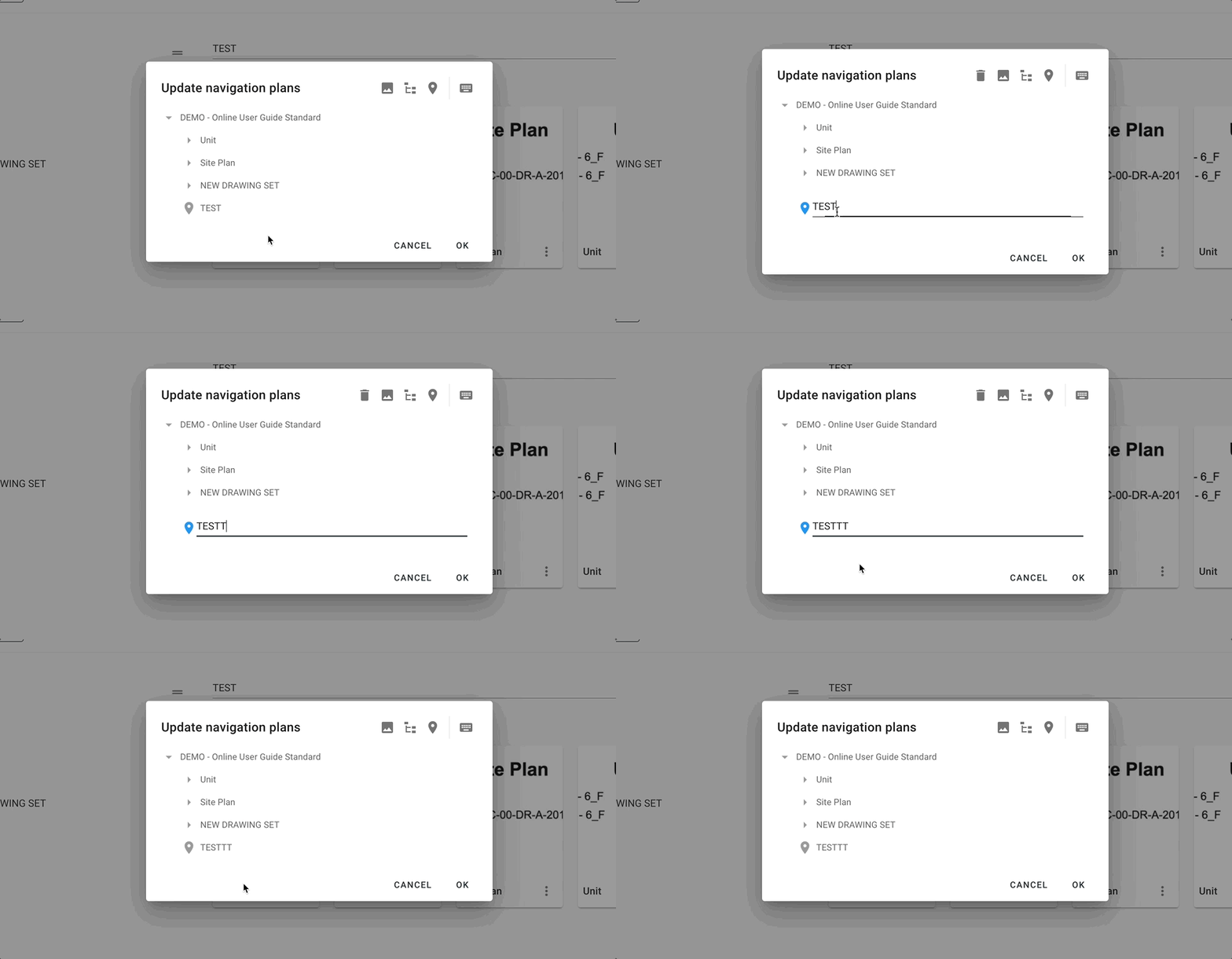
-
To update the drill-down title:
Double-click on the drill-down title text, edit it, then click any blank area to confirm.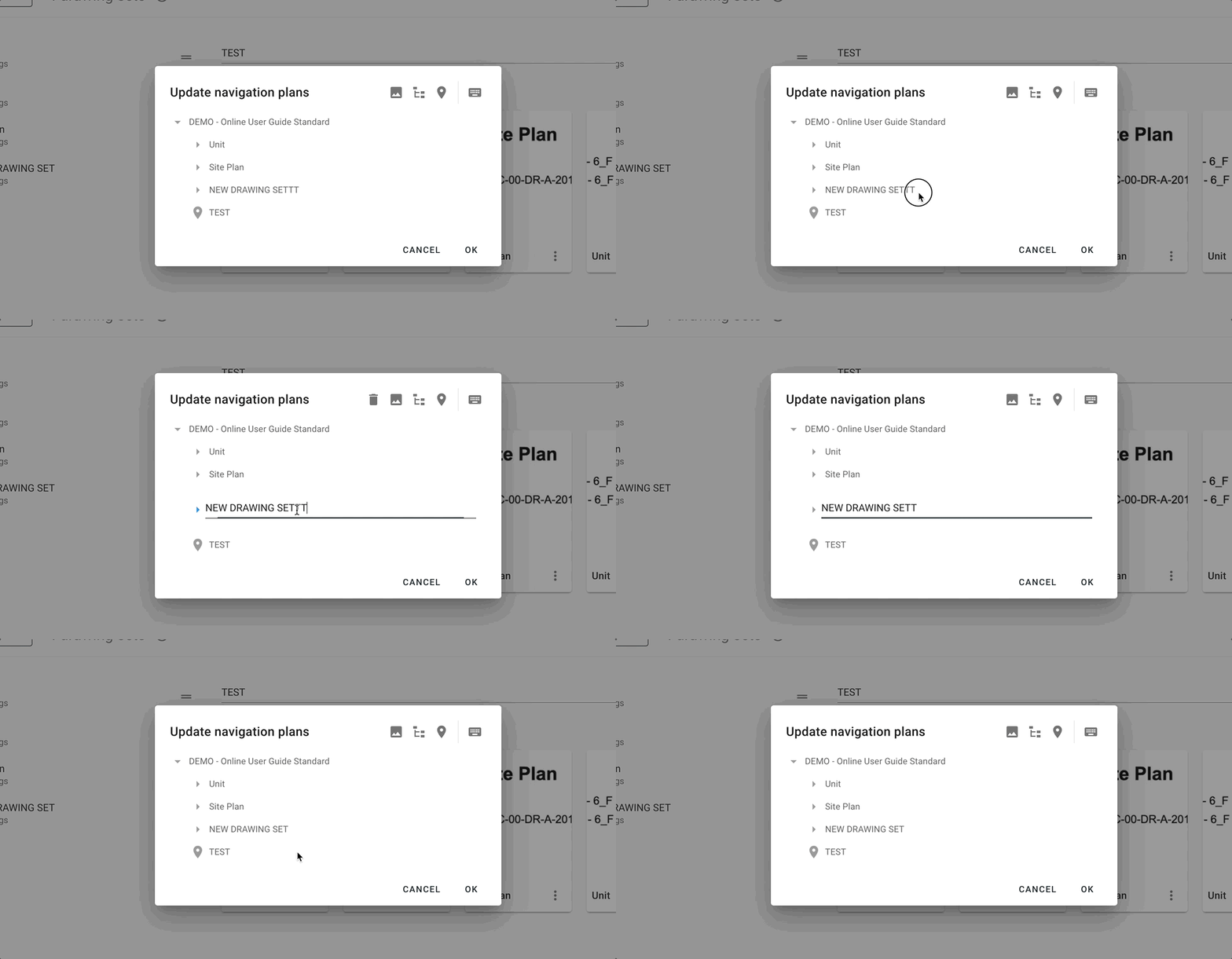
-
To update layers:
Long-press the layer title and drag it up or down to reorder layers.
Alternatively, click to add a new layer.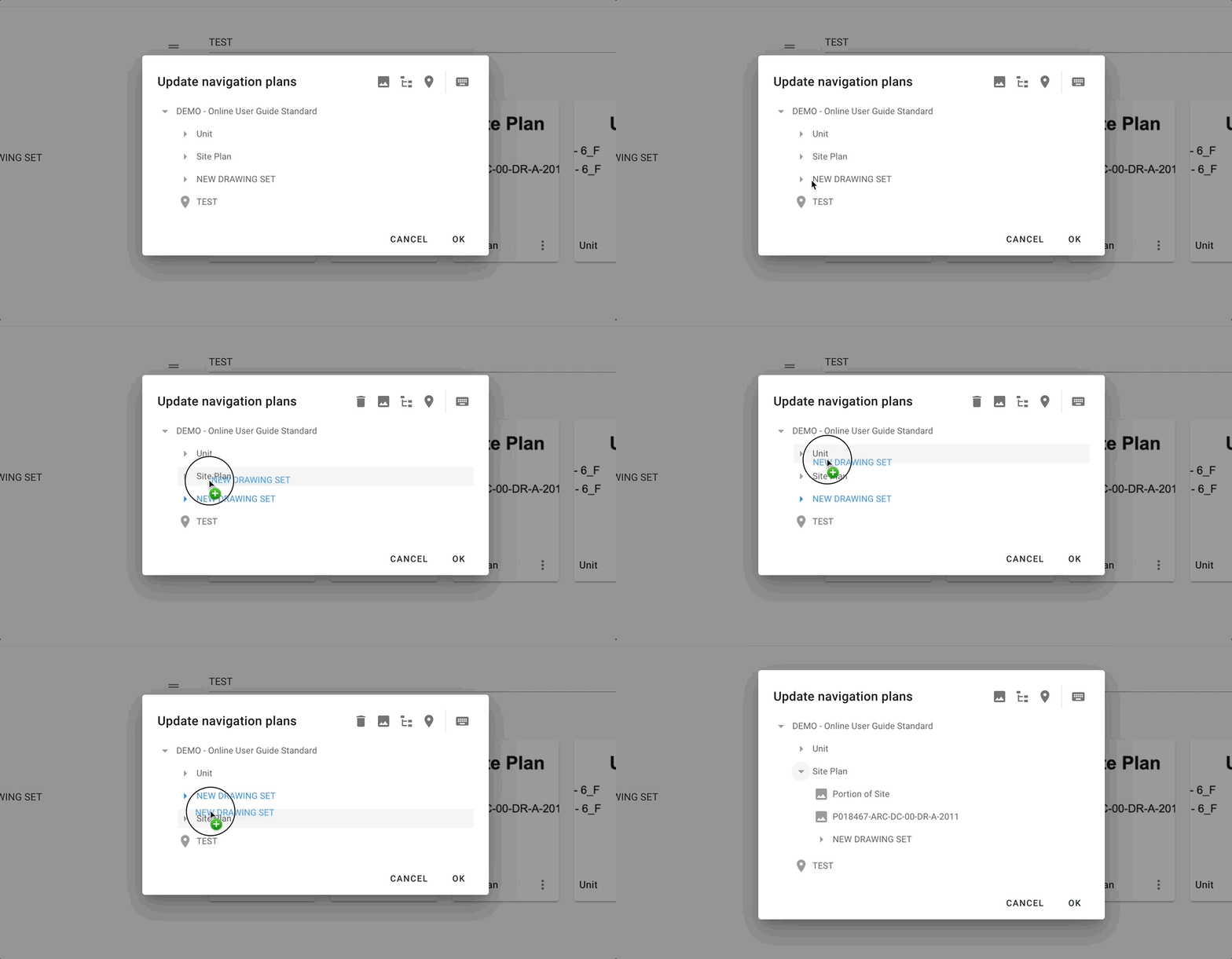
✅ Step 3: Remove a Navigation Plan or Location
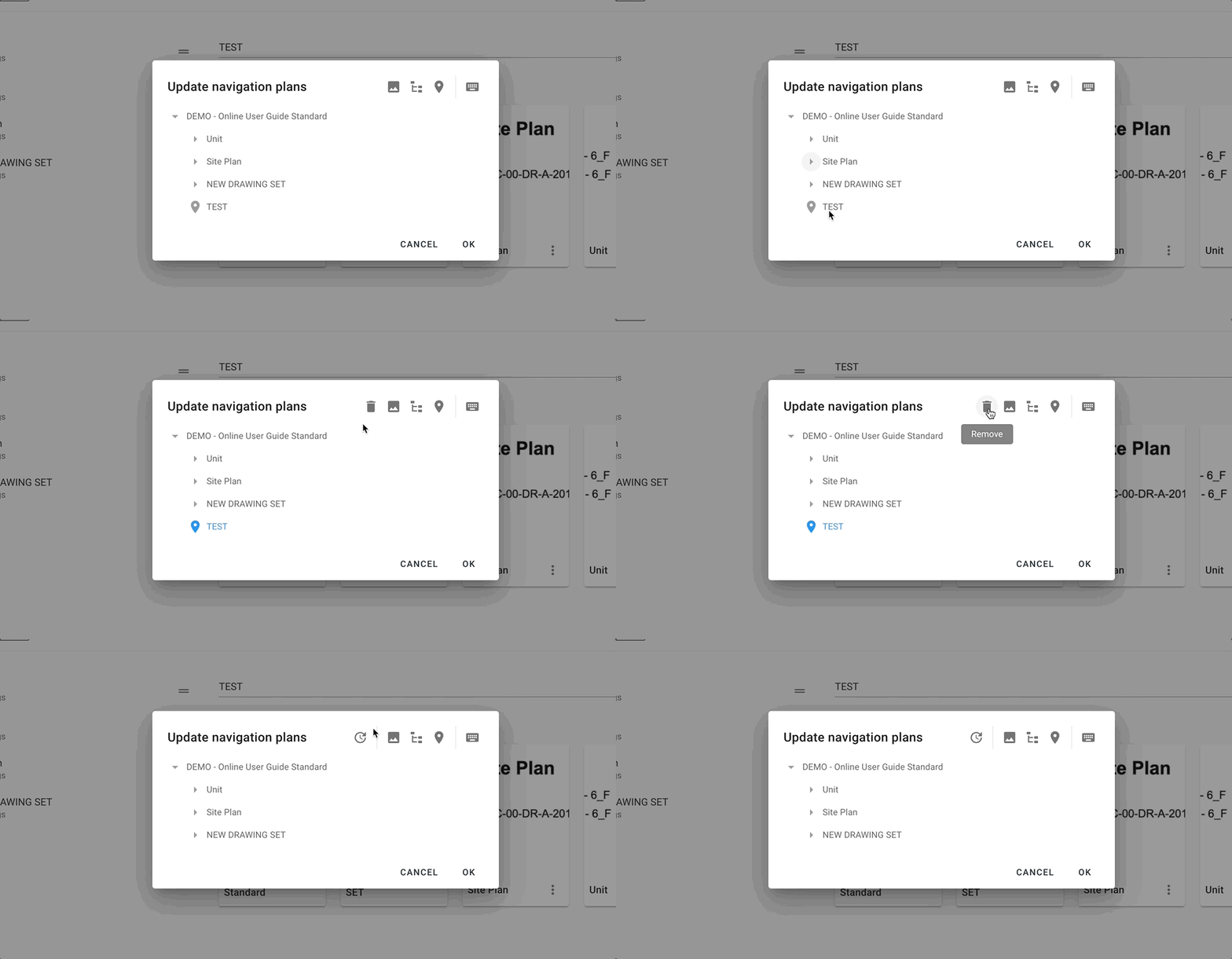
- Select the item you want to remove (highlighted in blue).
-
Click the Remove button to delete it from the Navigation Plan.
✅ Step 4: Review and Confirm Changes
- After making your edits, carefully review all changes.
- Click OK to save and confirm the updated Navigation Plan.
-
Your modifications will now reflect in the project navigation.
**
 **
**
Important Note
Updating the Navigation Plan will override all custom adjustments and reset it back to the default structure.Make sure to double-check before confirming updates.