
What is required to set up a user?
Display name and email address The email address of a user will be used for account login and notifications. If the email address is invalid the user will fail to receive email notifications from RDrive. ⭐️ It is handy to have a display name naming standard and the same initial password for all users, so that in a training session it is simple for everyone to pick up their account credentials. For example, the display name will always be the first part of the email address, i.e., peterbenett@snagr.com.au will have display name Peterbenett, and the initial password will always be 123456. Jump to How to send the invitation email to user(s)?How to add a user? When everything is ready, click the ≡ menu icon on the top left corner to unfold the Menu, get entry to the Settings > Users page.
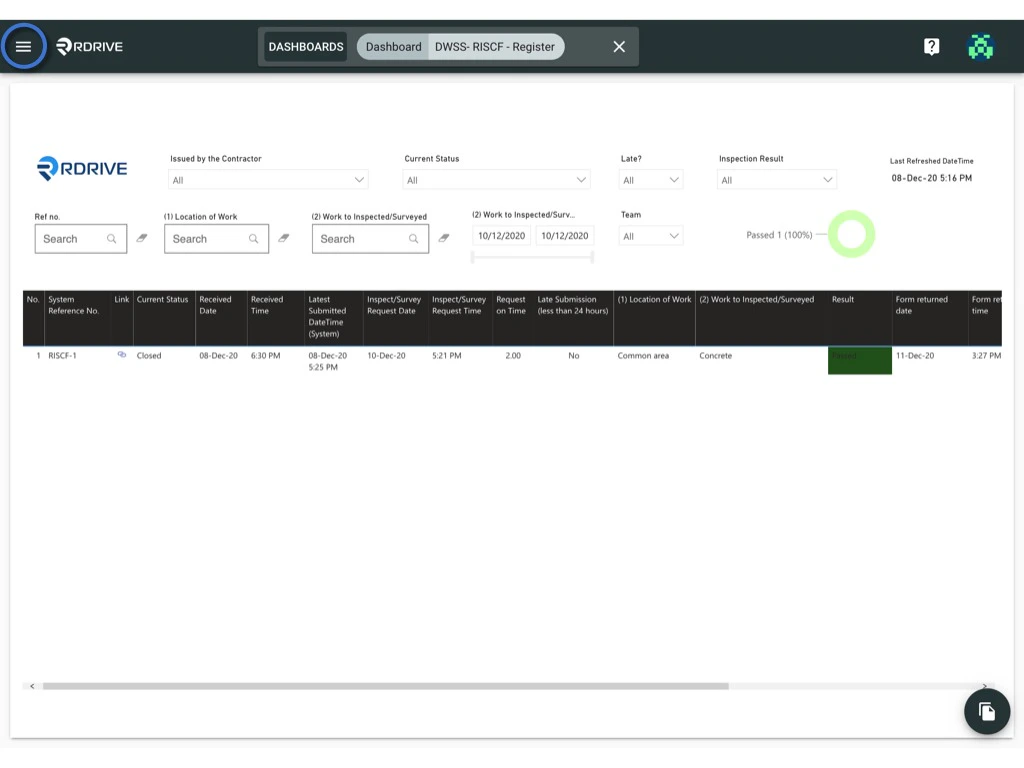
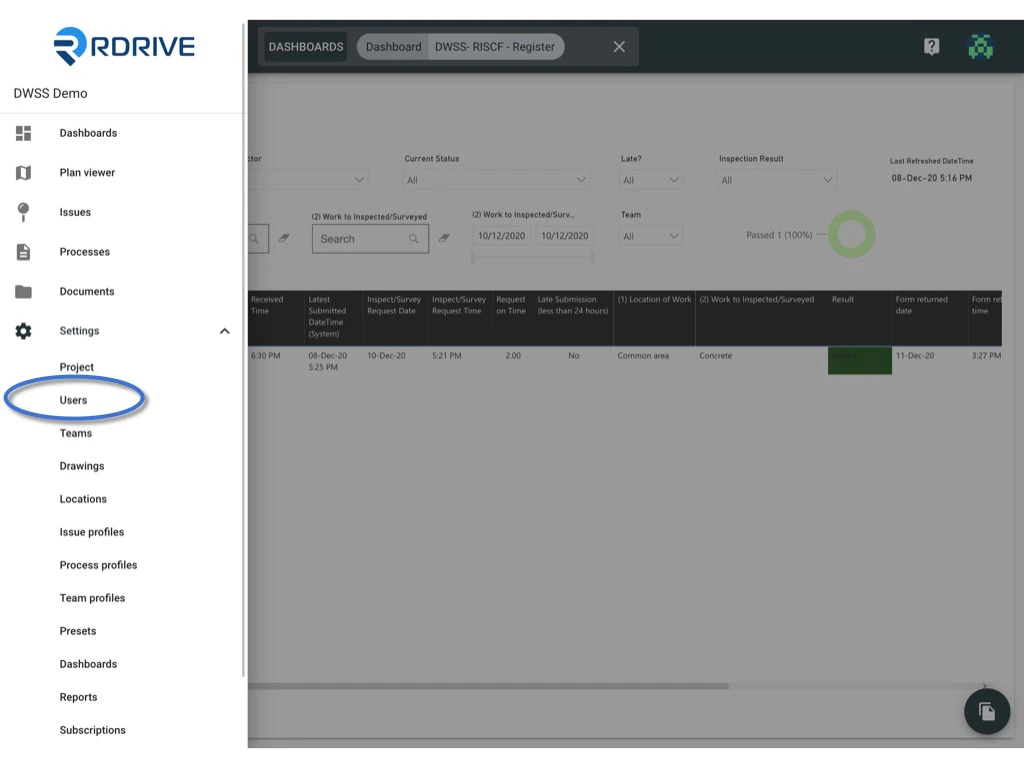
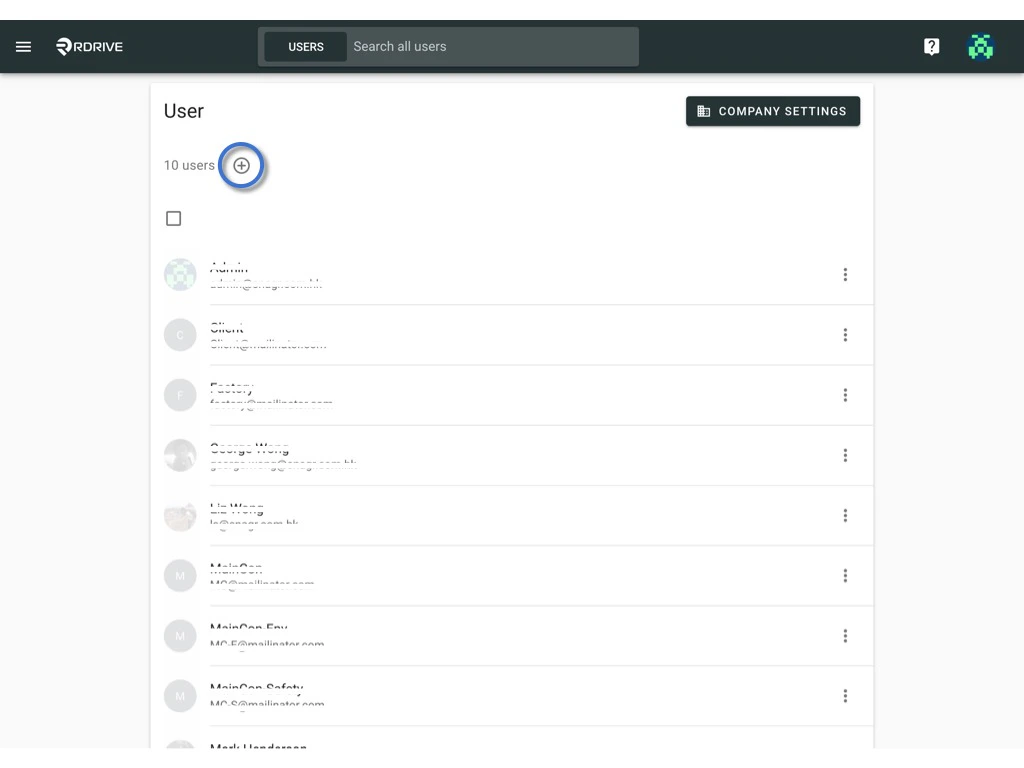
1️⃣ Adding users manually
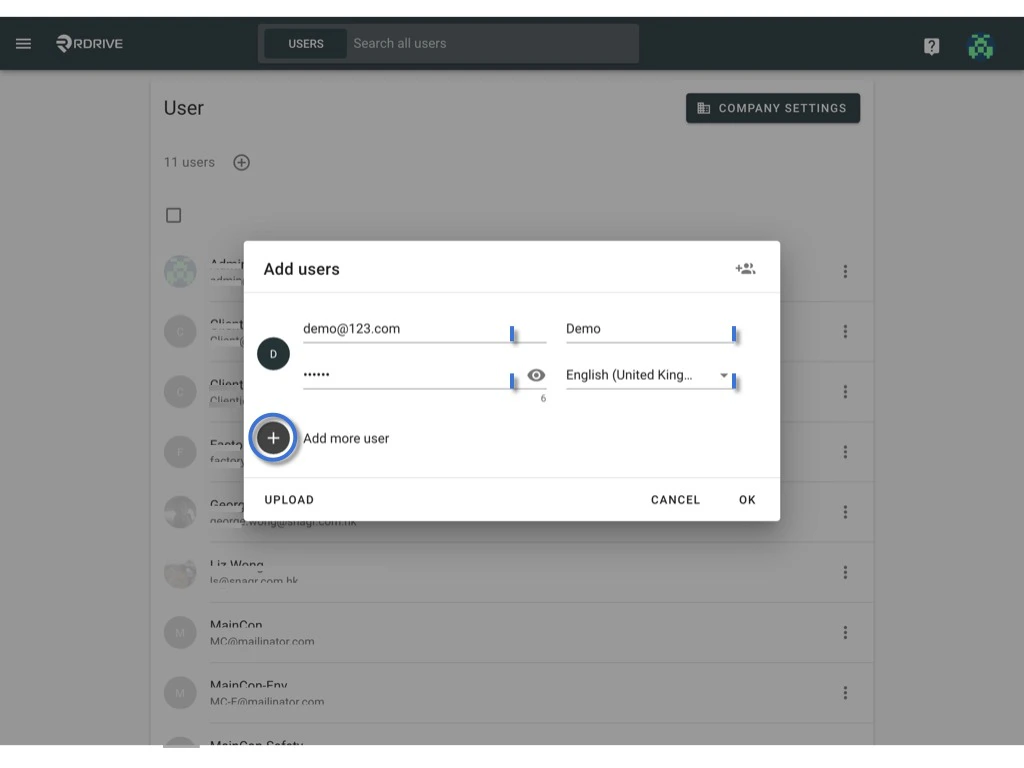
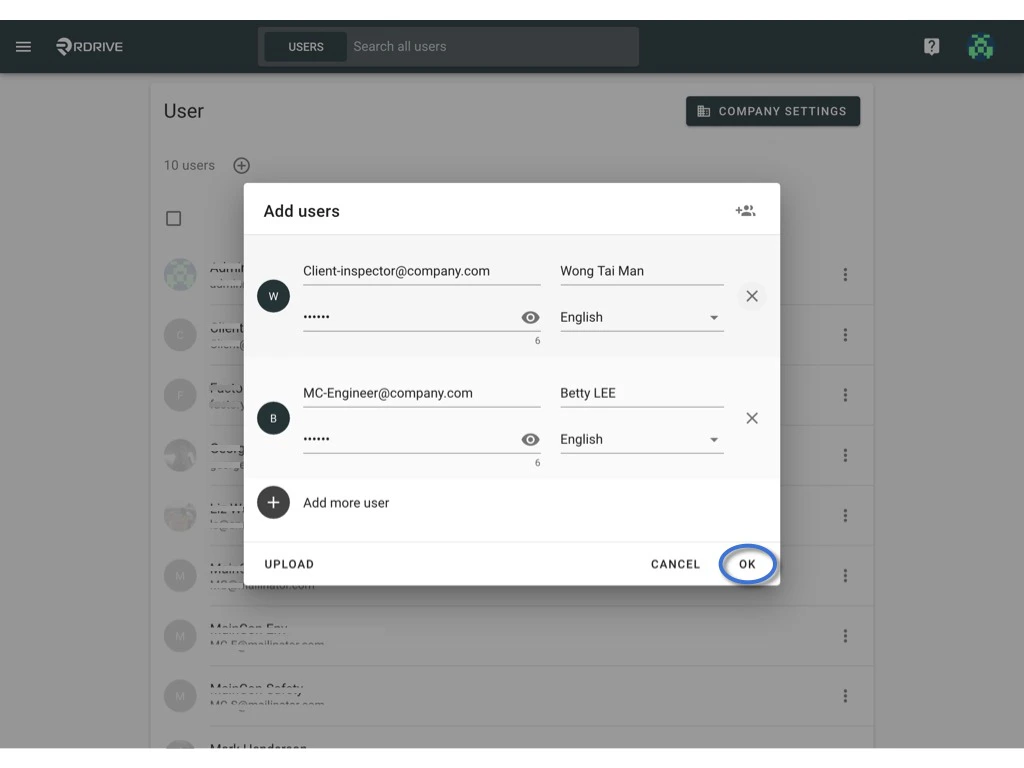
Enter the Email address, Display name, Password and Language of the new add user.You may click the + button to add more user if needed.
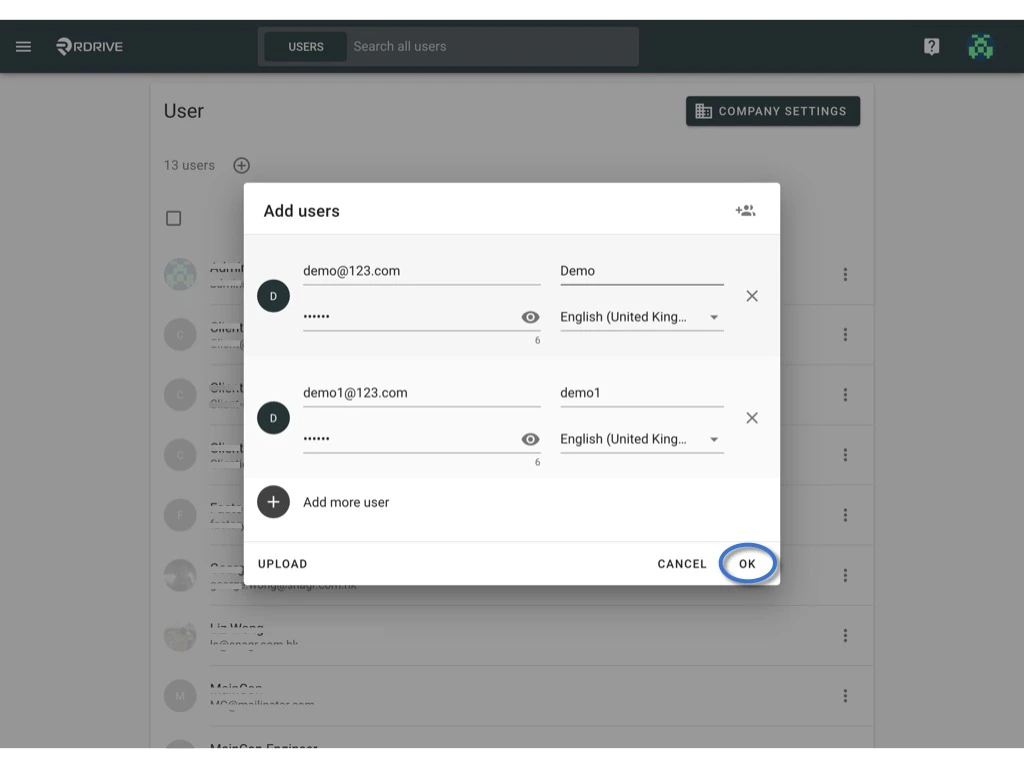
2️⃣ Add company user(s) to project
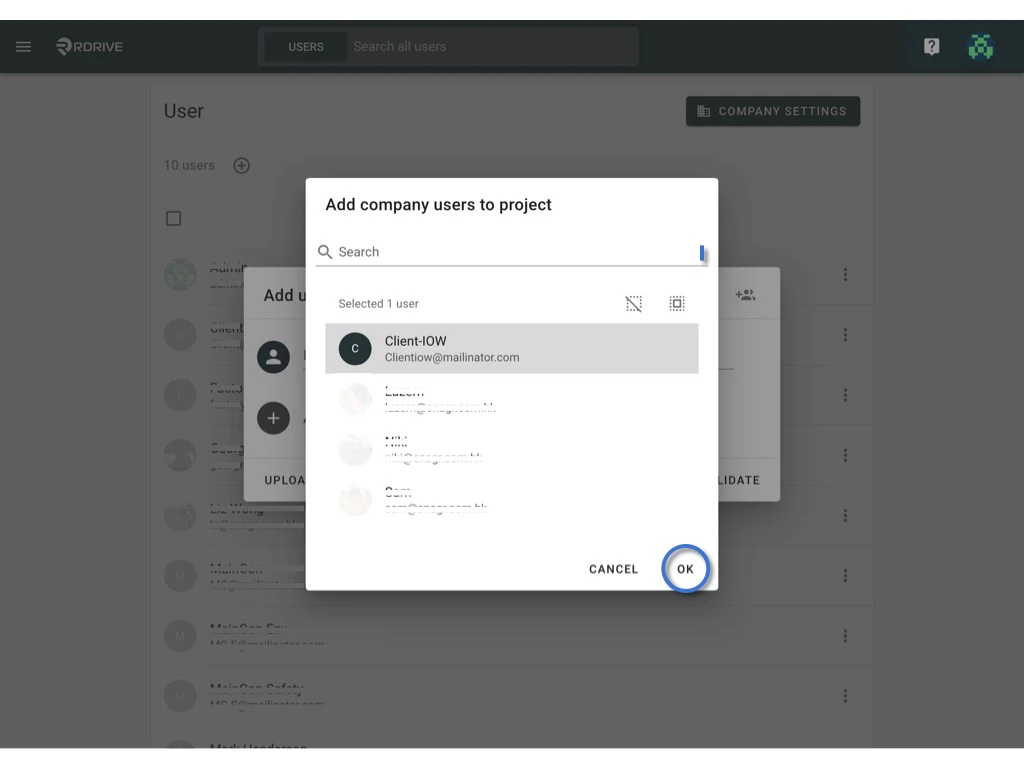
If you want to add user(s) which already exist on other projects, you can select and add from the company level. Click the button on the top right corner of the dialogue to add user(s) from the company, a list of existing users in the same company always appears.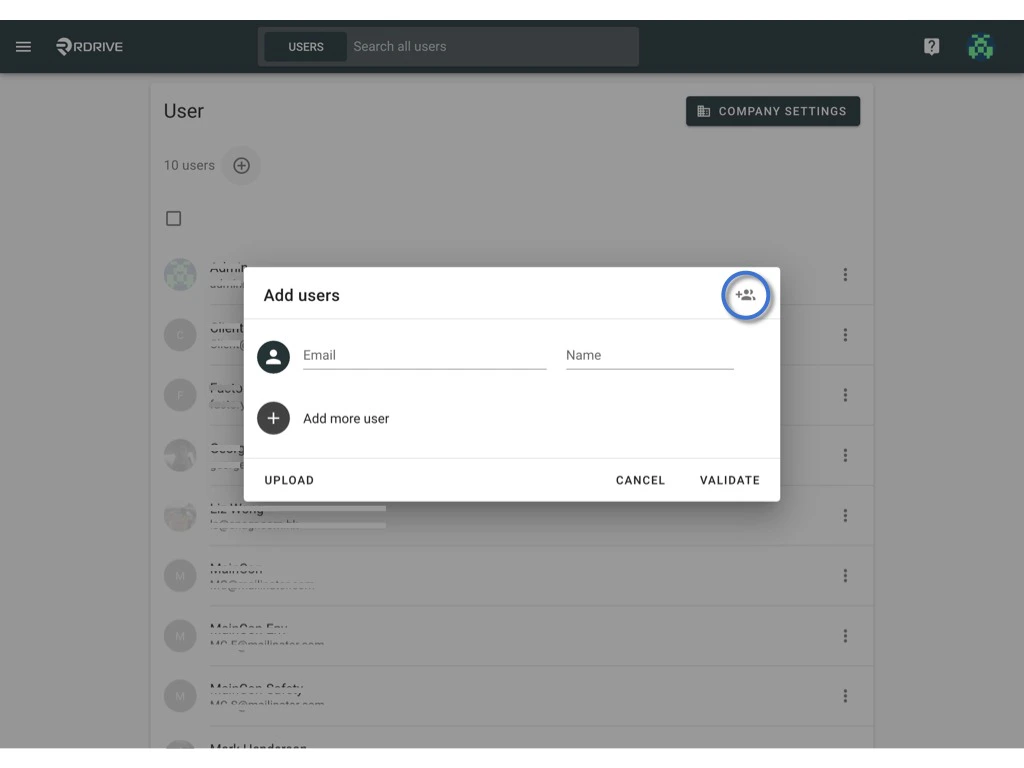
Click to select, the selected user will be highlighted in grey.
Or you can click the button above the list to select all / deselect all. OK the confirm add.
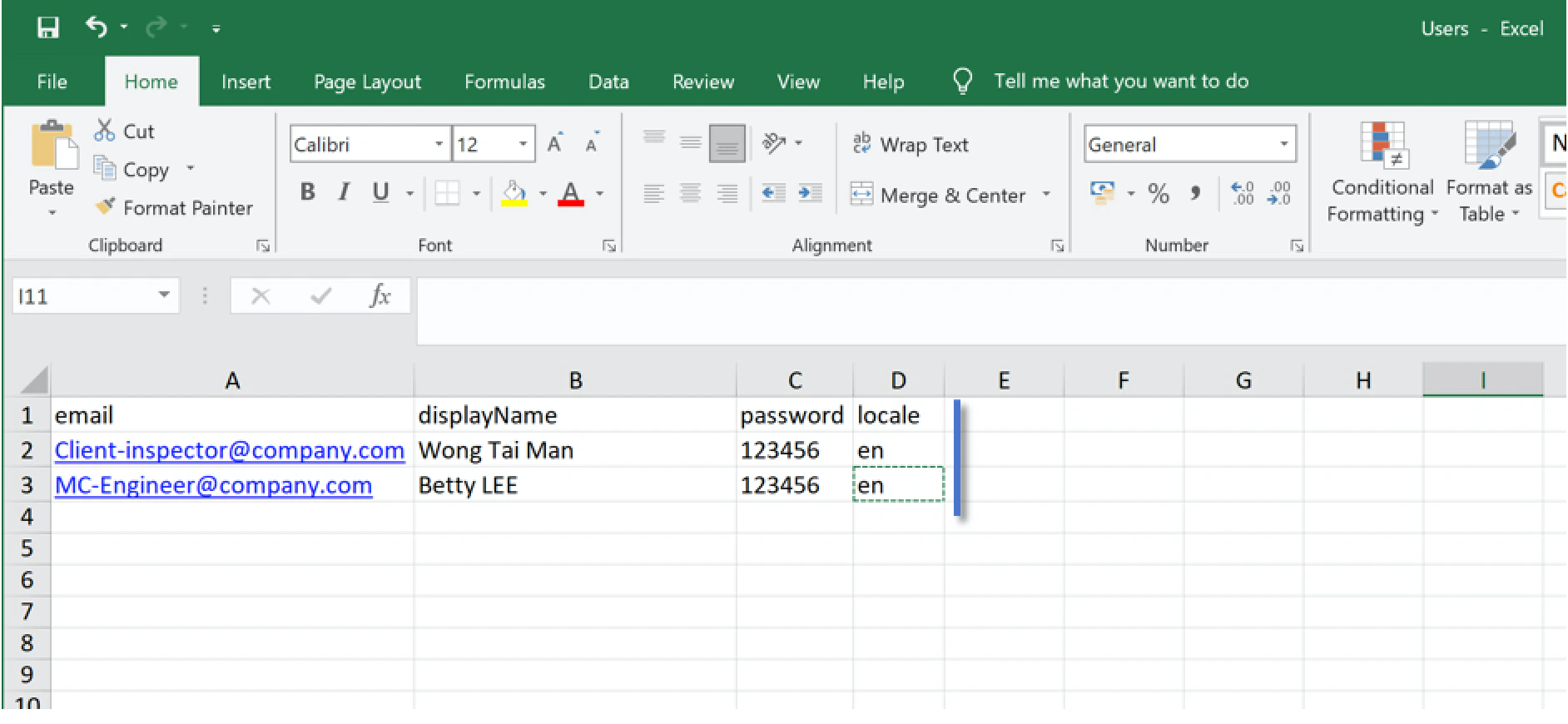
3️⃣ by an Excel import.
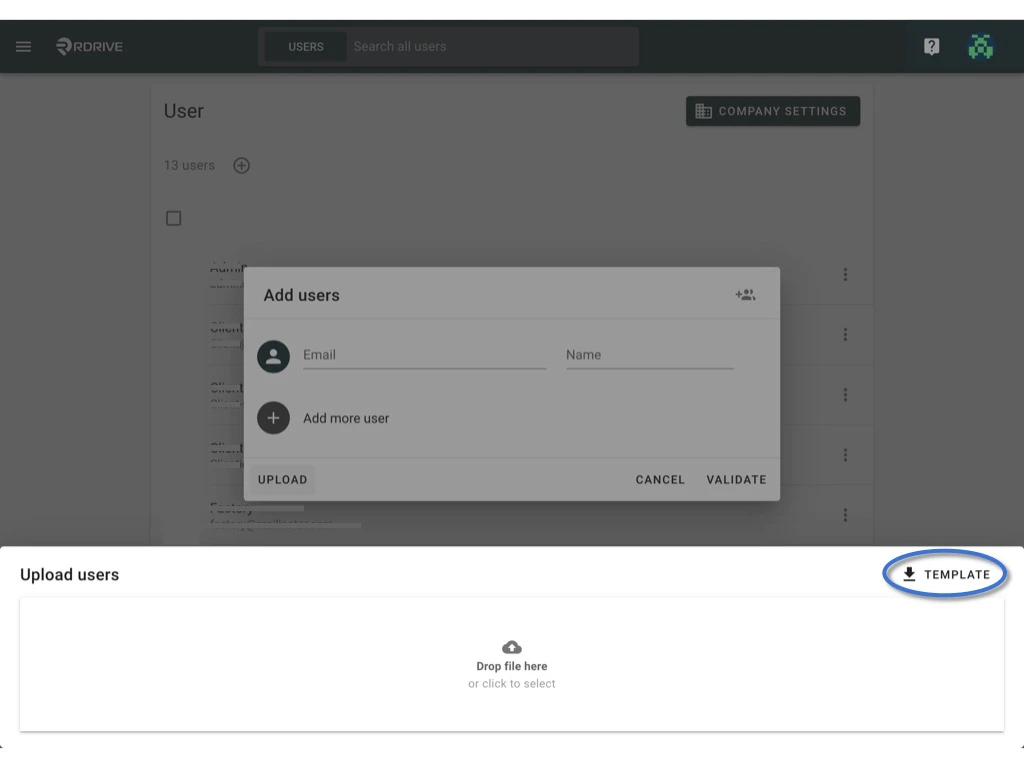
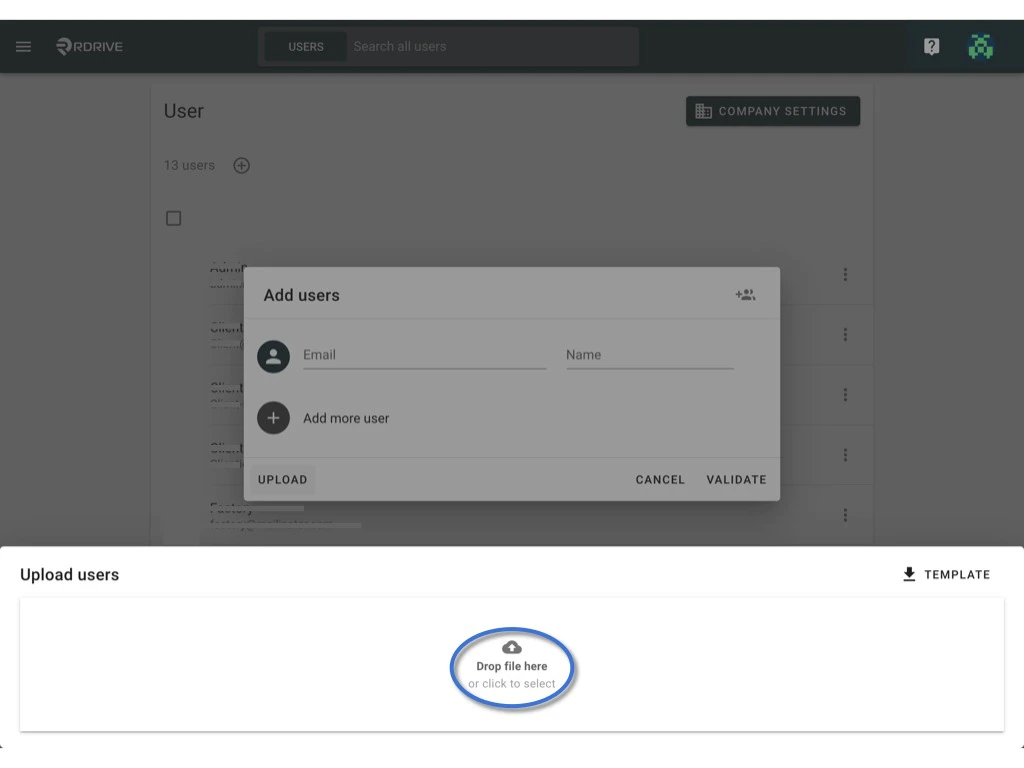
Wants to be quicker? Import multiple users with Excel. Click the Upload button on the bottom of the dialogue.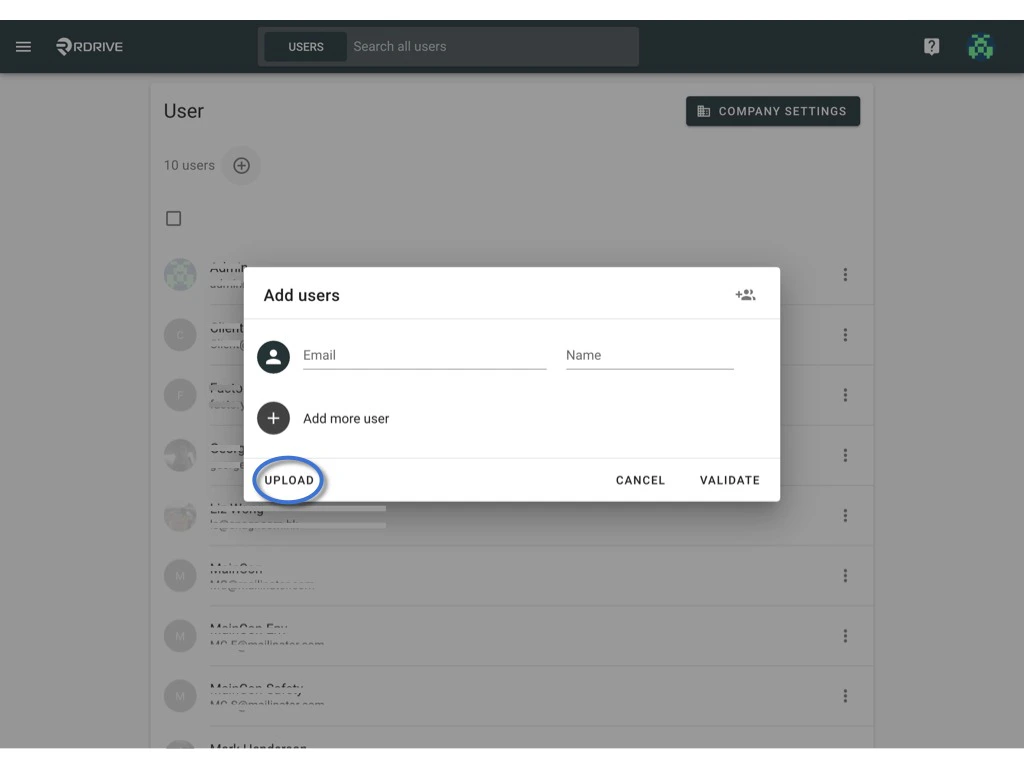
**
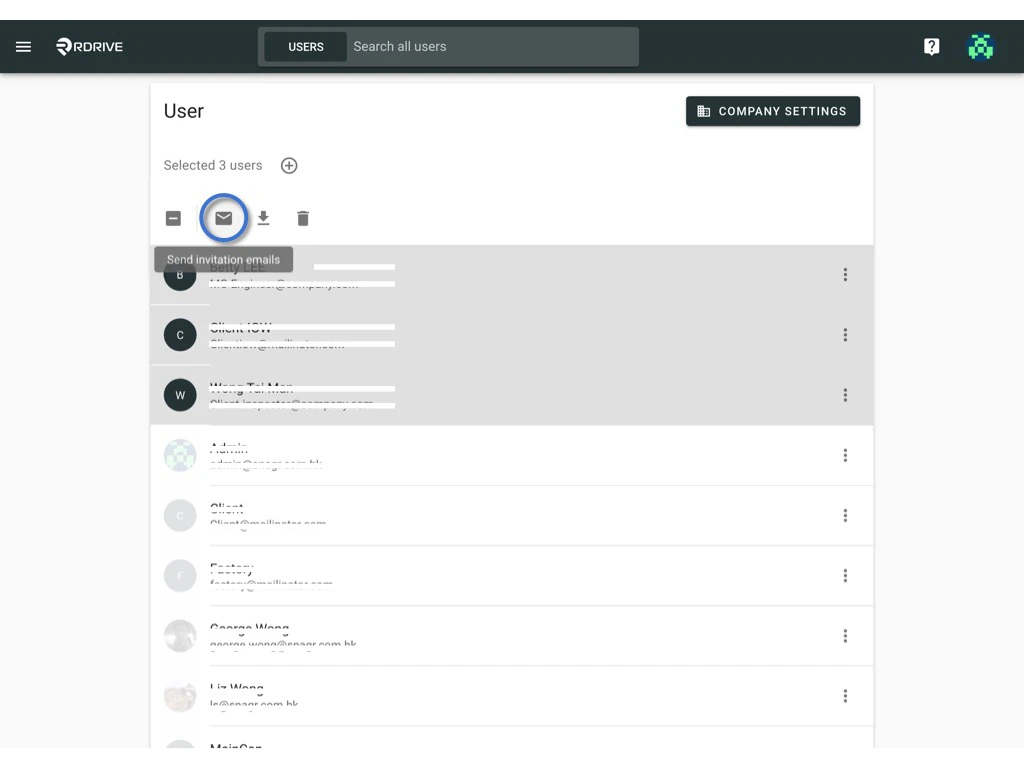
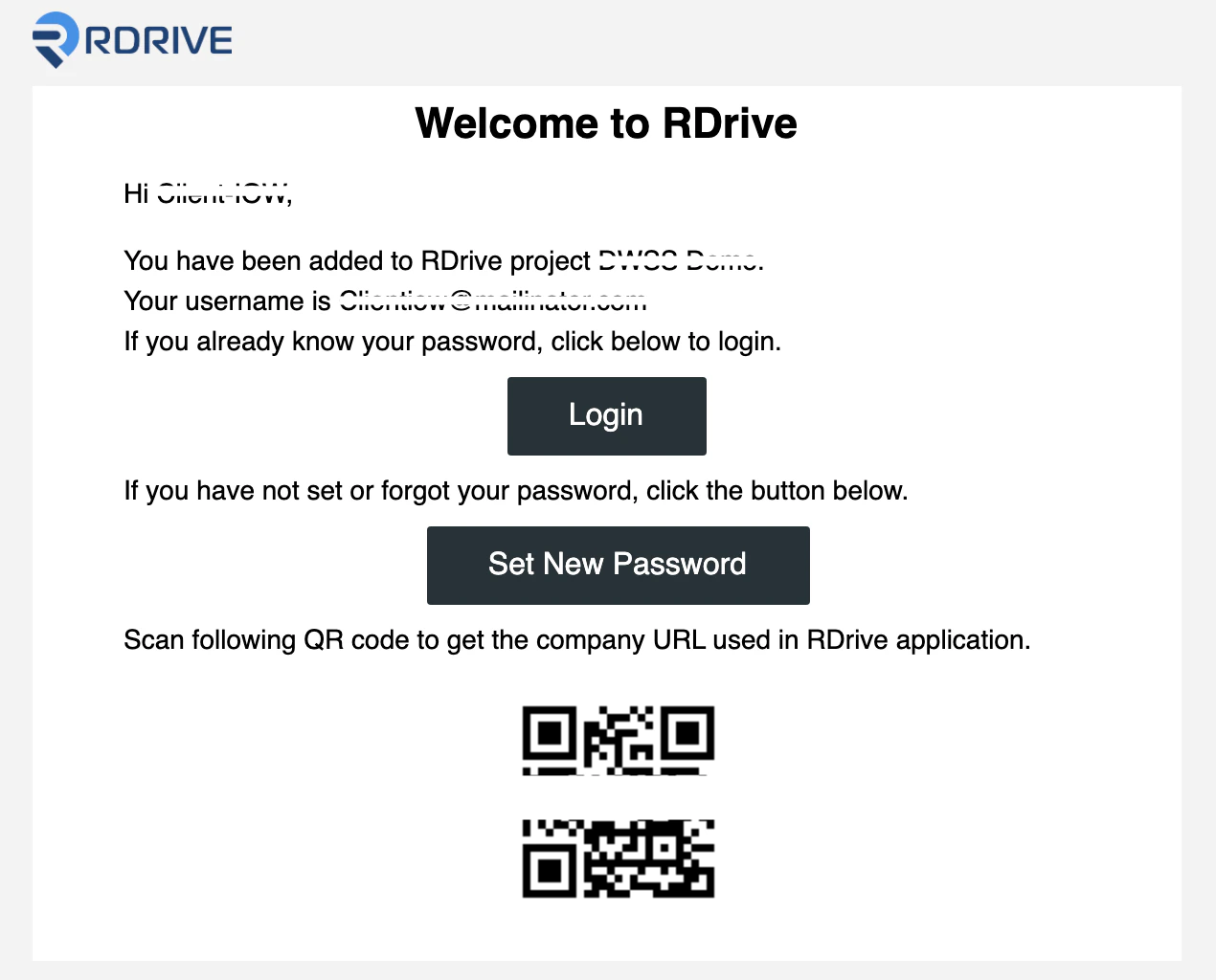
✨ After adding user(s) to the project, you may need to send an invitation emails to inform the user(s)
⭐️ Permissions settings
Added user to the project only allows the user to log in, you have to add the user to the team for assigning a role with permission.It is important to revisit your current issue rectification workflow, layout the parties that are involved and their team, role, and responsibilities. Learn more about how to add user(s) to the team.