Adding a user to the team is related to the permission settings. Permission settings are an important topic because not only does it ensure data security but it also defines a clear process for your team, which is a critical success factor in rolling out any systems and RDrive is no exception. When everyone knows who needs to do what at when, people adapt to new systems easier. TABLE OF CONTENTS
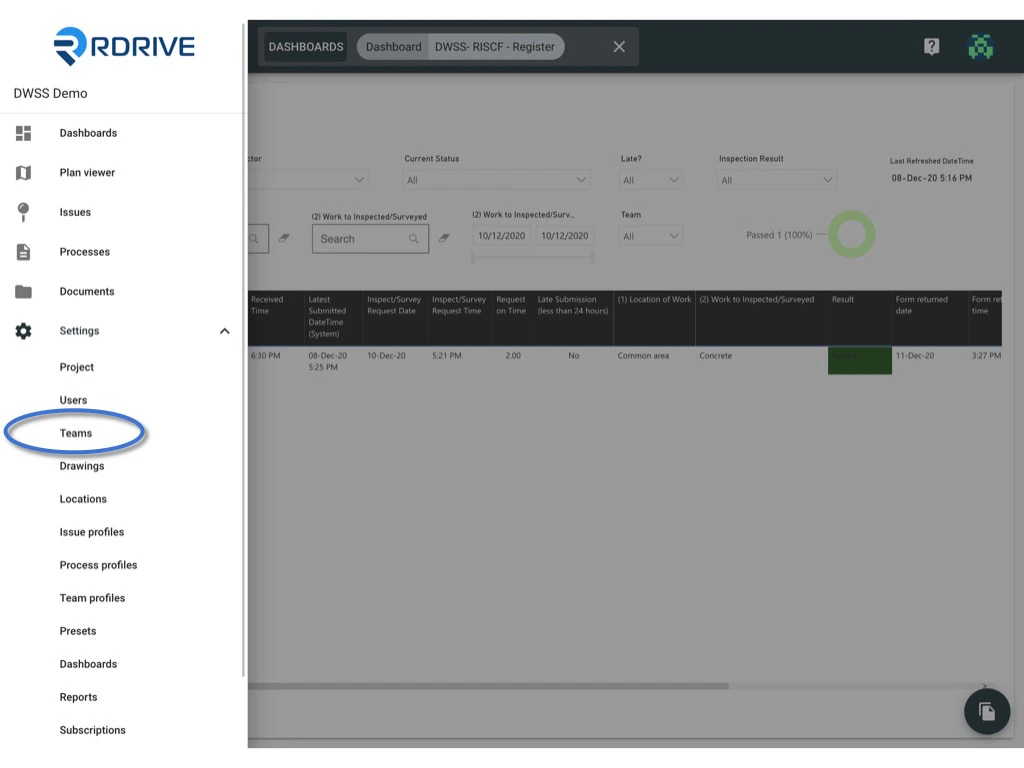
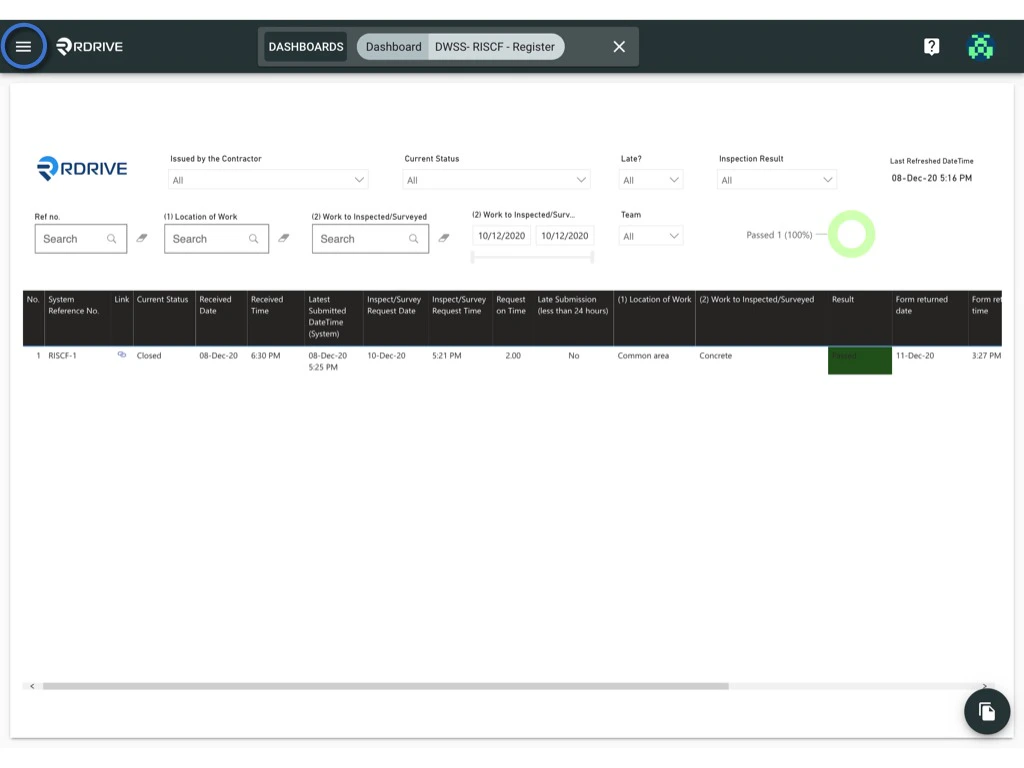
Click the  menu icon on the top left corner to unfold the Menu, get entry to the Setting > Teams page. How to manage the team member(s)? How to manage the team member(s)?
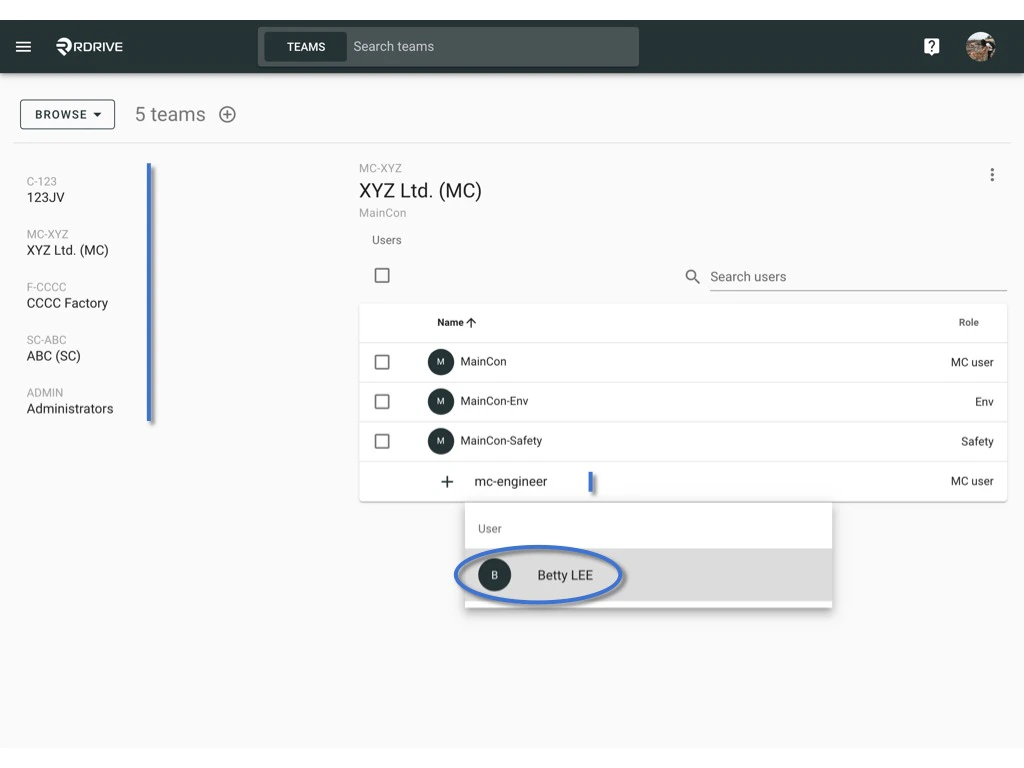
ADD USER ➕

Select the team you need to add user to.
You may search by the display name or email address and add from the bottom of the team member listed below.
How to manage the team member(s)?

ASSIGN/EDIT ROLE

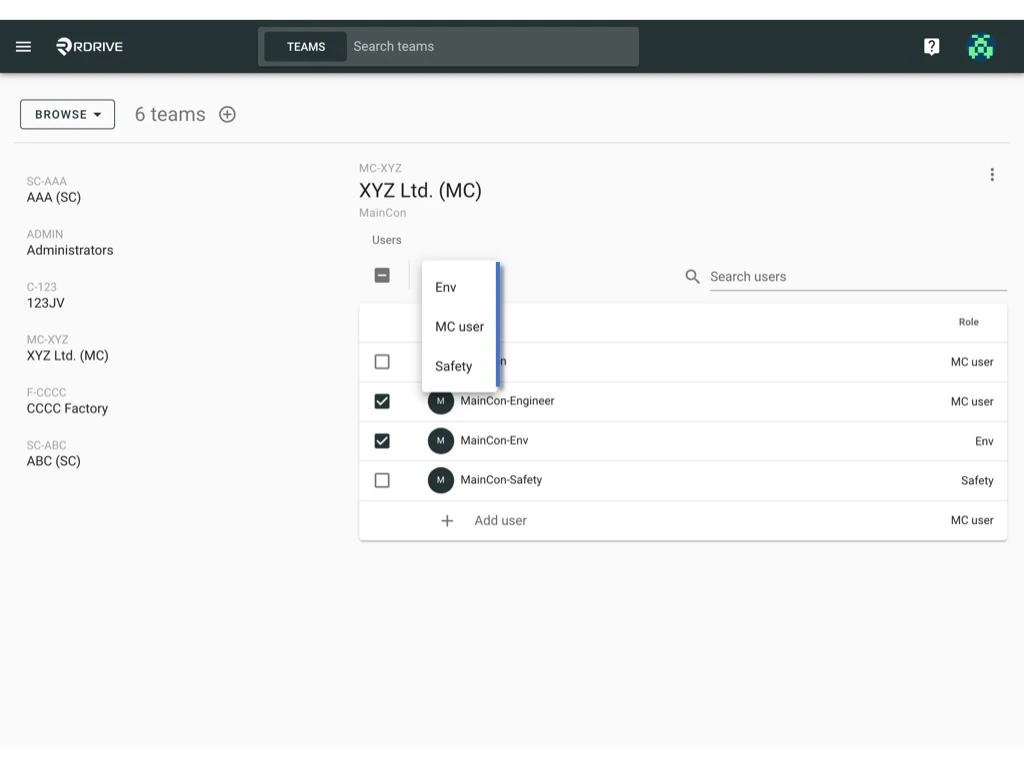
Remember to assign the correct role for the team member ? How to manage the team member(s)? How to manage the team member(s)? Batch assign role by Checked the box on the left-hand side of the user name to select users.
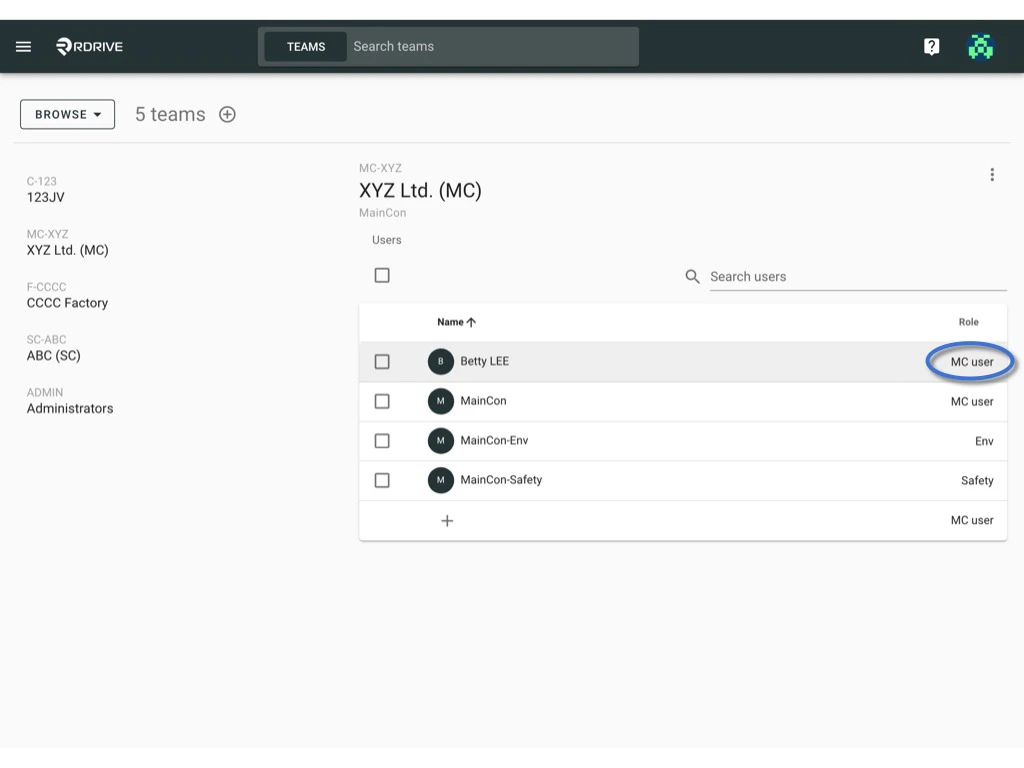
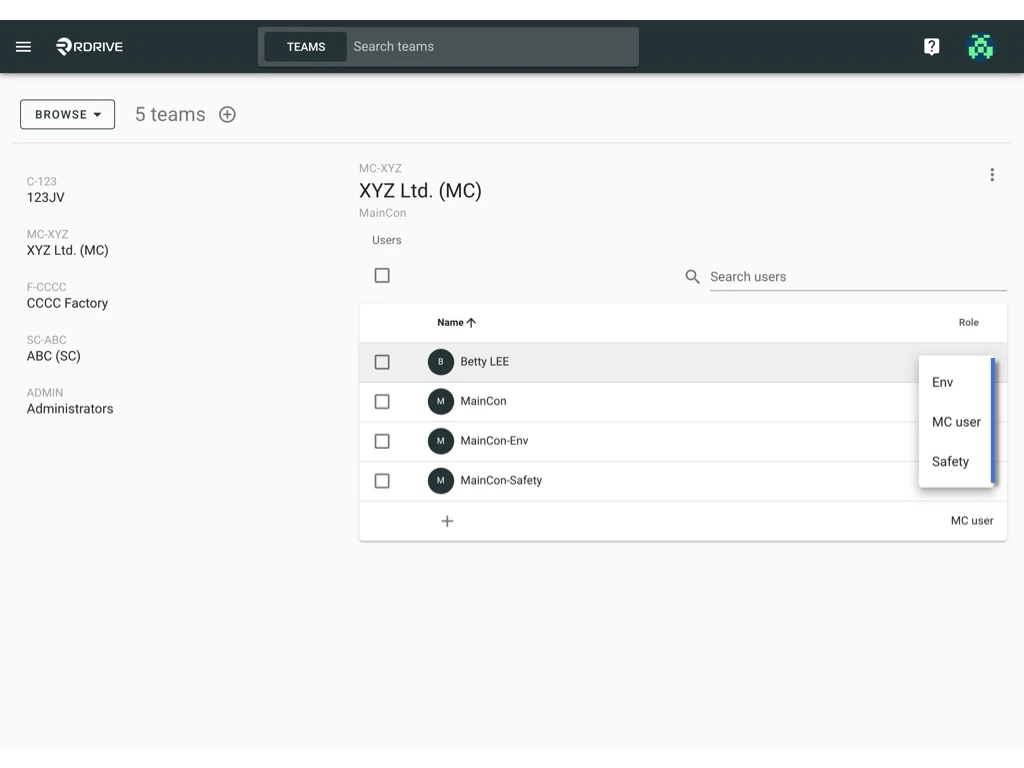
And click on the role button to assign the correct role for the team members.
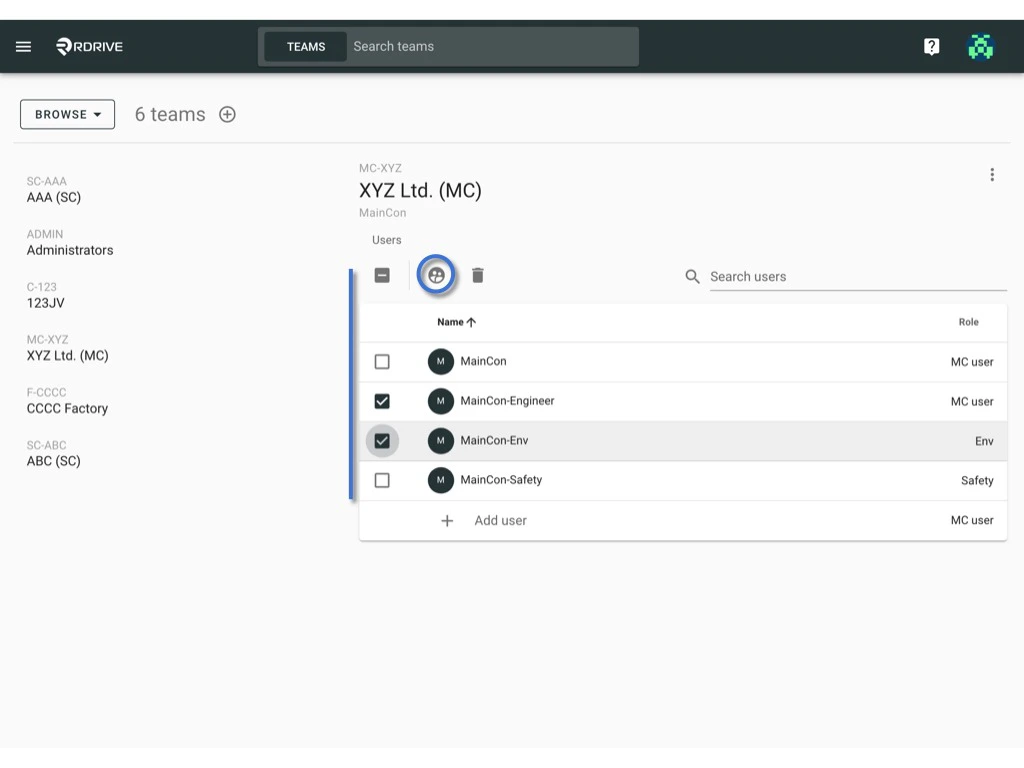
How to manage the team member(s)? How to manage the team member(s)?

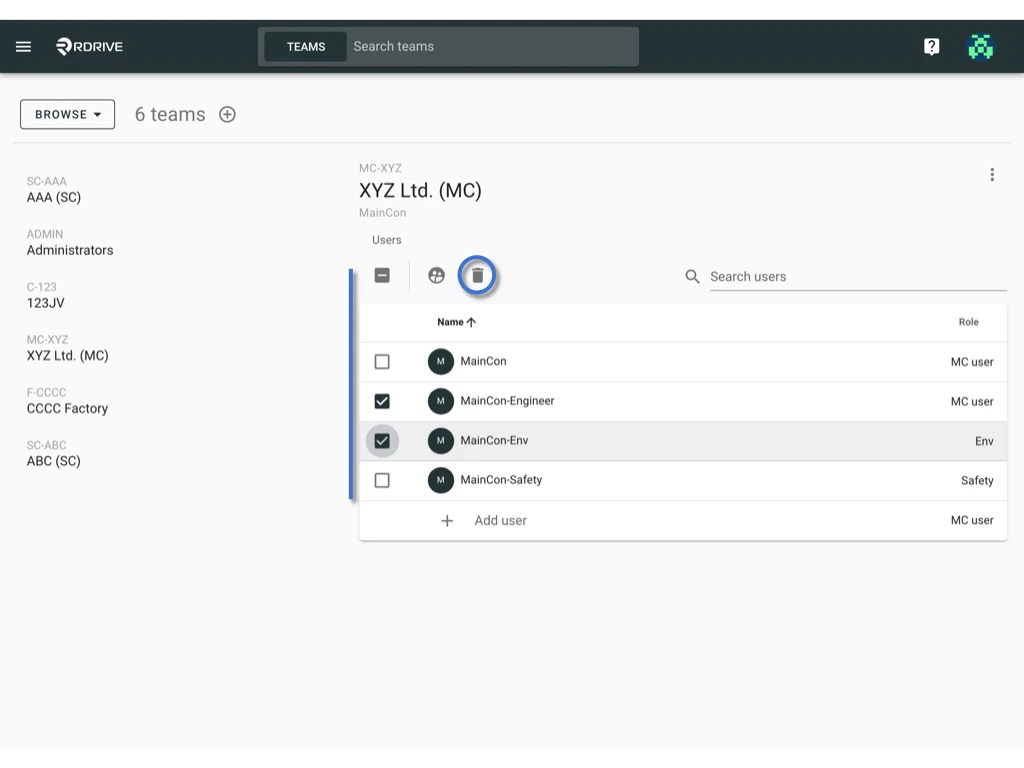
REMOVE USER 

Checked the box on the left-hand side of the user name to select users.
And click on the trash button to remove users from the team.
How to manage the team member(s)?