
How to batch change issue status?

How to batch change issue status?

Overview

How to view an issue, defect or record using RDrive using the desktop/browser
  • Purpose: How to view an issue, defect or record against a location on the desktop
  • Who It’s For: General users
Prerequisites: Able to raise an issue, defect or record from the desktop/browser

To batch change the status, you need to access the issue finder first.

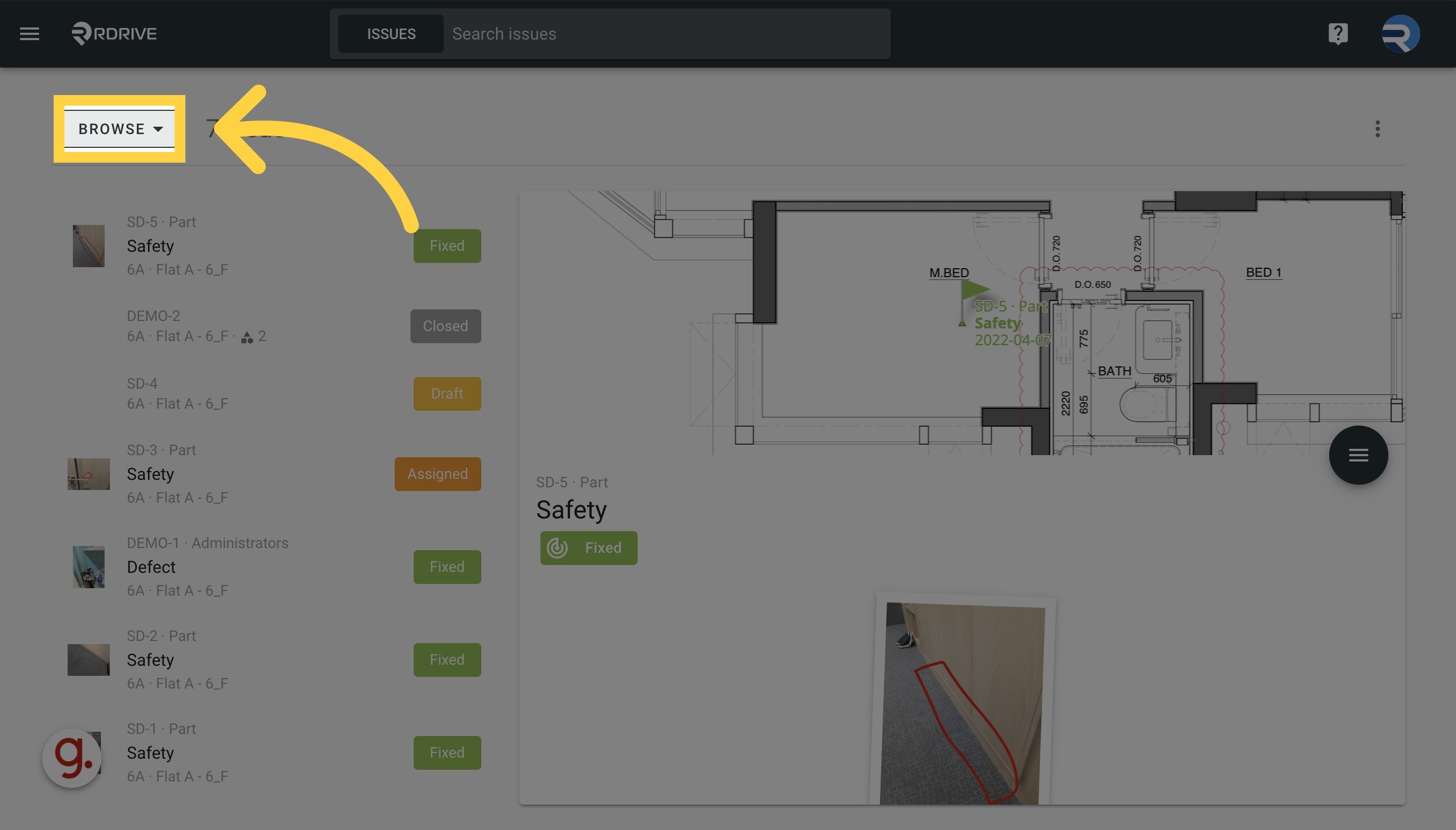
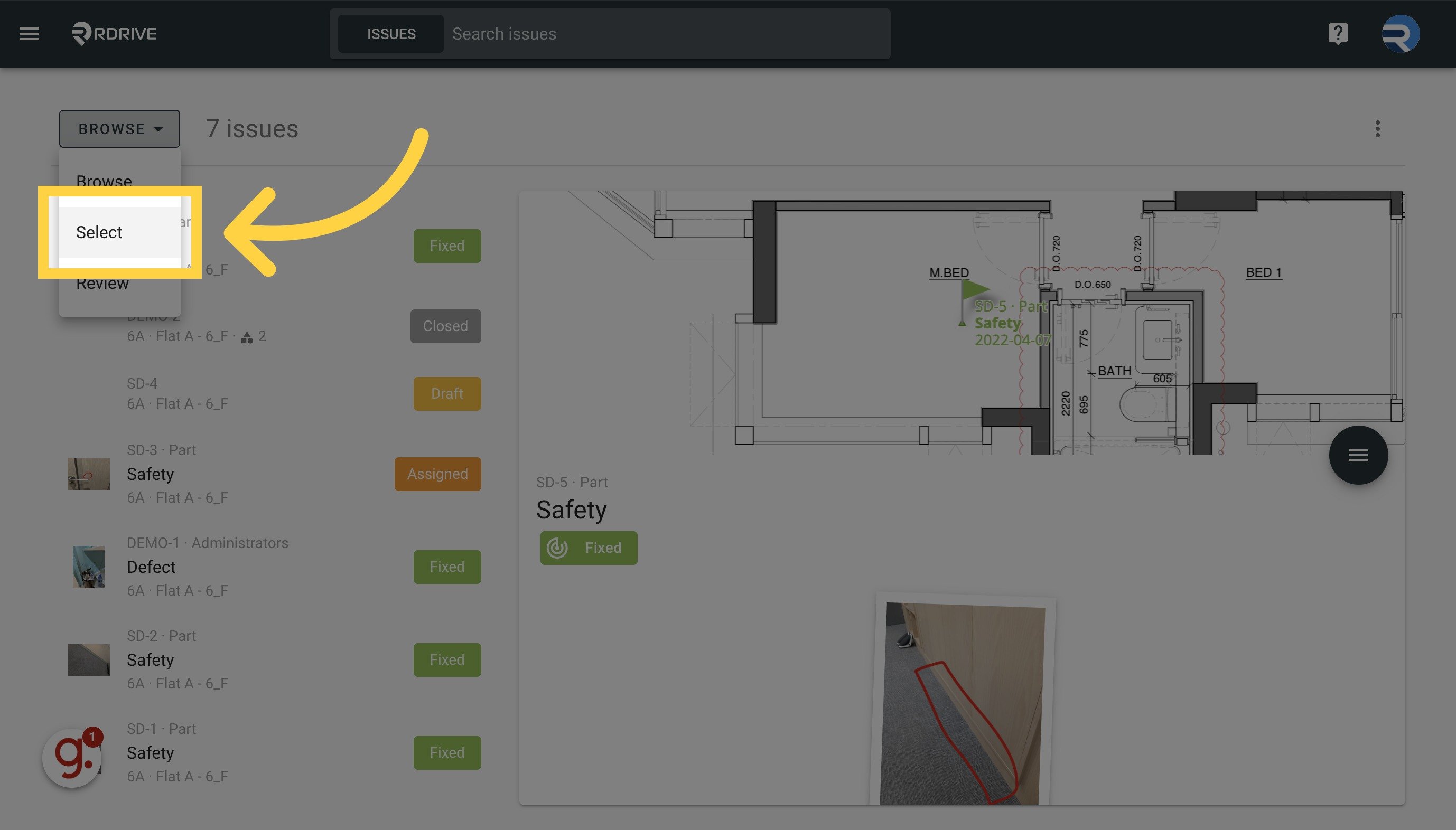
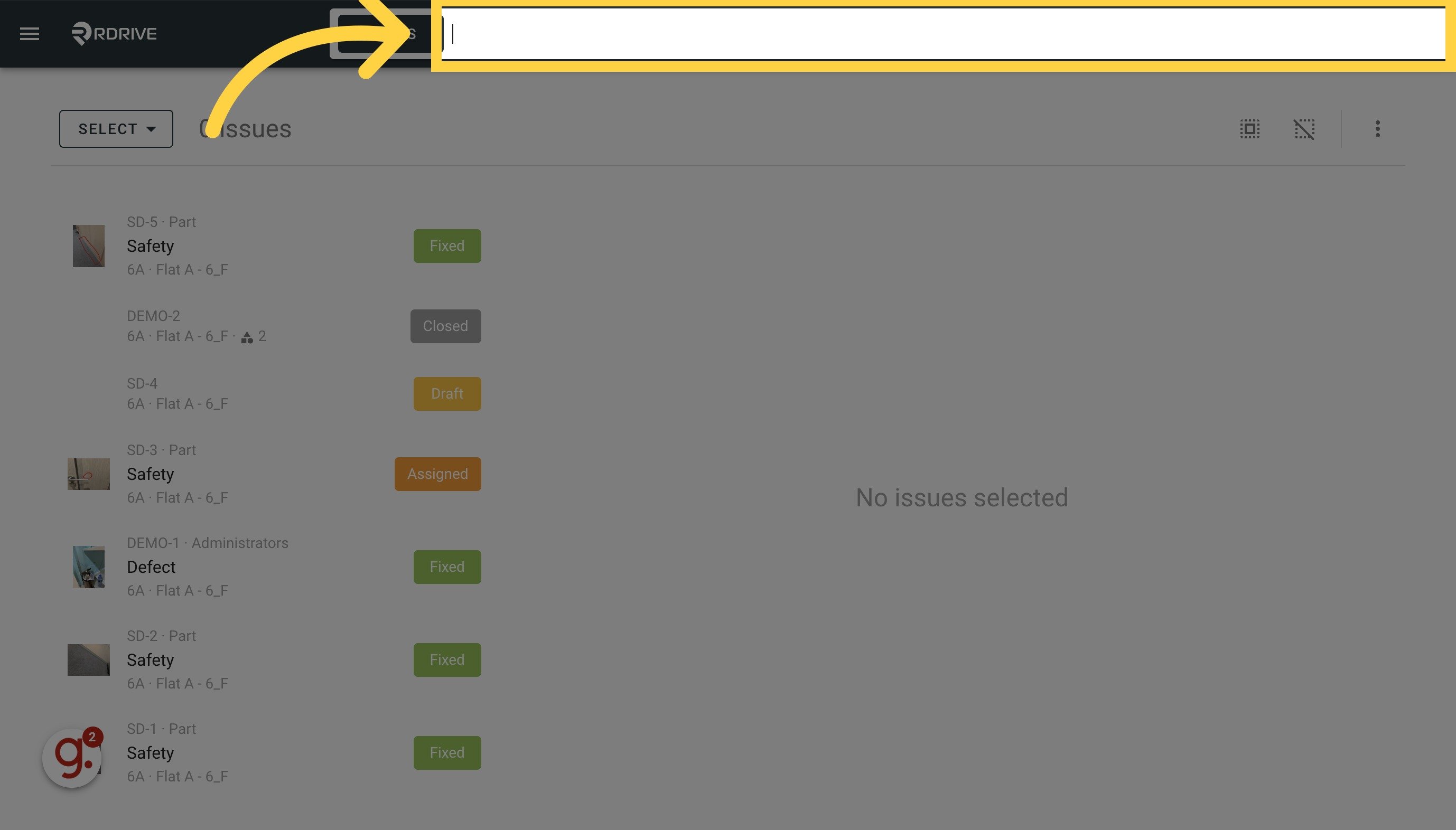
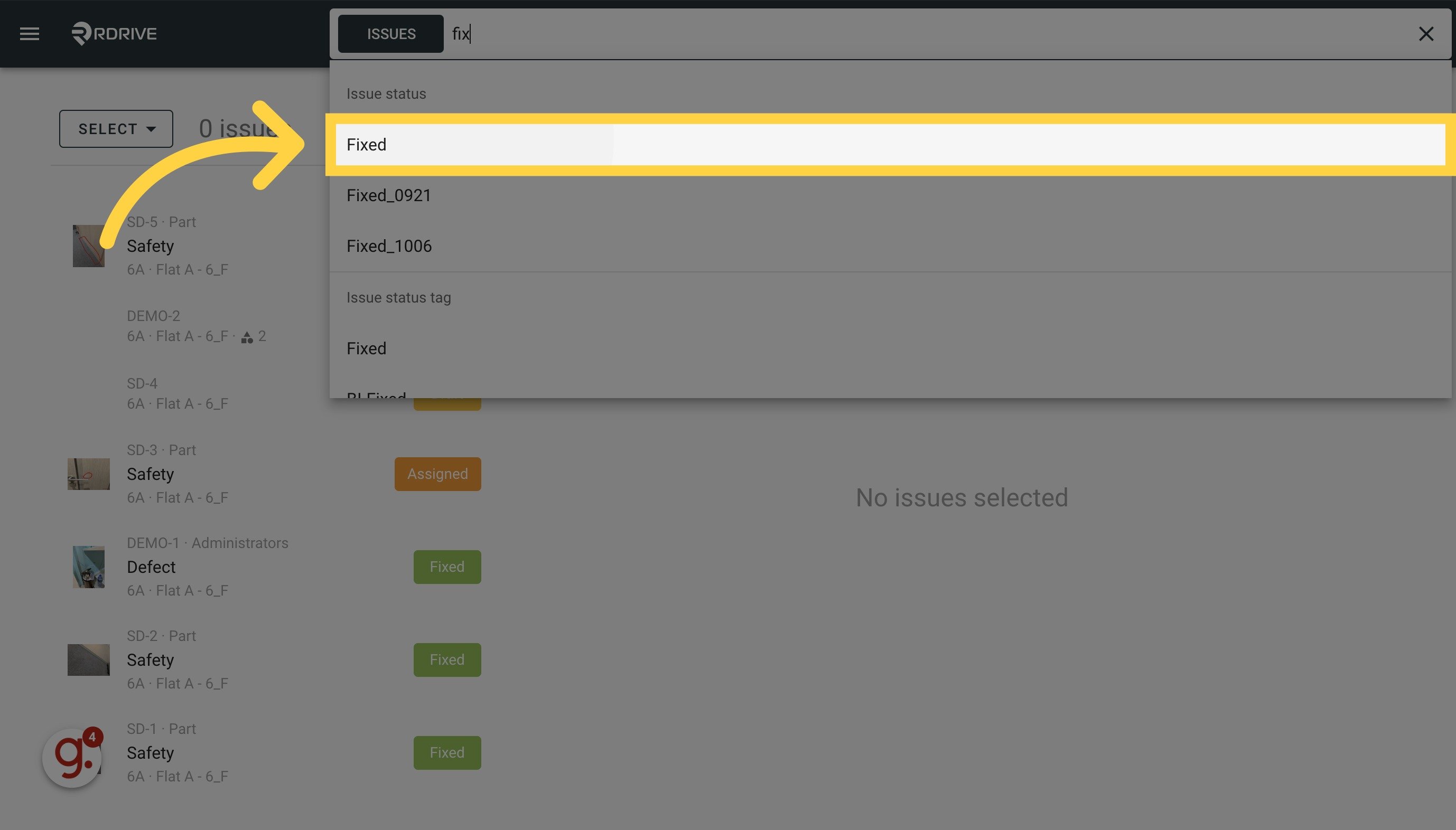
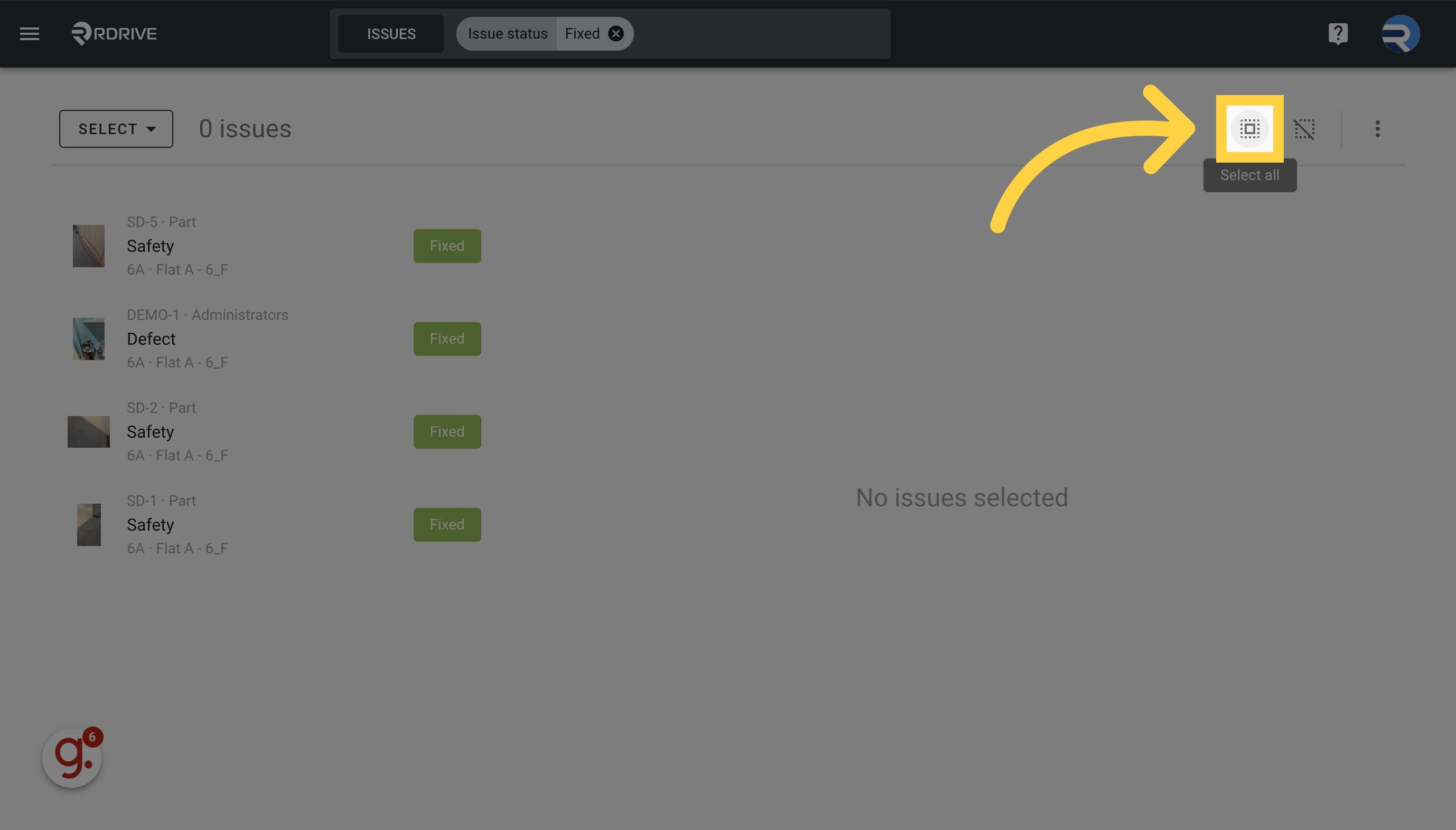
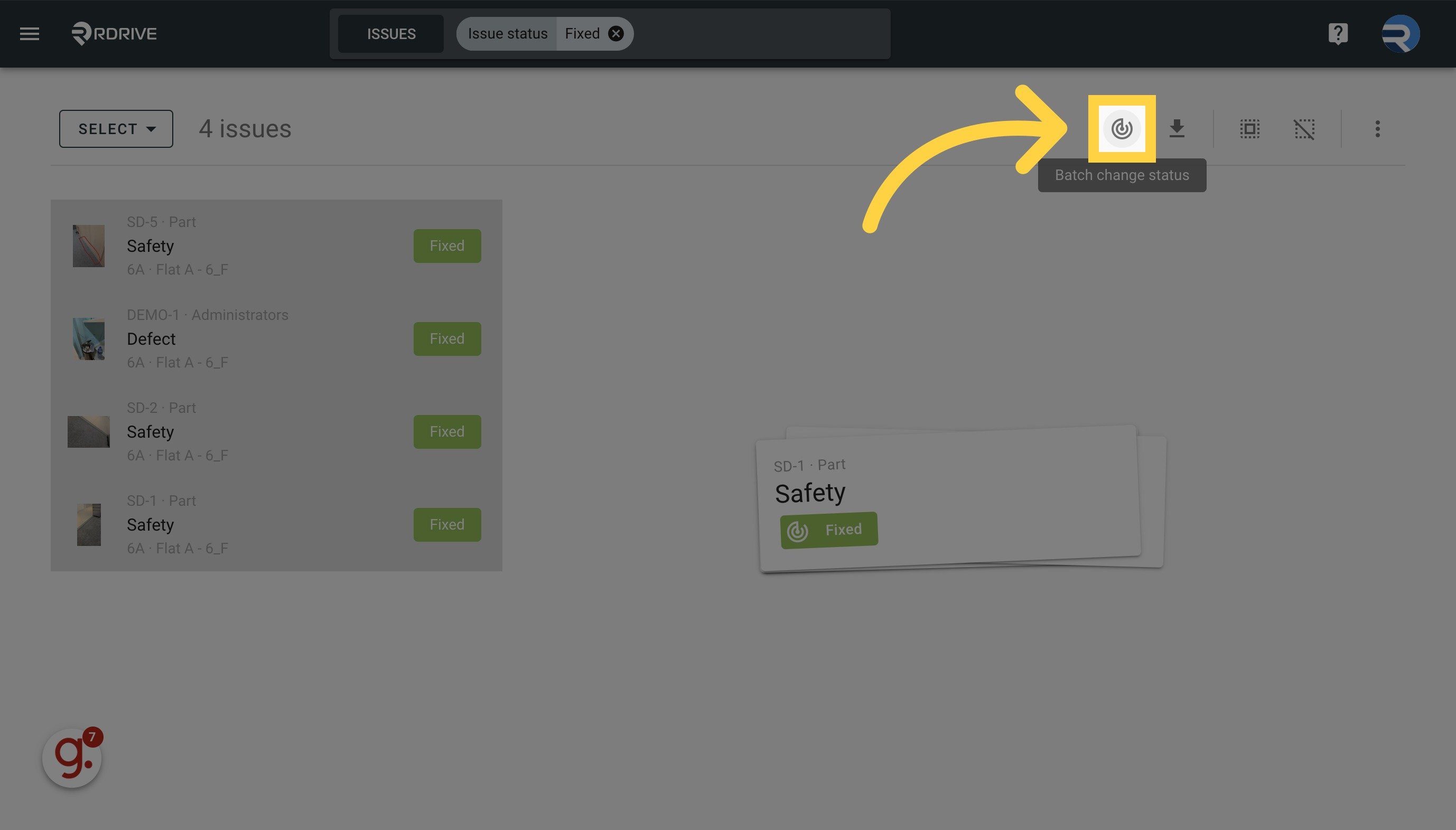
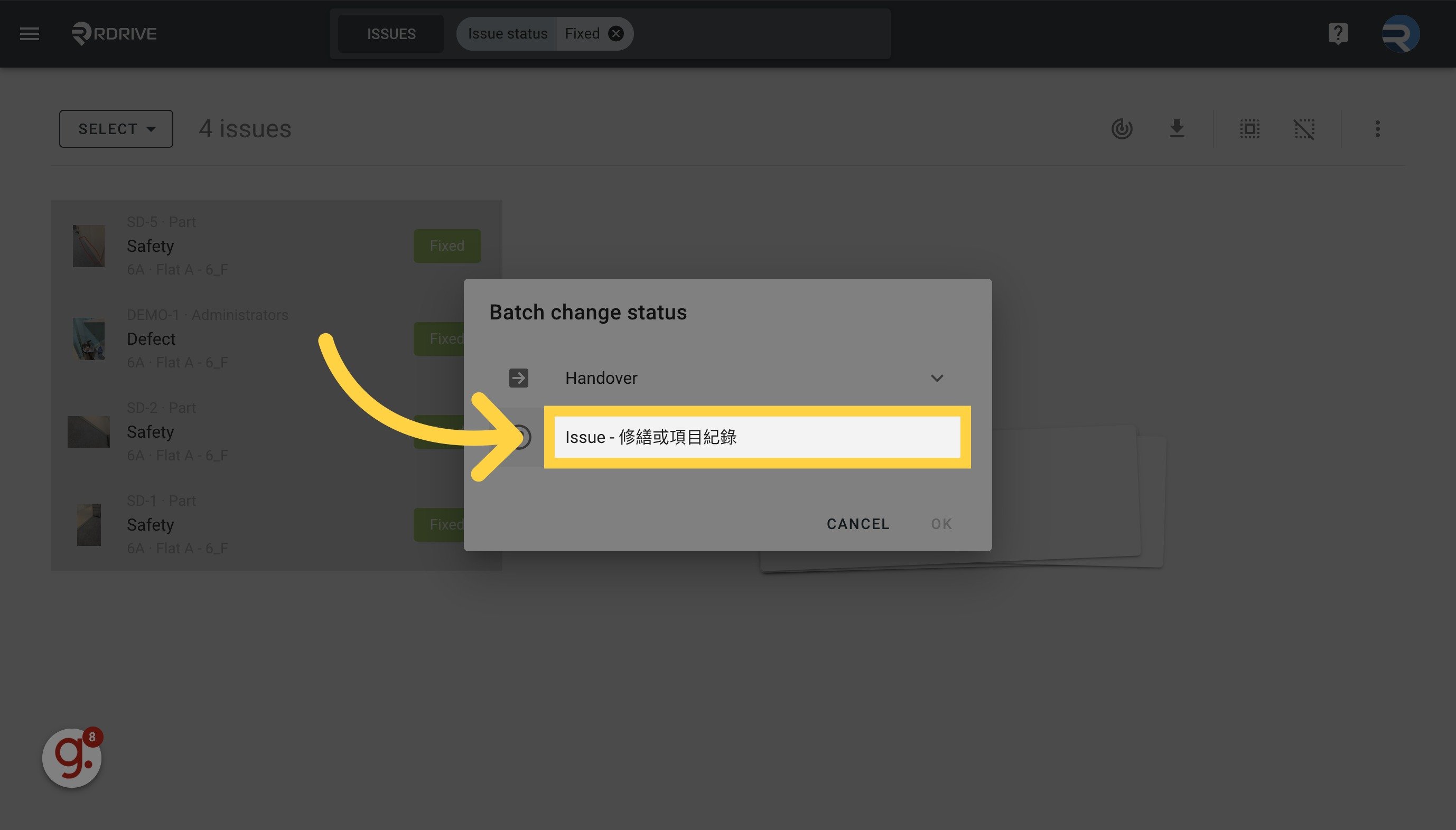
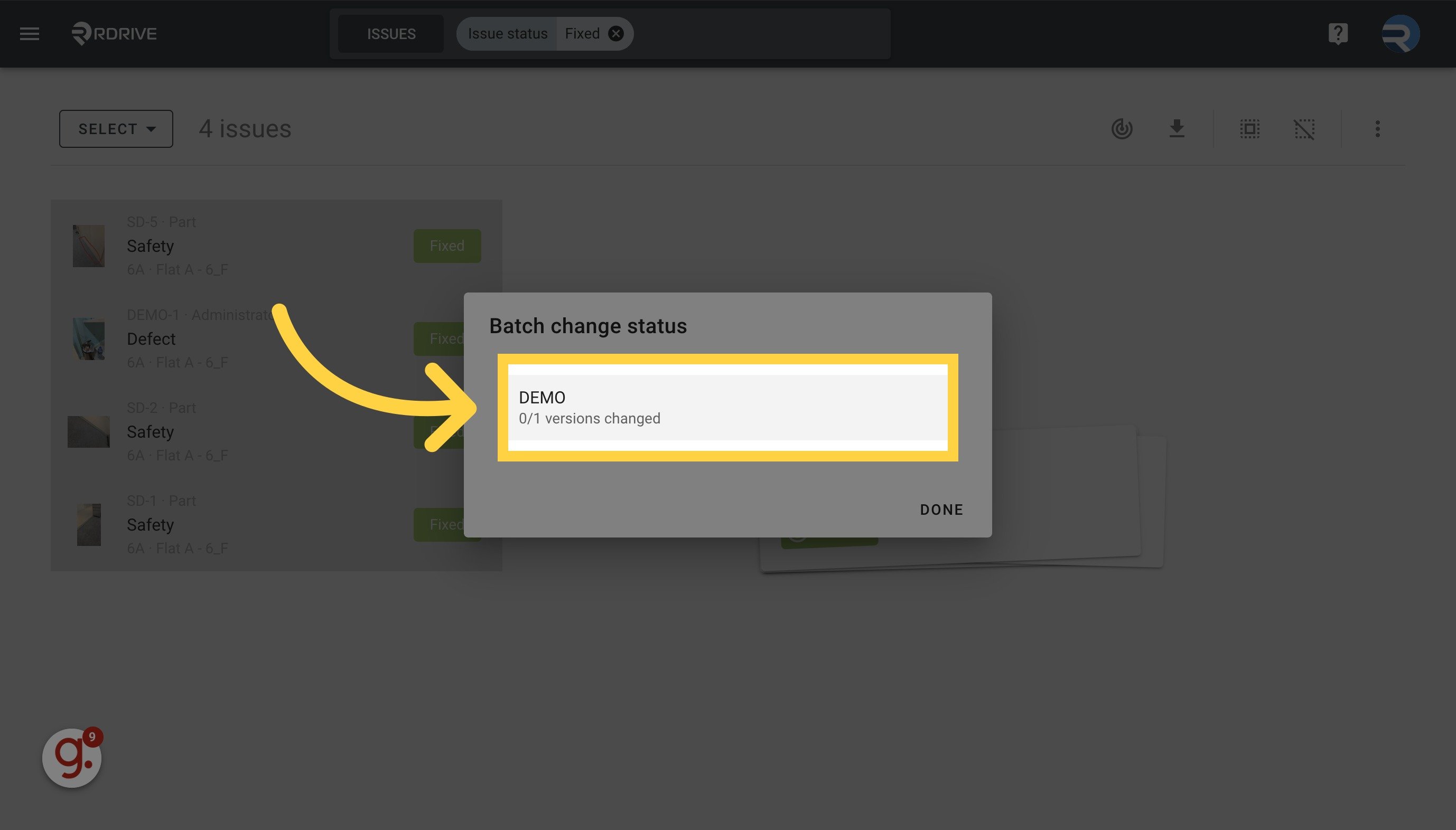
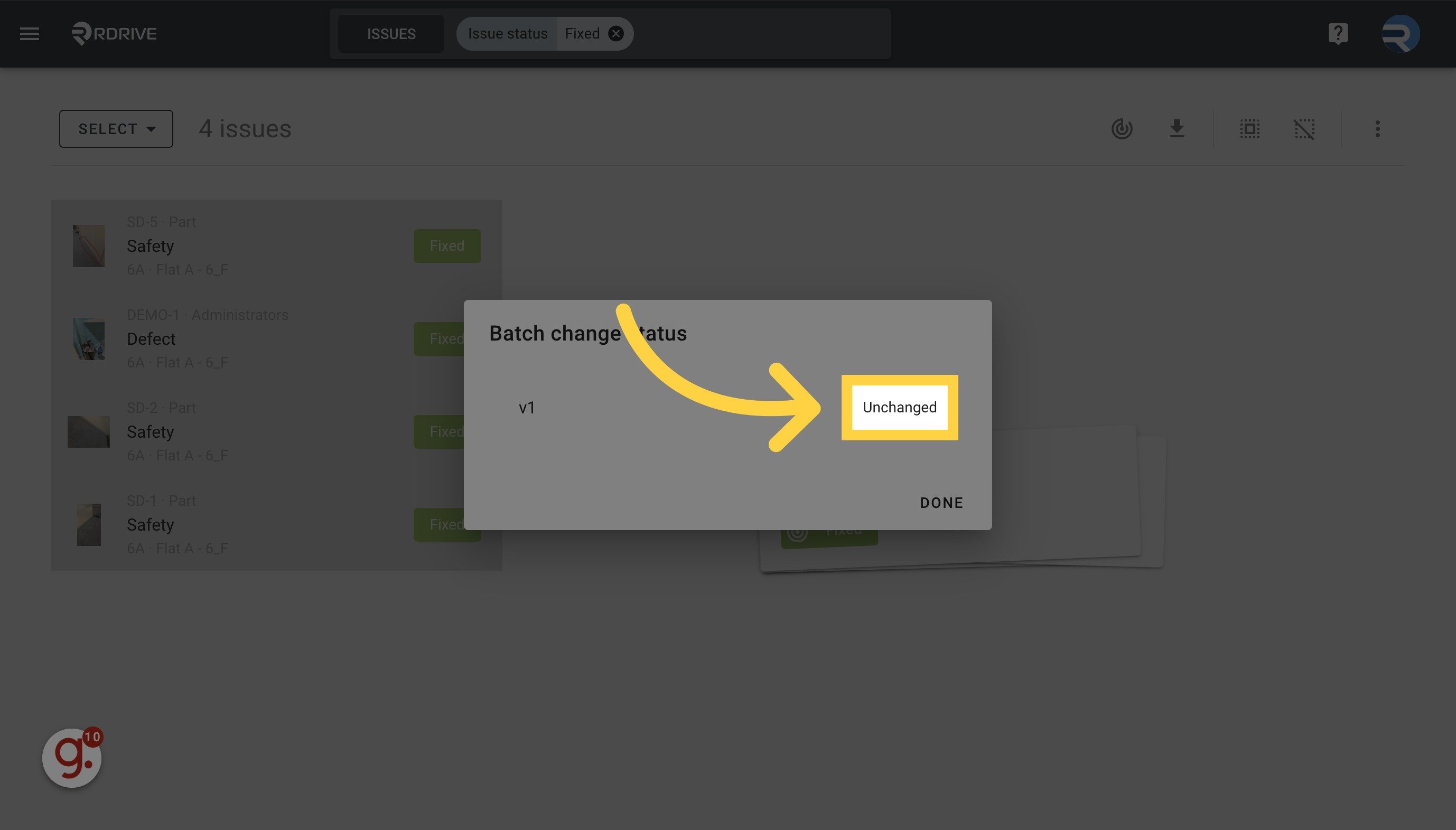
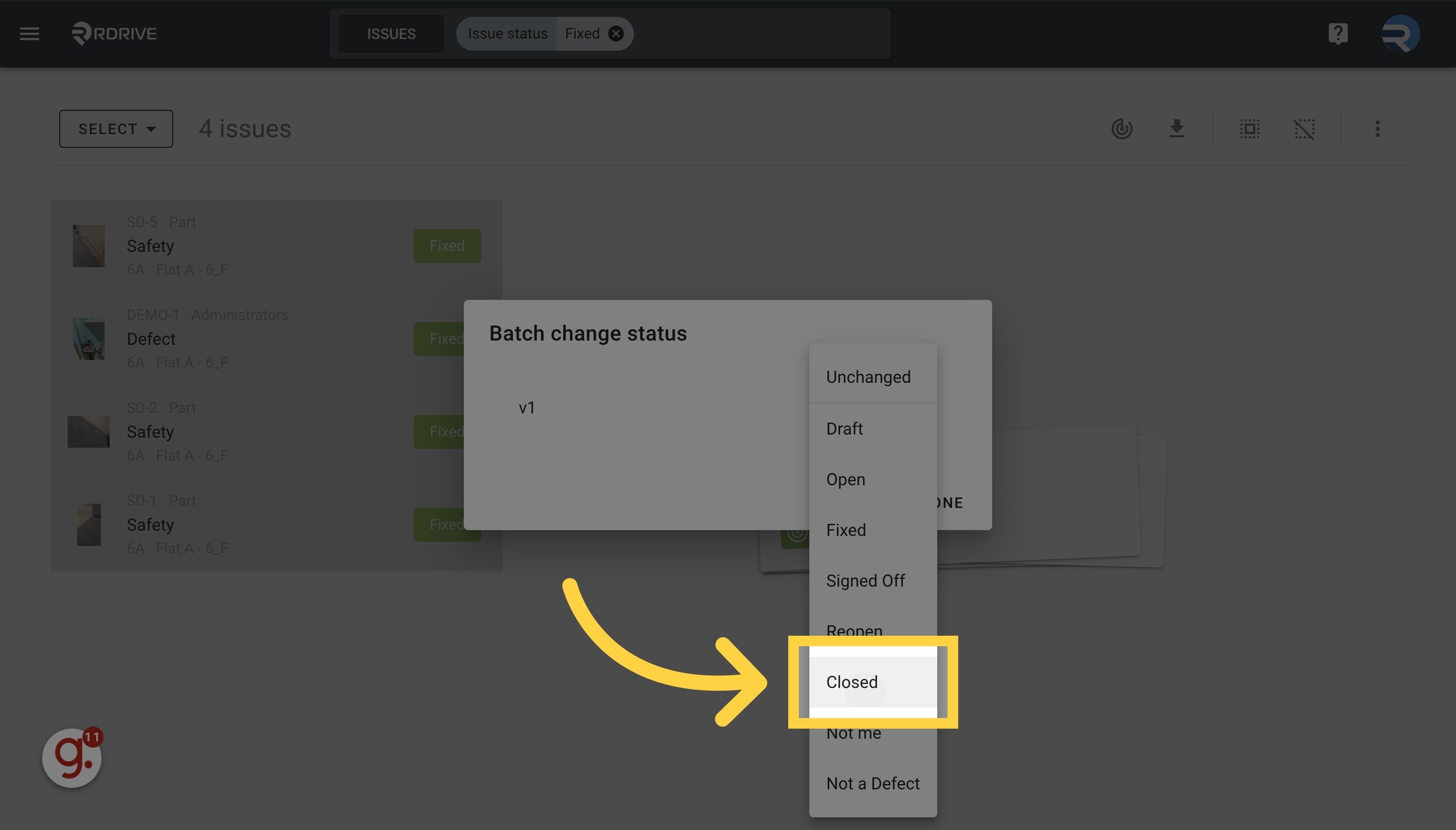
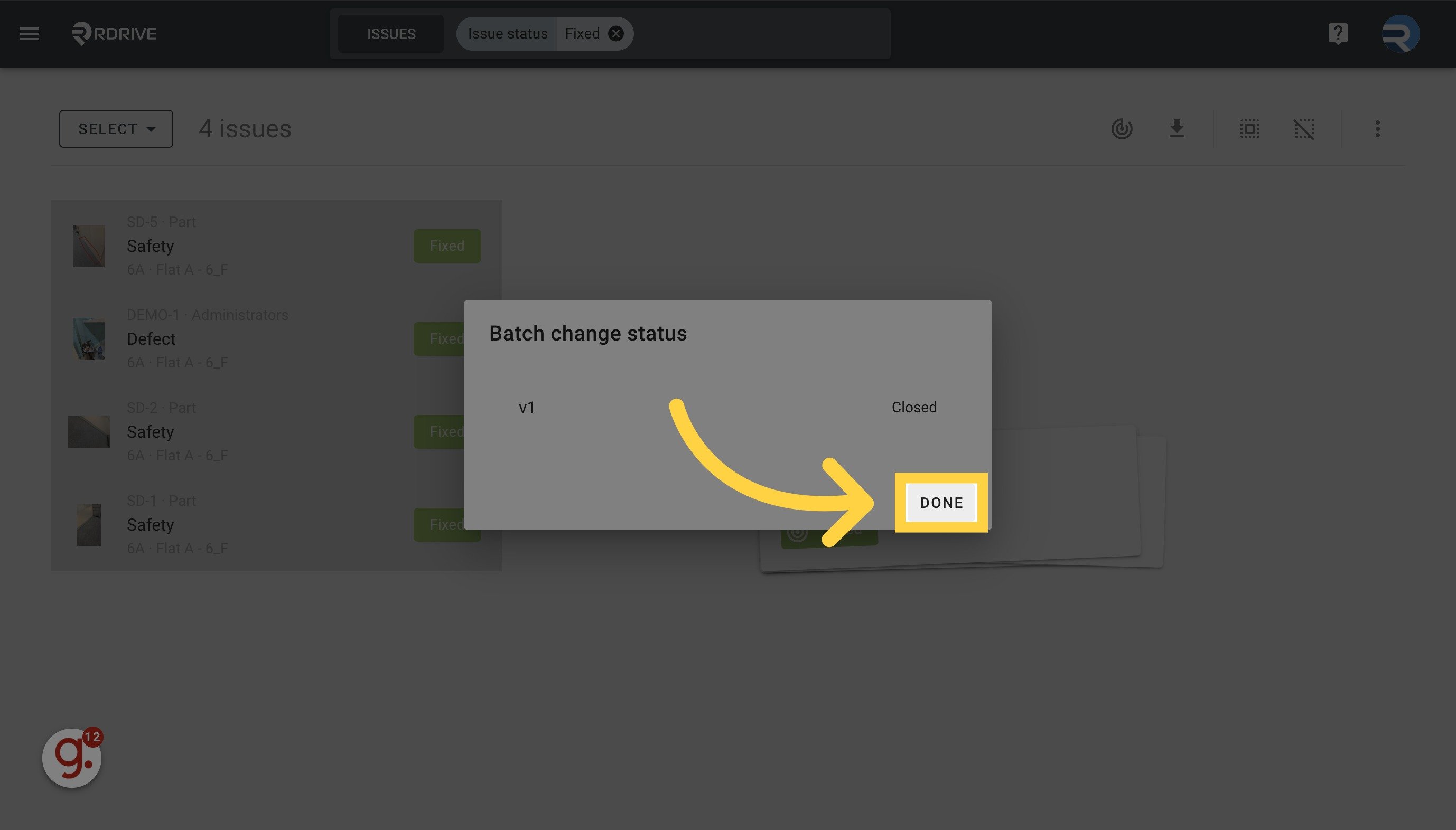
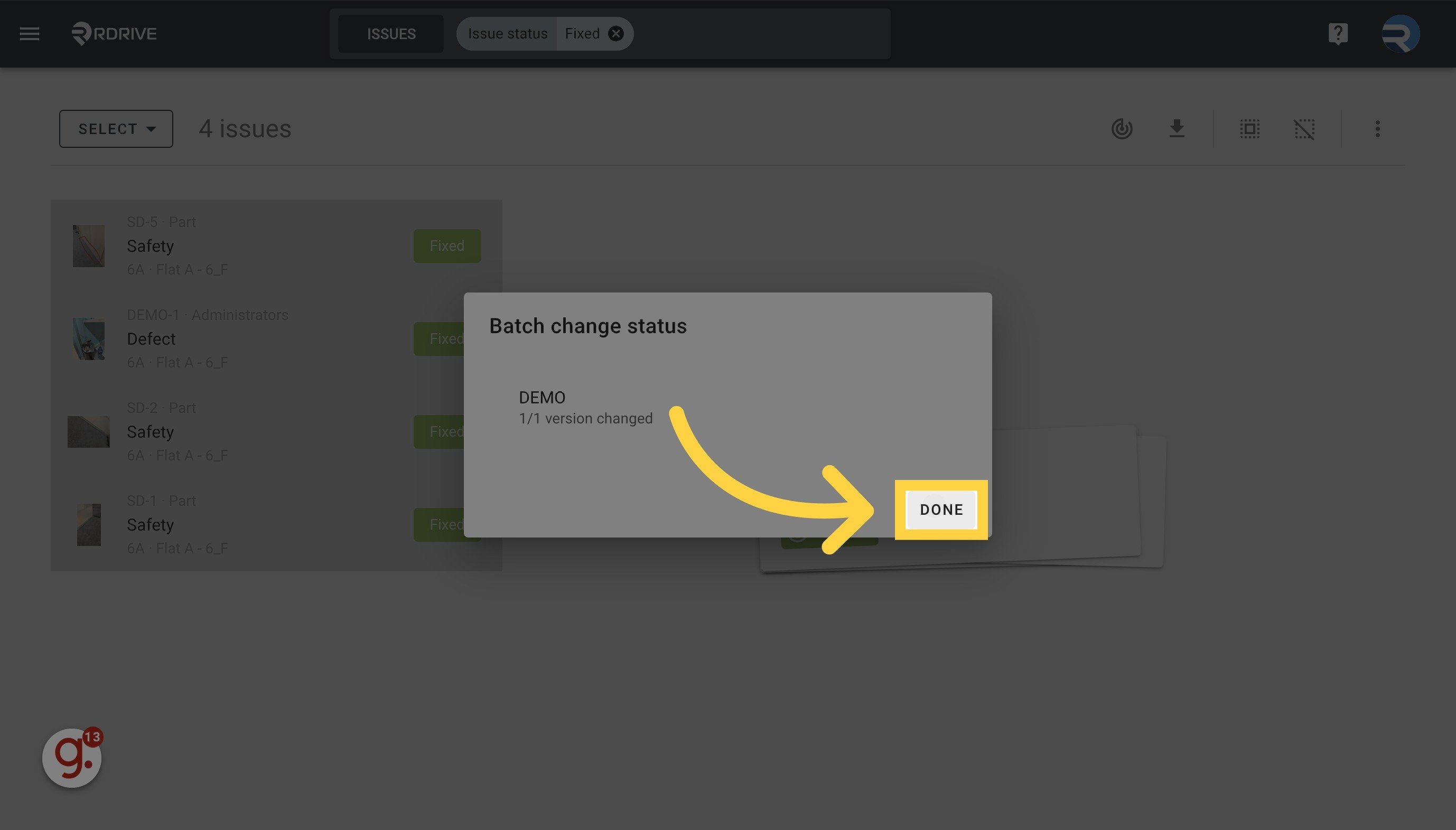
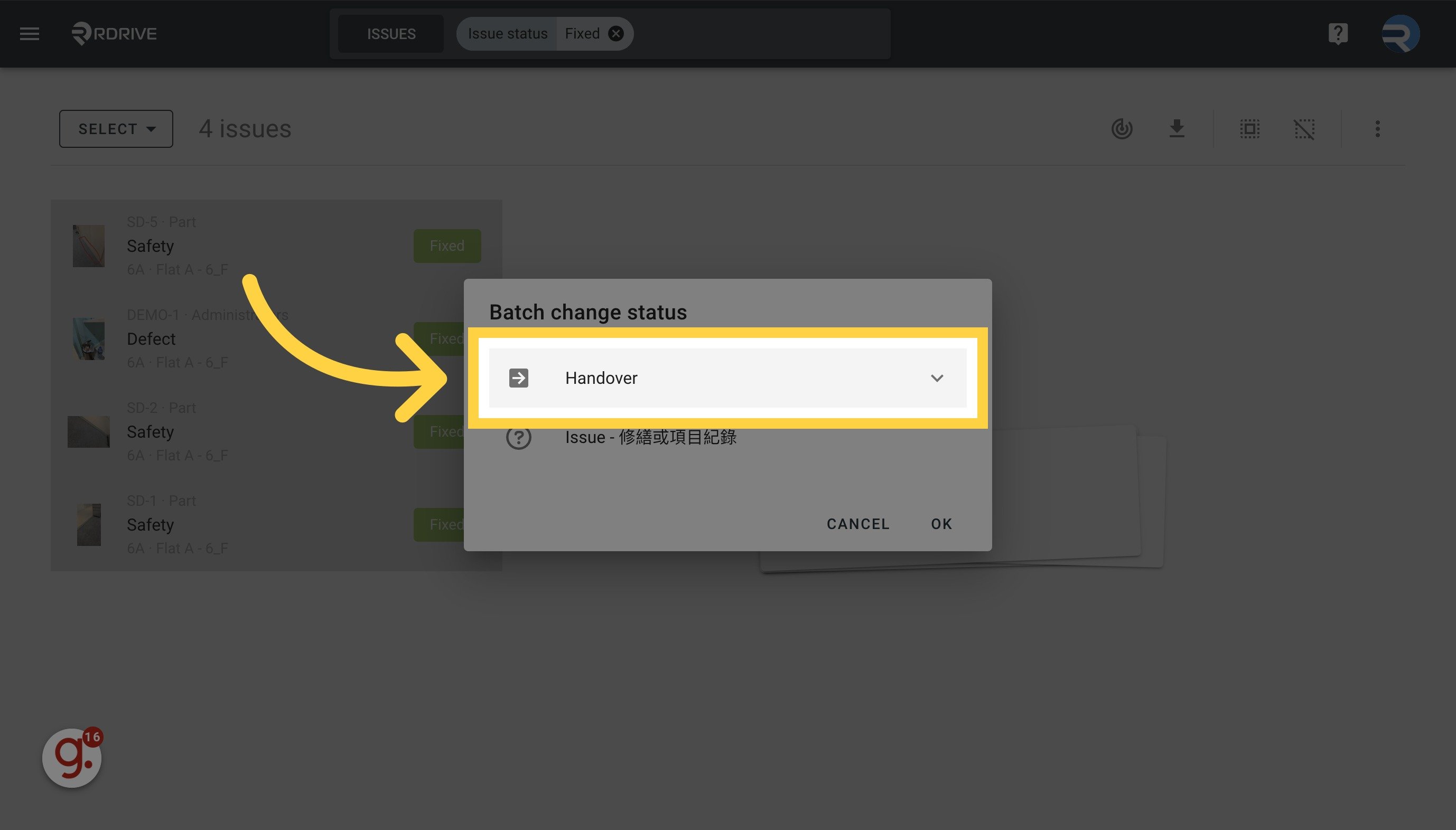
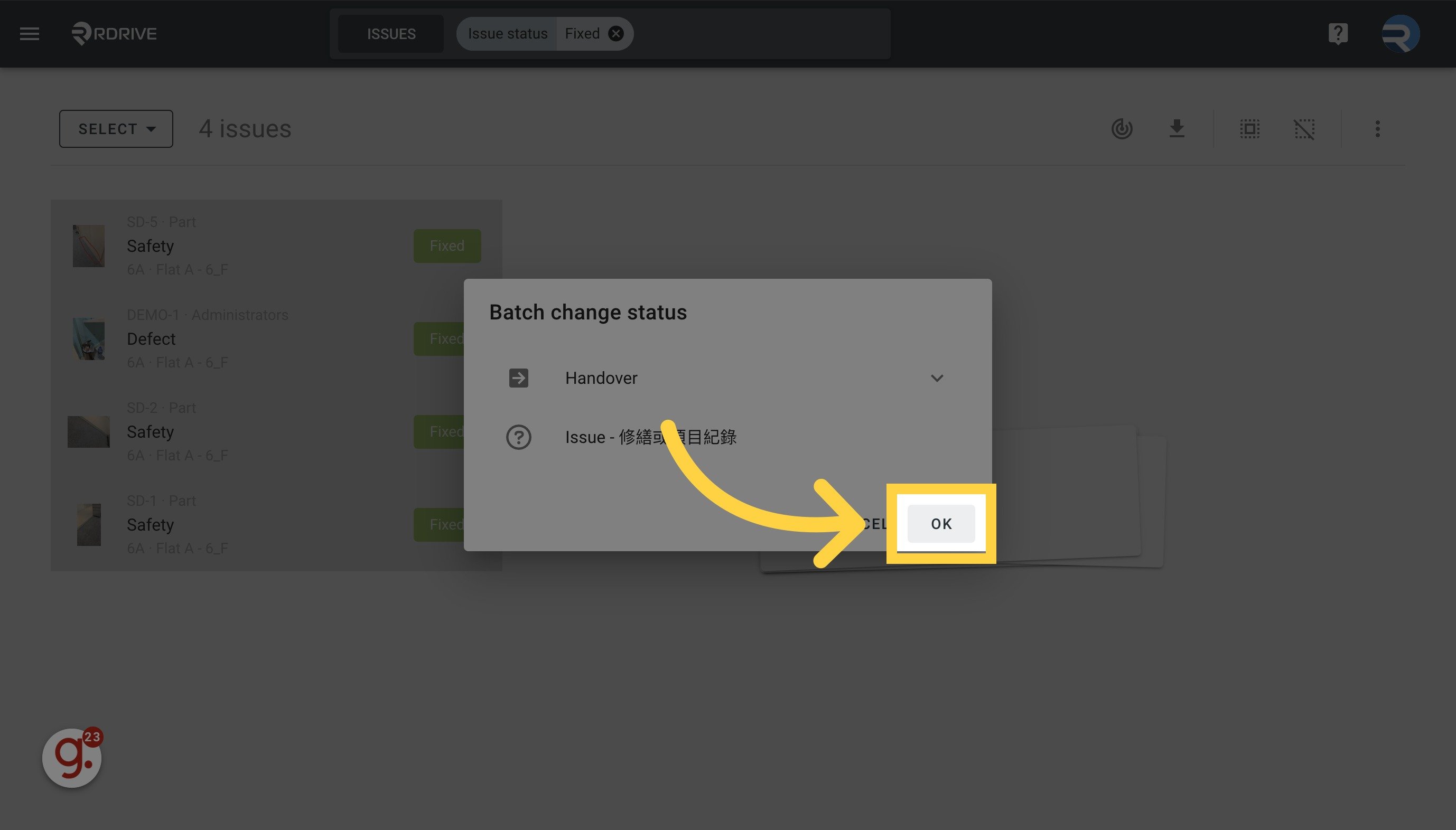
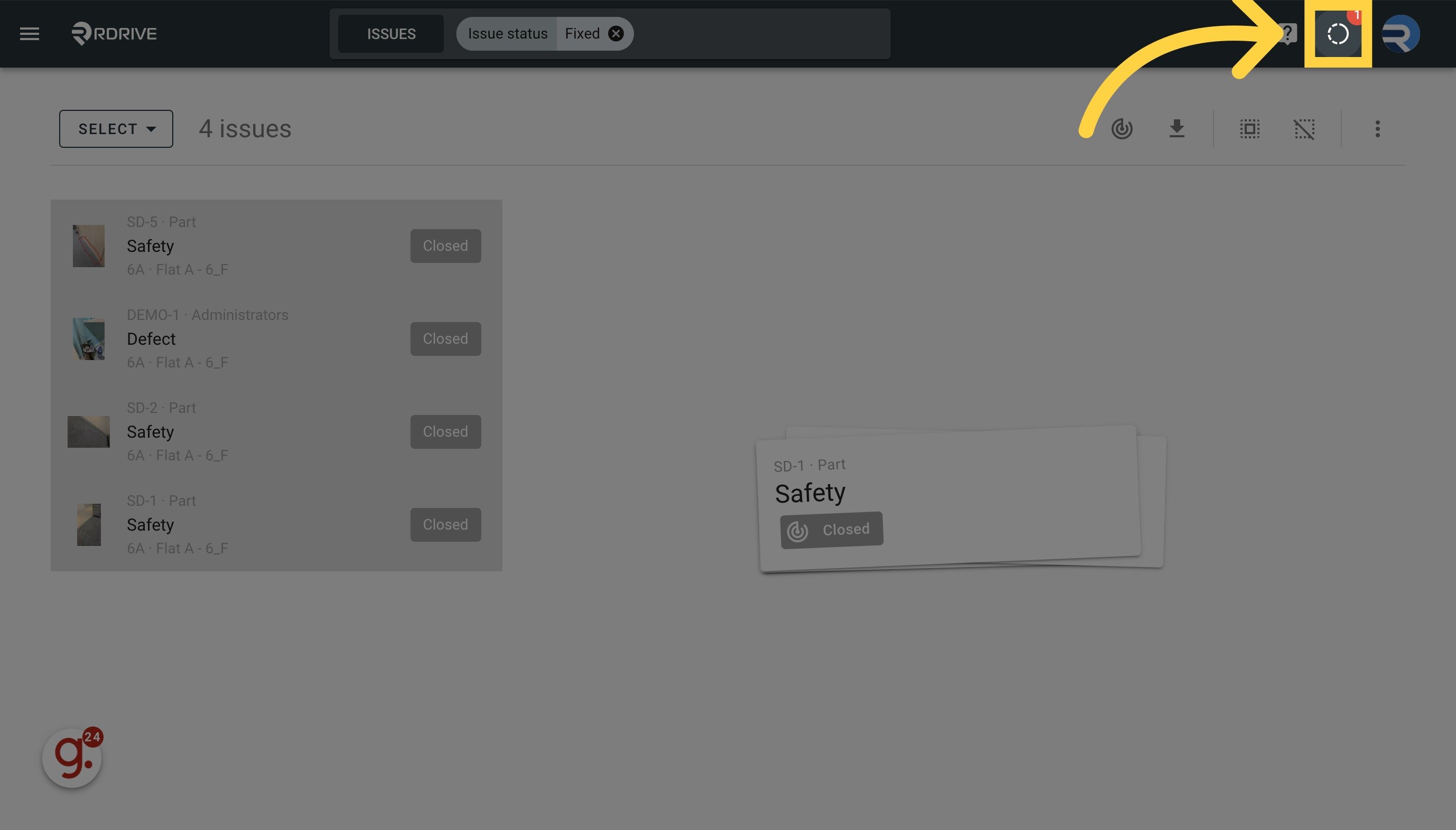
01 Click to change viewer Click to change viewer. How to batch change issue status? 02 Click “Select” Select the option. How to batch change issue status? 03 Click here Click on the search bar to filter the results. How to batch change issue status? 04 Add filters to narrow down results Add filter. How to batch change issue status? 05 Click Select All Confirm the results and click “Select All”. How to batch change issue status? 06 Click the batch change status button Click to batch change status. How to batch change issue status? 07 Select category Choose the Category. How to batch change issue status? 08 Select profile Choose the Profile. How to batch change issue status? 09 Click “Unchanged” Select the “Unchanged” option. How to batch change issue status? 10 Click “Closed”  (the status you want to change to) Choose the status you want to change to. How to batch change issue status? 11 Click “Done” Click “Done”. How to batch change issue status? 12 Click “Done” “Done” again. How to batch change issue status? 13 Repeat for other profiles. Repeat the steps for other profiles if have any. How to batch change issue status? 14 Click “OK” Choose the “OK” option. How to batch change issue status? 15 May check the process from here Status changed. You may click this button to check the process. How to batch change issue status?