Purpose: How to view the attached documents of an issue/defect/record
Who It’s For: General users
Prerequisites: Read access
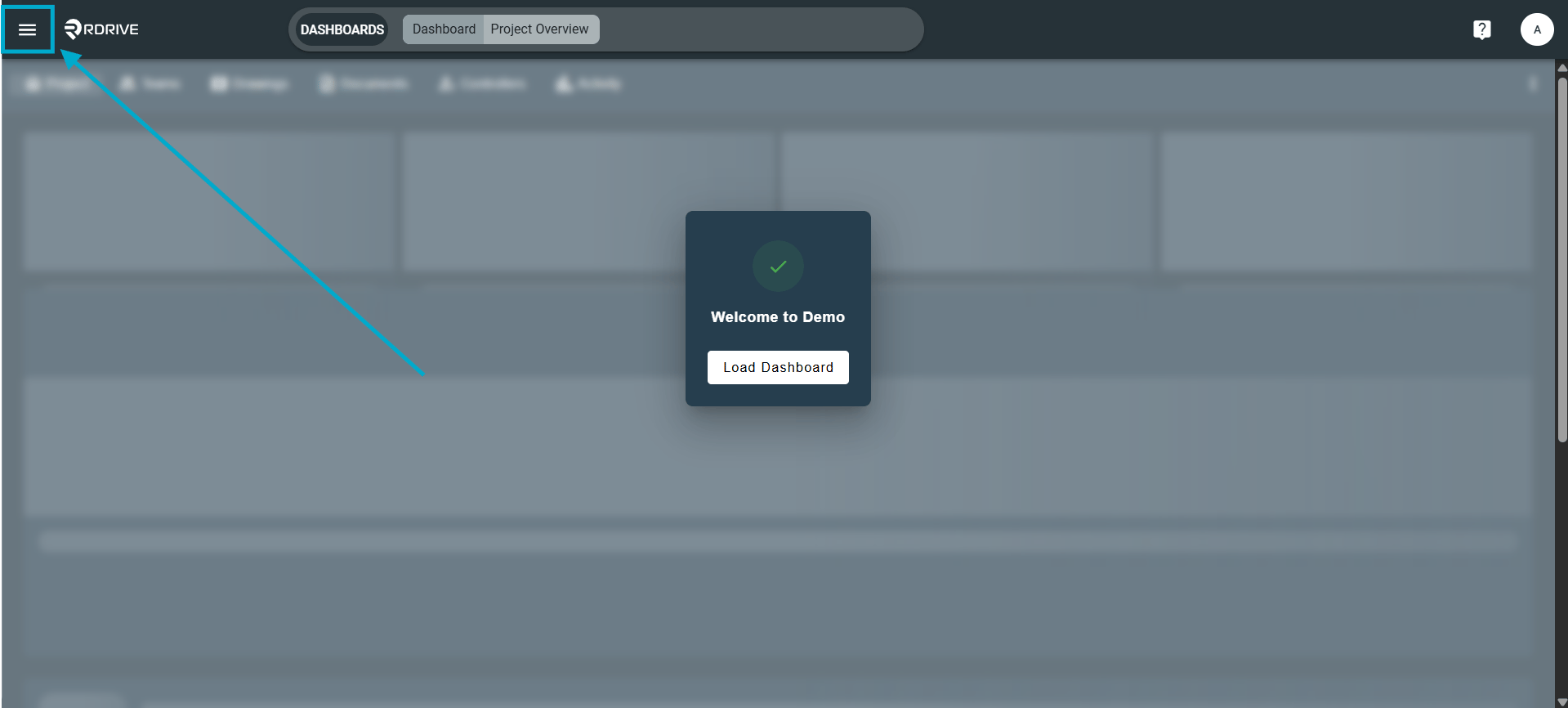
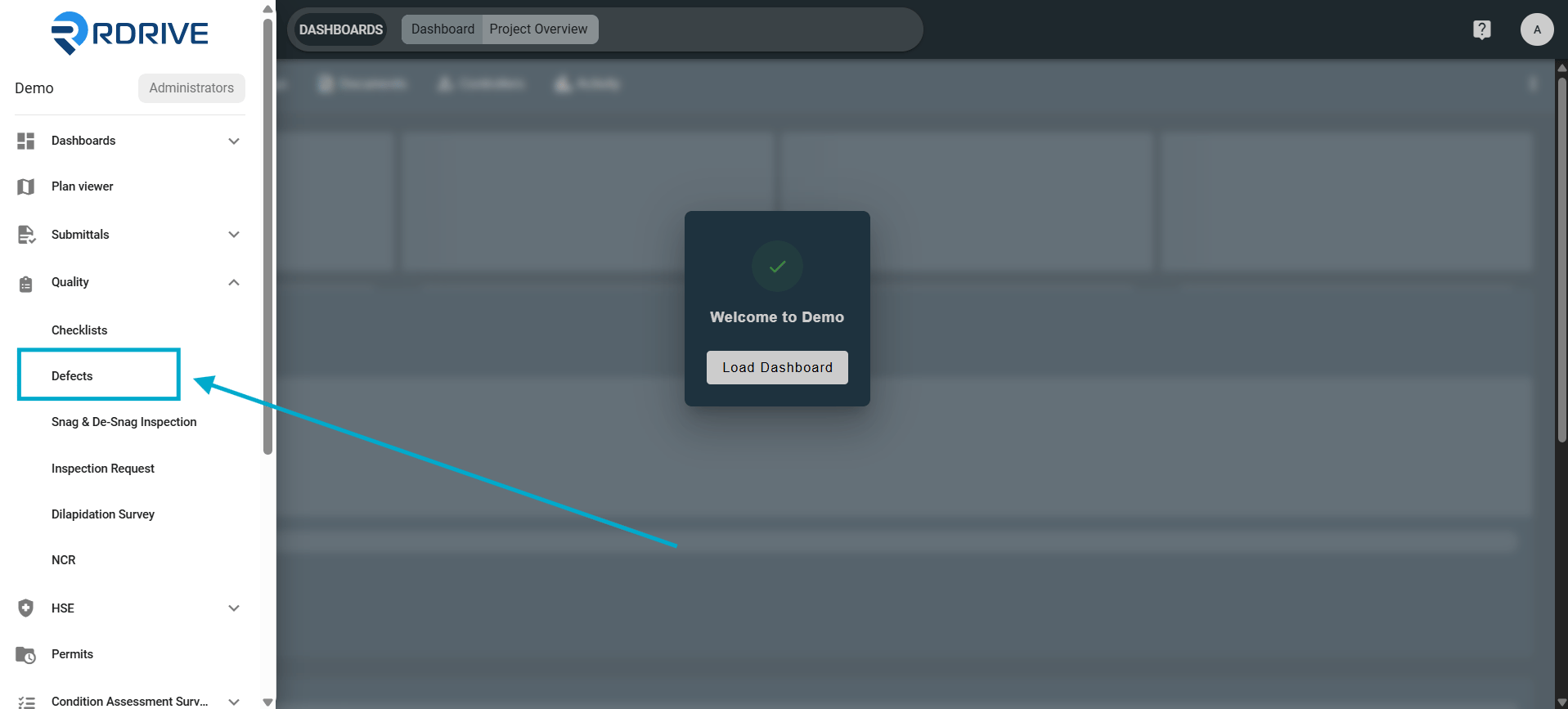
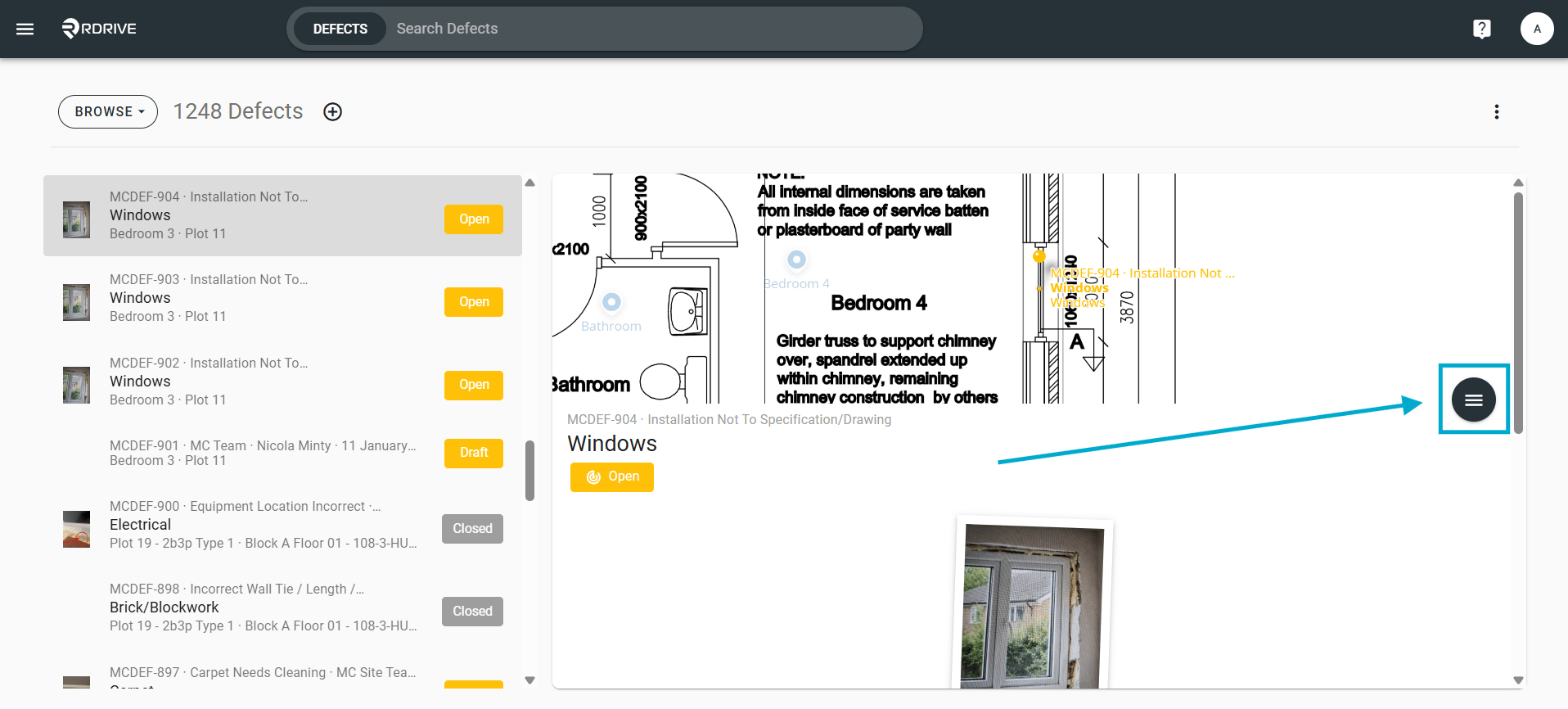
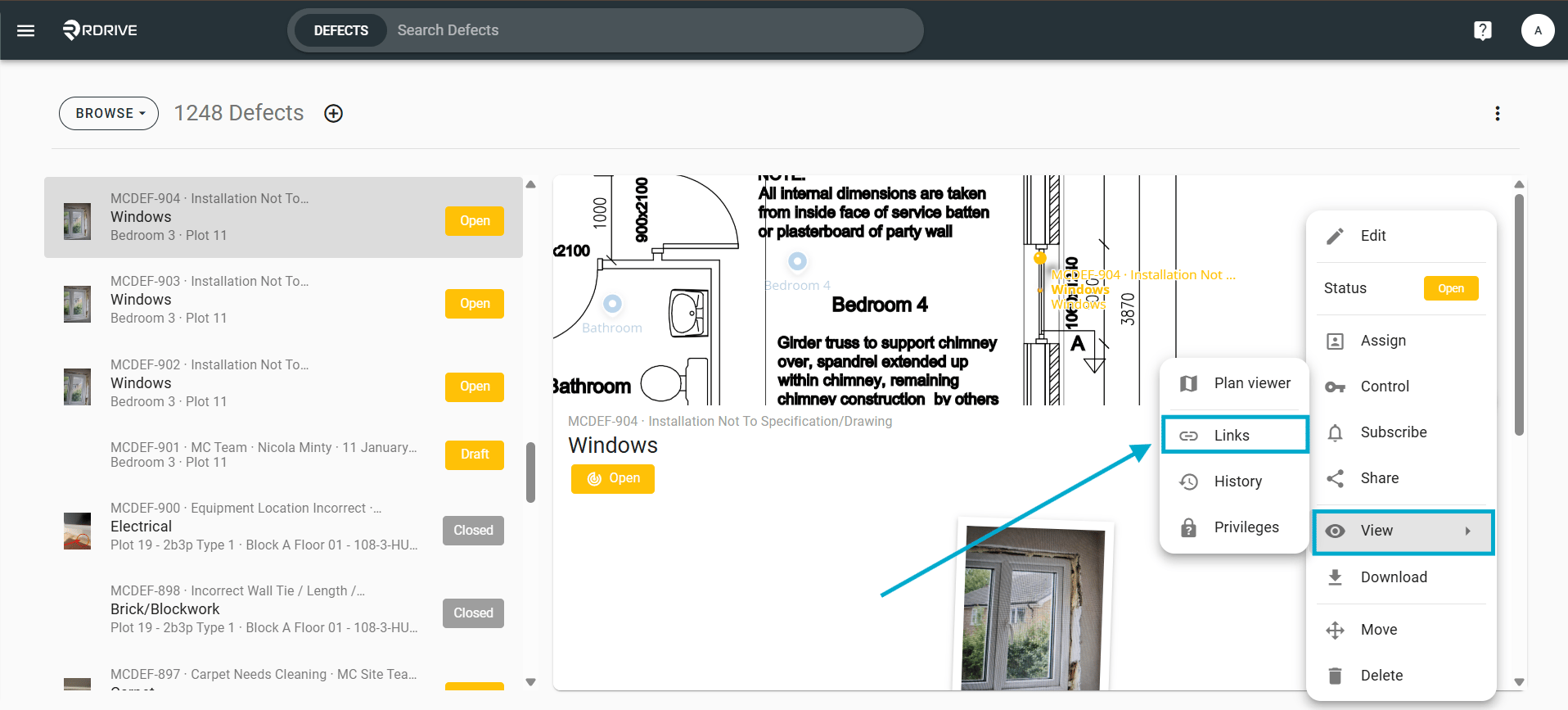
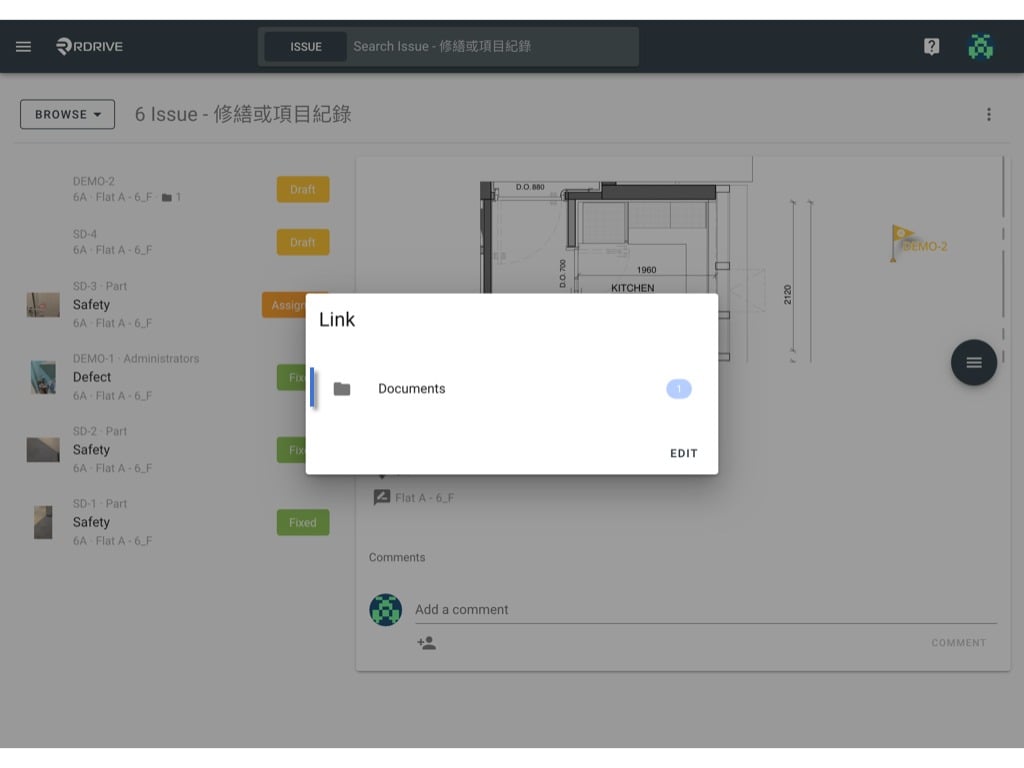
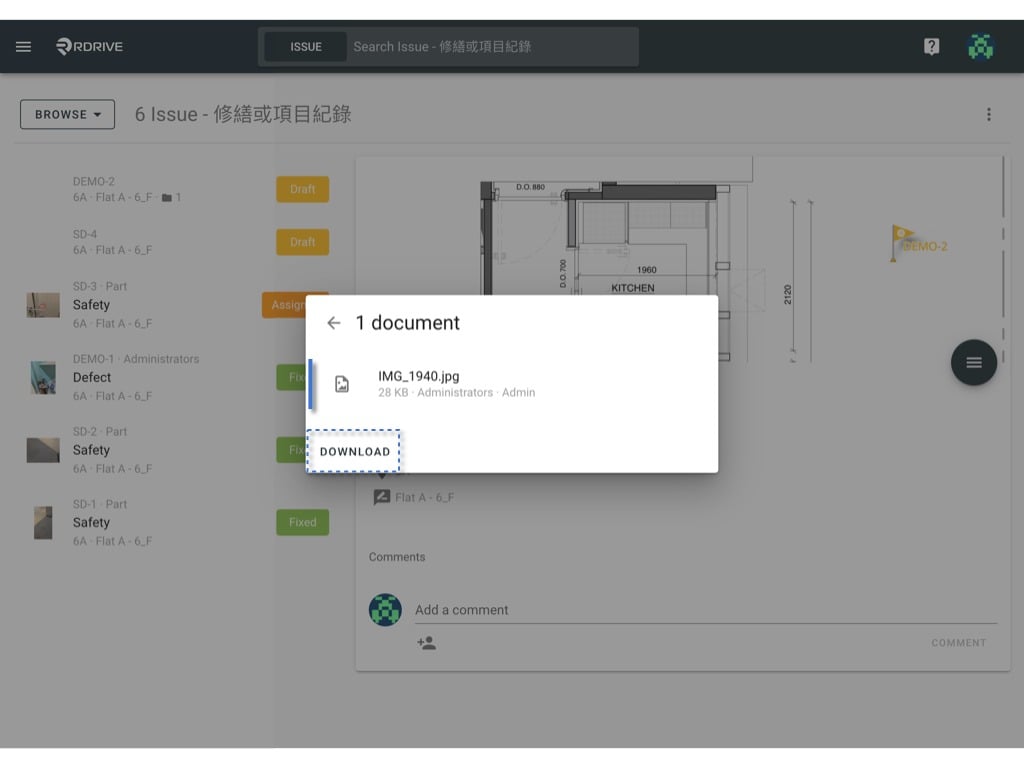
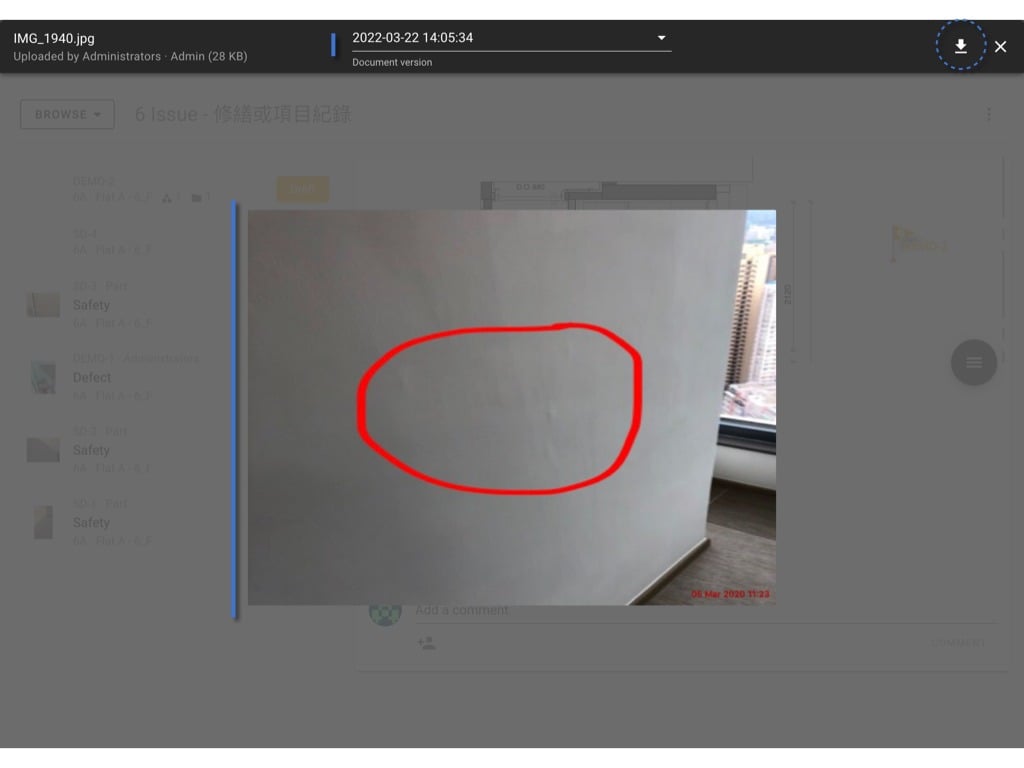
Via Issue FinderSimply press the Menu icon ≡ in the top left corner of your screen to unfold the Menu and gain access to the Issue page by selecting the category and subcategory.Select your issue/defect/record.Click the Menu ≡ button on the right-hand side of your screen to unfold the Menu as shown below.When the Menu has unfolded, select the “Links” icon via the “View” option in the Menu. A window will appear with your available link options if applicable. The linked items will be shown if any are available. For the purpose of this example, we will click on the “Documents”.(Normally, all the link fields of this template will pop up as a list by the field title for your selection but this will automatically be skipped if not applicable)The linked items will then be shown with the relevant information. You have the option to press “DOWNLOAD” to download any of the available documents as shown below.You can also press on the document in question to check online beforehand.If you select to view the documentation, your image will be viewable here for your inspection. Once satisfied that your documentation is correct, you may also download on this page via the download icon located in the upper right-hand corner of your screen as circled below.