You will need to share issues/defects/records with other Teams/Users to give them permission to view the issue/defect/record if this is not assigned to their team.Sharing gives ad-hoc read access to other users. You can choose which individual users you wish to share with. Users who have edit rights but not read access will be able to edit after you have shared with them. Those who have an item shared to them are called “participants”.TABLE OF CONTENTS
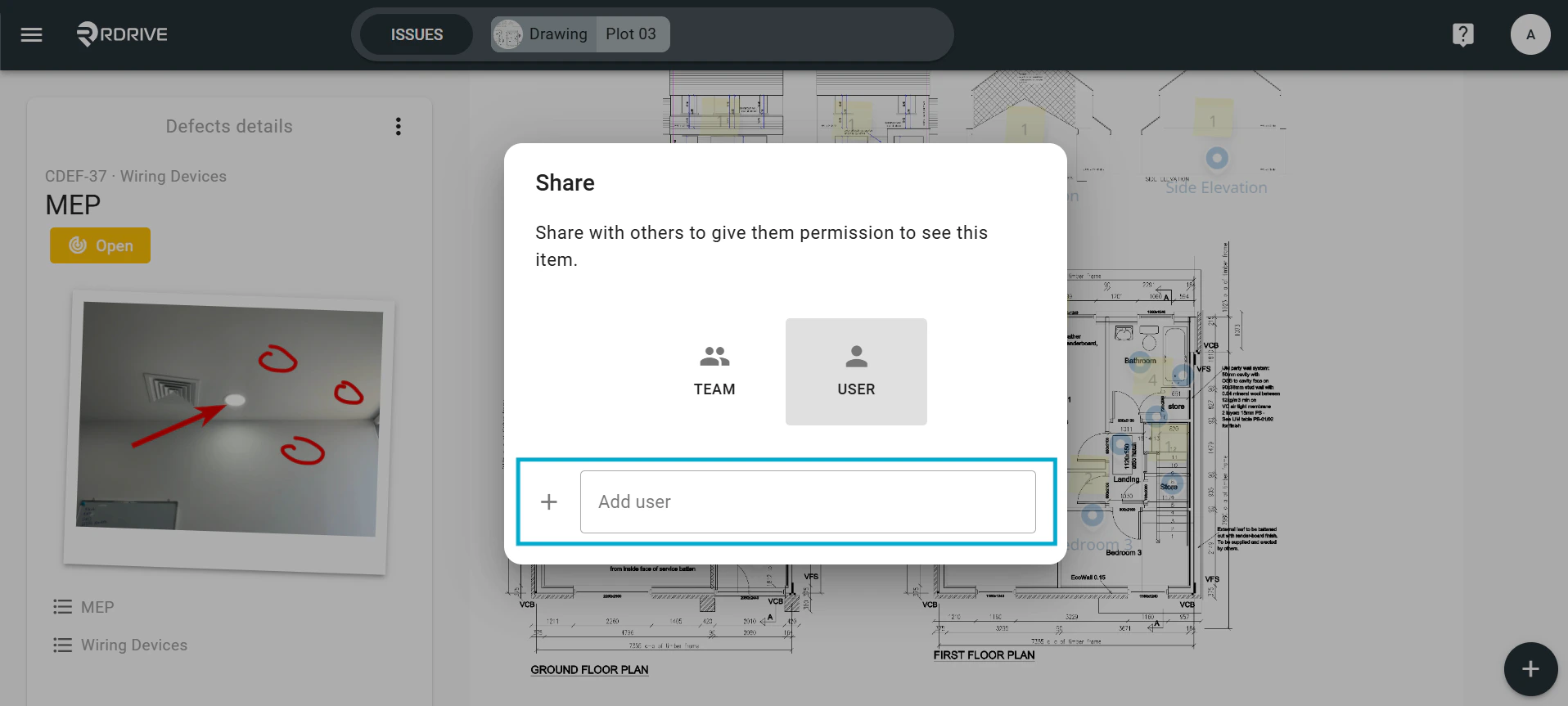
Press the Menu icon ≡ in the top left corner of your screen to access the menu.From here select Quality then issue type, we will select Defects from the categories for this example.This will then display any issues/defects/records selected in a list on the left panel, choose your required issue/defect/record and press the ≡ button on the right to expand the menu.Select Share. Once selected, the share options for this issue/defect/record will be enlarged in a window on your screen.All participants that have been granted access will be listed within the window.To add a participant, be that a Team or an Individual User, select the most relevant category (Team/User), press the + button as shown in the image below and enter the team or user details. Alternatively, to remove a Team or Individual User, you can press the x button highlighted below.To save your participant add/remove request, you need only to click outside of the enlarged window.Add an individual user by selecting User and adding the relevant user details.
Press the Menu icon ≡ in the top left corner of your screen to access the menu.From here select the Plan Viewer and navigate to the drawing required.Click on the issue/defect/record pin, the details of which will display on the left-hand side. Then press the ⋮ Menu button in the top right-hand corner to unfold the Menu.Select Share. Once selected, the share options for this issue/defect/record will be enlarged in a window on your screen.All participants that have been granted access will be listed within the window.To add a participant, be that a Team or an Individual User, select the most relevant category (Team/User), press the + button as shown in the image below and enter the team or user details. Alternatively, to remove a Team or Individual User, you can press the x button highlighted below.To save your participant add/remove request, you need only to click outside of the enlarged window.Add an individual user by selecting User and adding the relevant user details.