How to subscribe users to an issue, defect or record using RDrive using the desktop/browser
Purpose: How to subscribe an issue, defect or record against a location from the desktop
Who It’s For: General users
Prerequisites: Access to raise an issue, defect or record from the desktop/browser
You may check on the subscriber list to know who is watching this issue/defect/record and add a watcher to receive the notification through email of this issue/defect/record.When subscribing, a user will simultaneously become a participant, this means that they will always be able to read whatever they are subscribed to.Please note: when subscribed to an issue you will receive notifications through email for updates on the item as this changes, if you should wish to unsubscribe please see the steps at the end of this guide.TABLE OF CONTENTS
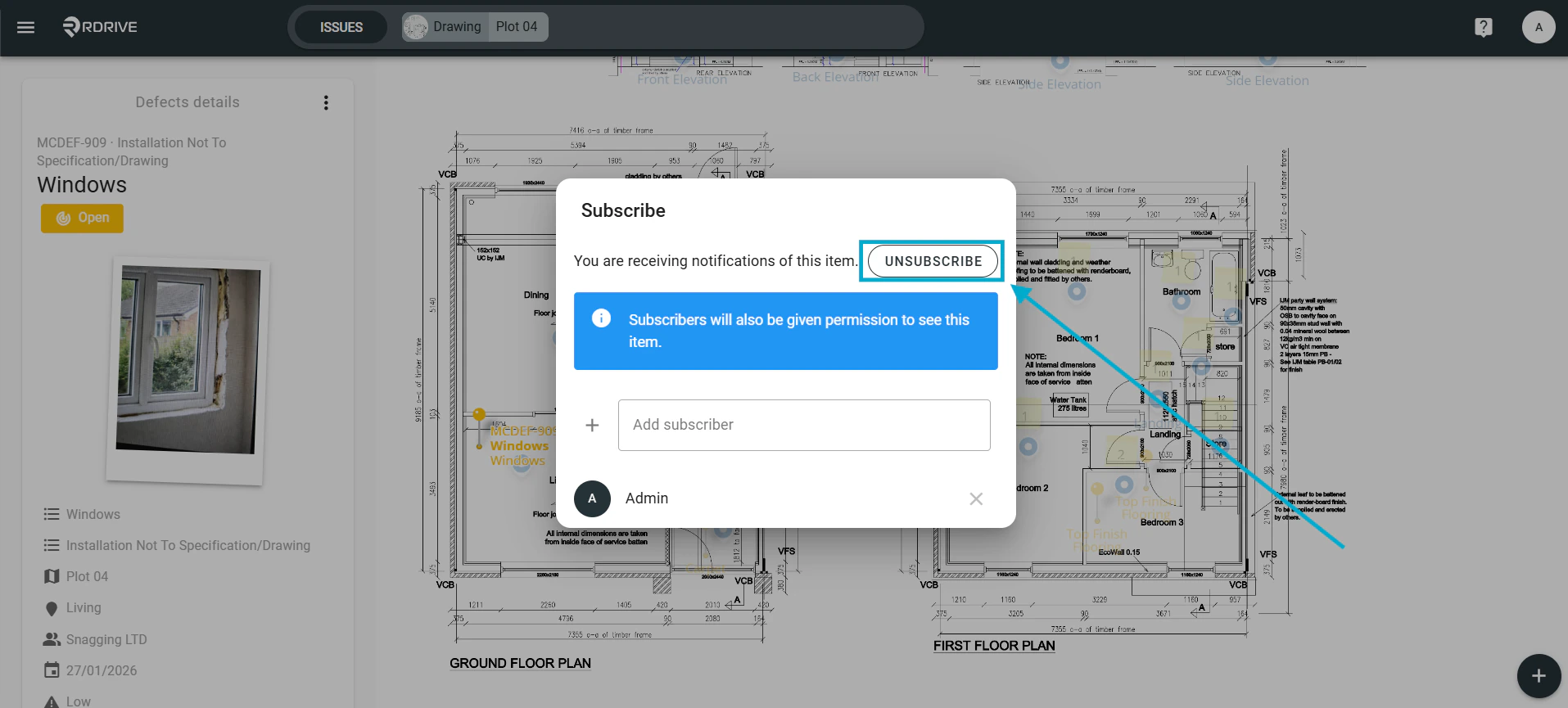
Press the Menu icon ≡ in the top left corner of your screen to unfold the Menu and gain access to the Issue page by selecting the category and subcategory as shown below.Select “Quality” then select the required subcategory, we will choose defects for this example.Select the issue/defect/record you wish to subscribe someone to, click the ≡ button on the right-hand side of your screen to access the Menu as shown below.Select Subscribe and the subscribe options for this issue/defect/record from the drop down menu.To add a subscriber, simply enter the user name in the “Add subscriber” text box and search to add as a subscriber.To remove a subscriber, simply select the “Unsubscribe” box as shown highlighted in the image below, this is the same button as “Subscribe” click this to toggle between Subscribe and Unsubscribe.
Press the Menu icon ≡ in the top left corner of your screen to unfold the Menu and gain access to the Plan Viewer. Then you select the correct drawing.Select the Plan viewer from the side menu and navigate to the drawing/location needed. Choose your issue/defect/record pin as highlighted below. Once selected, the details will display on the upper left-hand side. Press the ⋮ button at the top right corner to access the menu.Select Subscribe and the subscribe options for this issue/defect/record from the drop down menu.To add a subscriber, simply enter the user name in the “Add subscriber” text box and search to add as a subscriber.
To remove a subscriber, simply select the “Unsubscribe” box as shown highlighted in the image below, this is the same button as “Subscribe” click this to toggle between Subscribe and Unsubscribe.