How to raise an issue, defect or record using RDrive
Purpose: How to Link documents to an issue, defect or record against a location on the app and desktop
Who It’s For: General users
Prerequisites: Able to raise an issue, defect or record
It is common that different supporting documents come along with the issue/defect/record itself.Not to worry, RDrive allows you to attach document(s) to your issue/defect/record!How to attach documentation:You will NOT be able to attach any document(s) to the issue/defect/record when it’s status is set to Closed**!** (Sometimes, attaching documents will only be possible at a certain status, dependent on the bespoke settings)TABLE OF CONTENTS
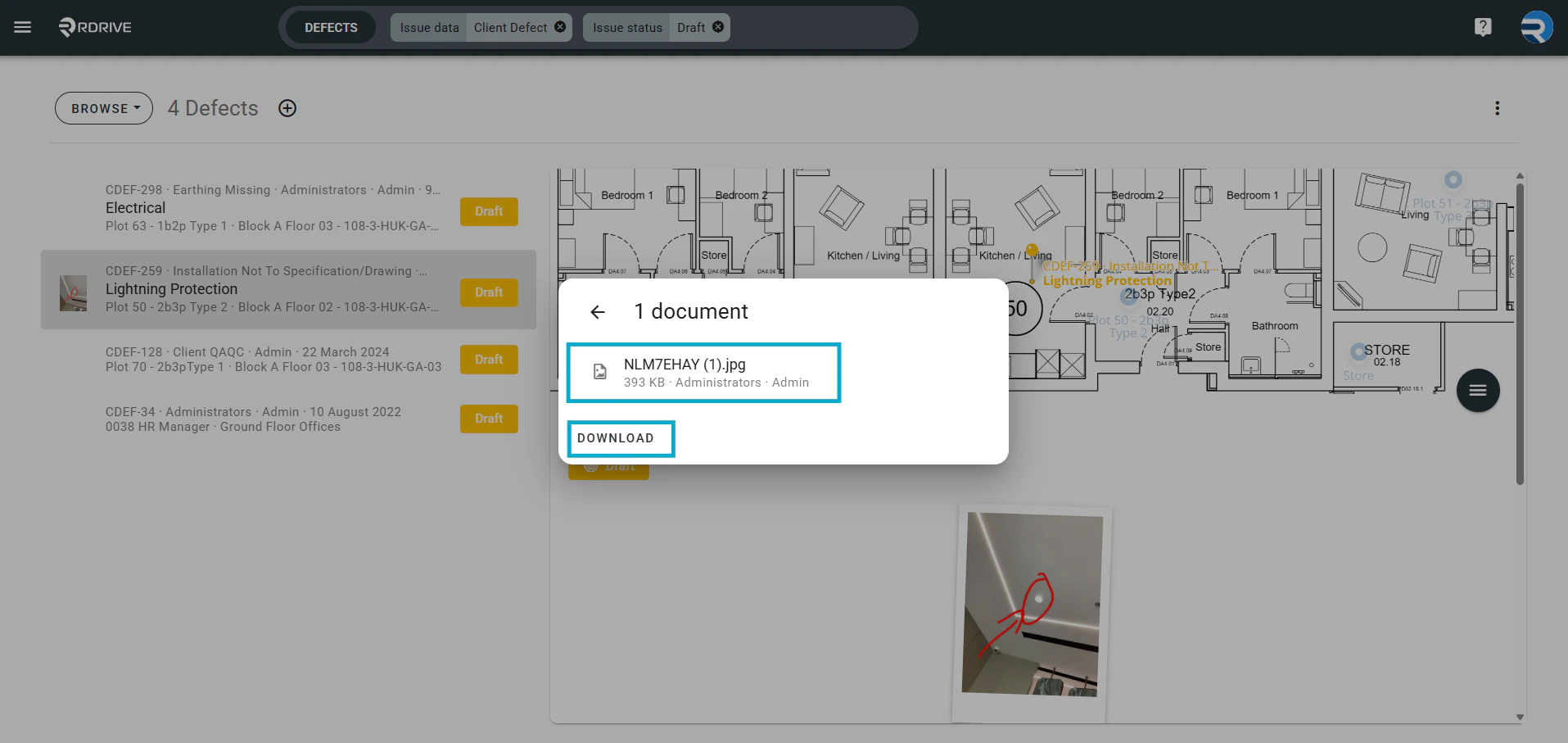
To begin, press the Menu ≡ button in the top left corner to unfold the Menu and gain access to the issue/defect/record page by selecting the category and subcategory.Once you have chosen your issue/defect/record, press the Menu ≡ button on the right-hand side of your screen as circled below to expand the menu and select “View” then “Links”.The linked items will be shown if any are available. For the purpose of this example, we will click on “Linked files” to add documents.From here we can then upload documents directly from your device or machine by clicking “Upload documents” or select documents already uploaded to the Document Repository by clicking “Select from document repository”.Now you can upload the document(s) from your desktop or device either by clicking and selecting the file from your documents which will appear under “New documents”, once complete hit “Done”.The uploaded document(s) will now show as below as “Linked Files”, clicking into this will then show this and allow you to download any documents here.Your documentation has now been added to your issue/defect/record to view and download any time.Exit this window by clicking outside of the Panel or pressing the Esc key to close.