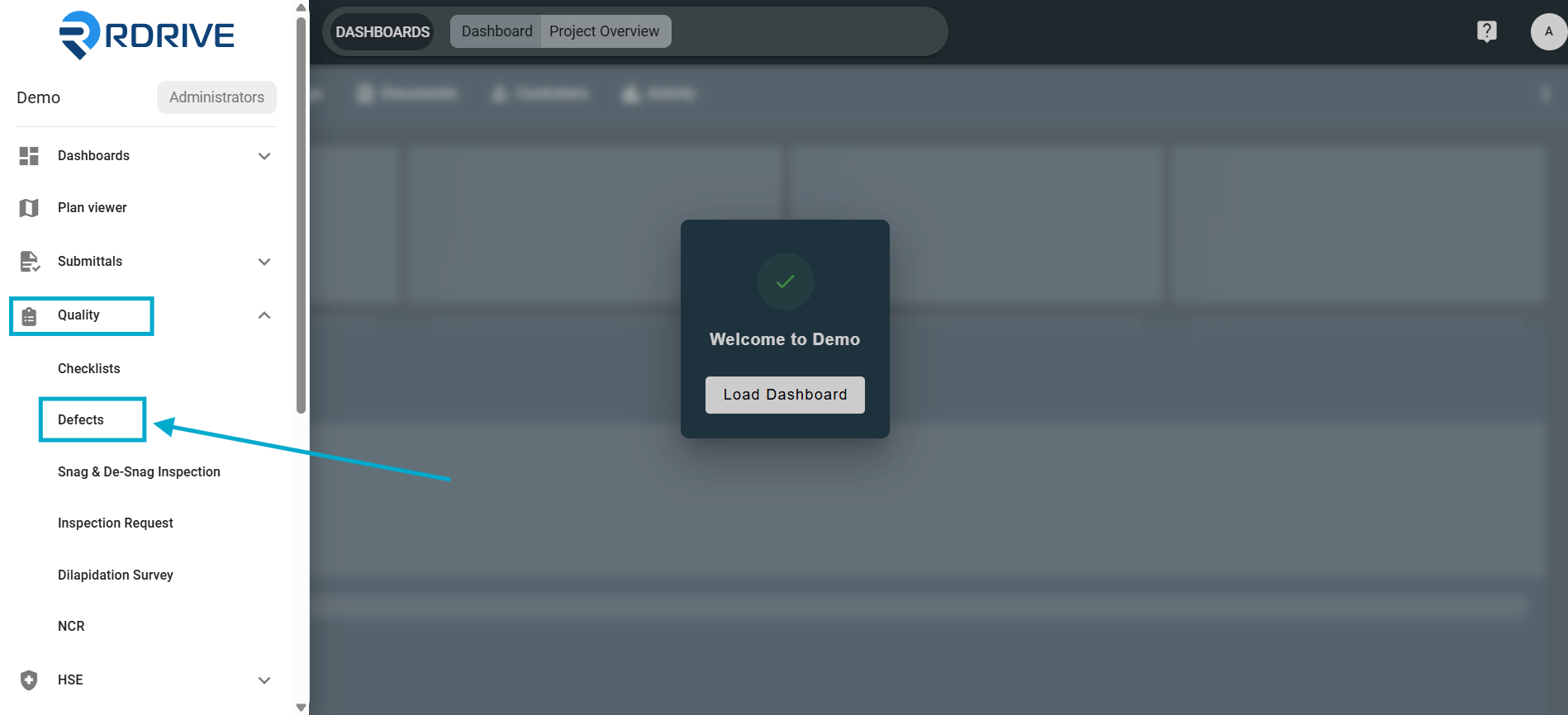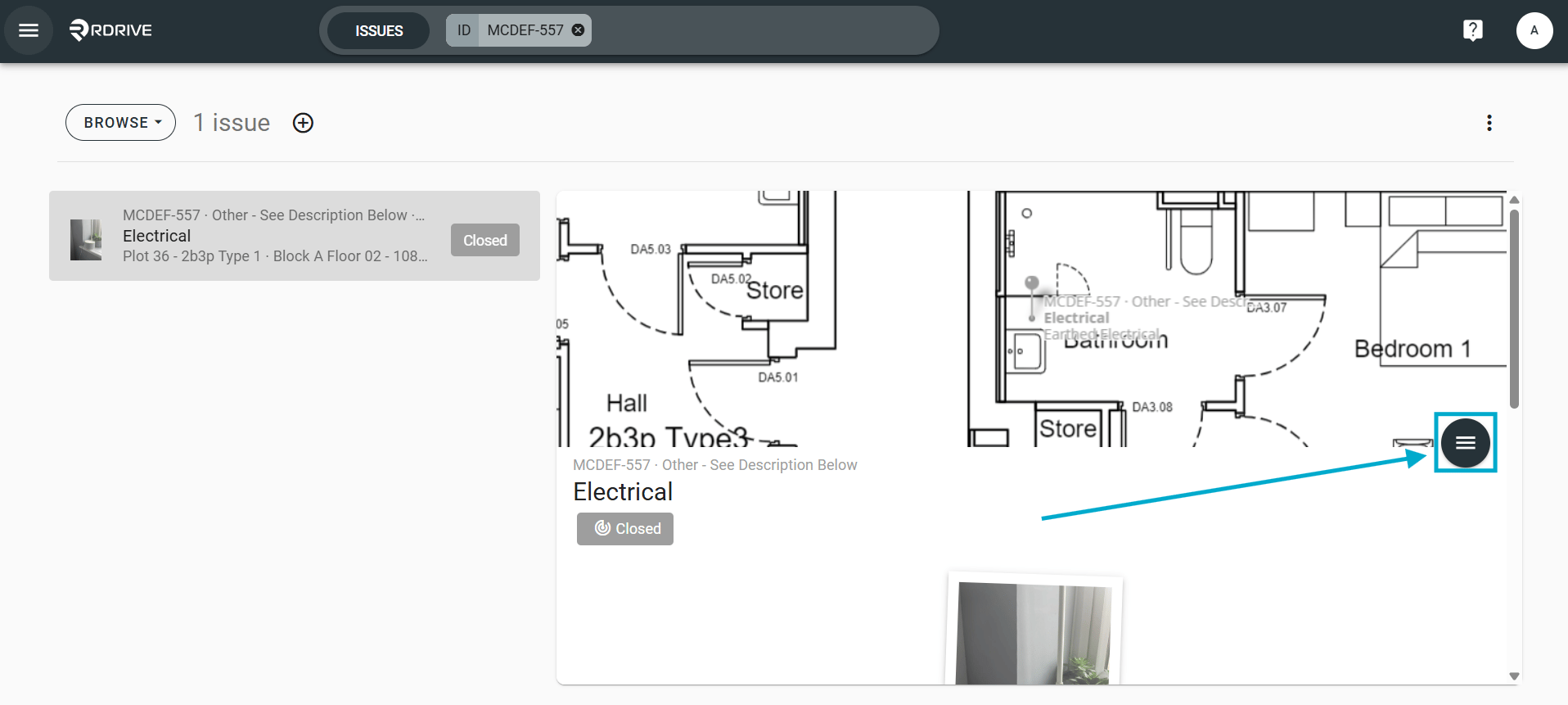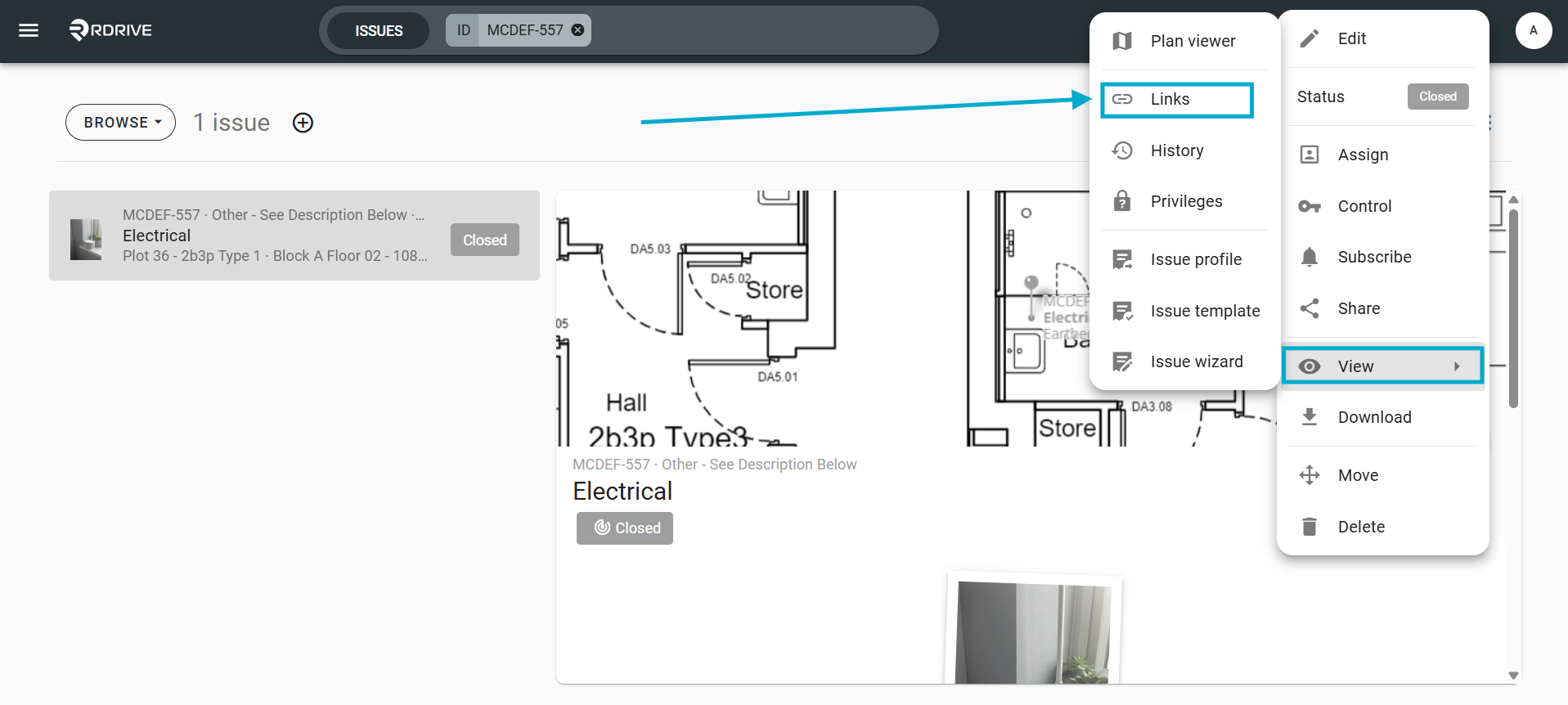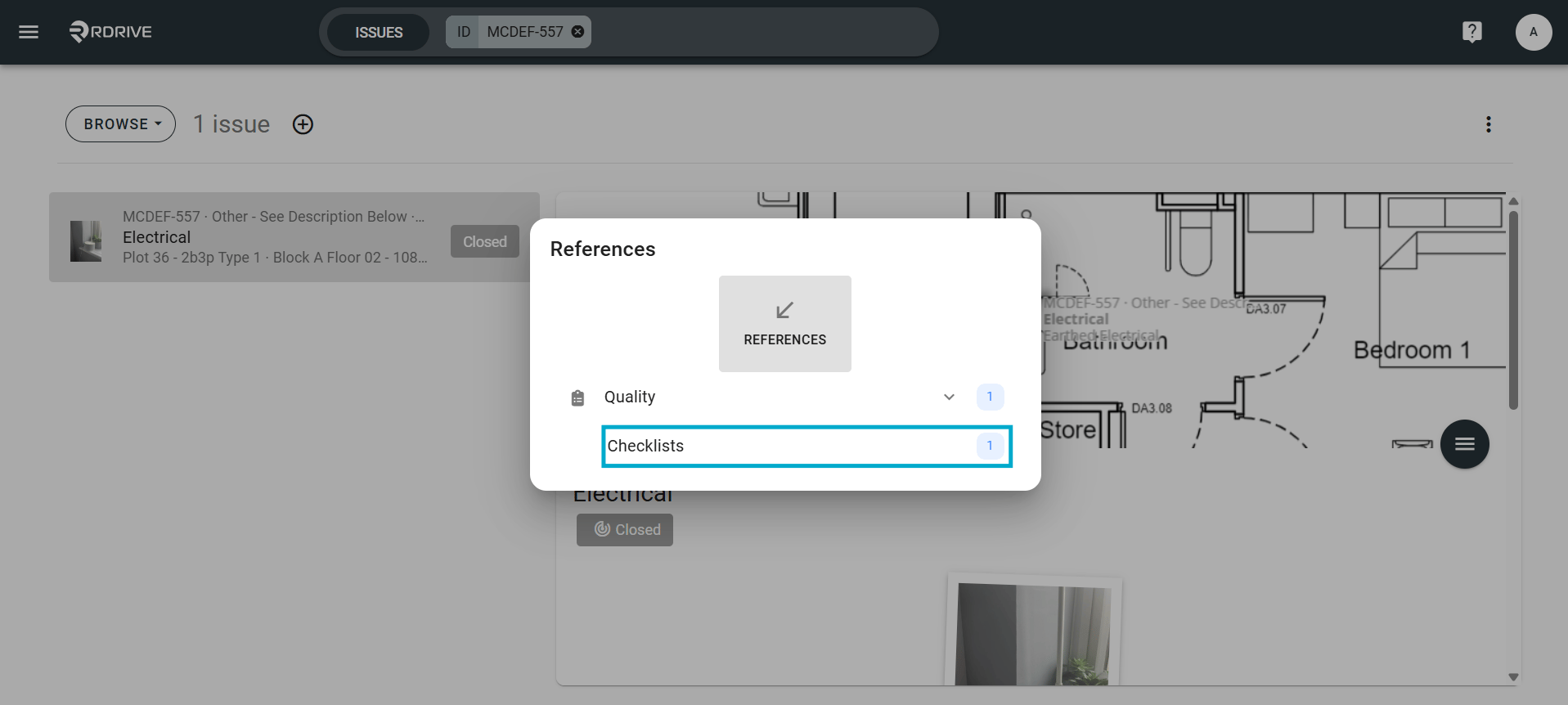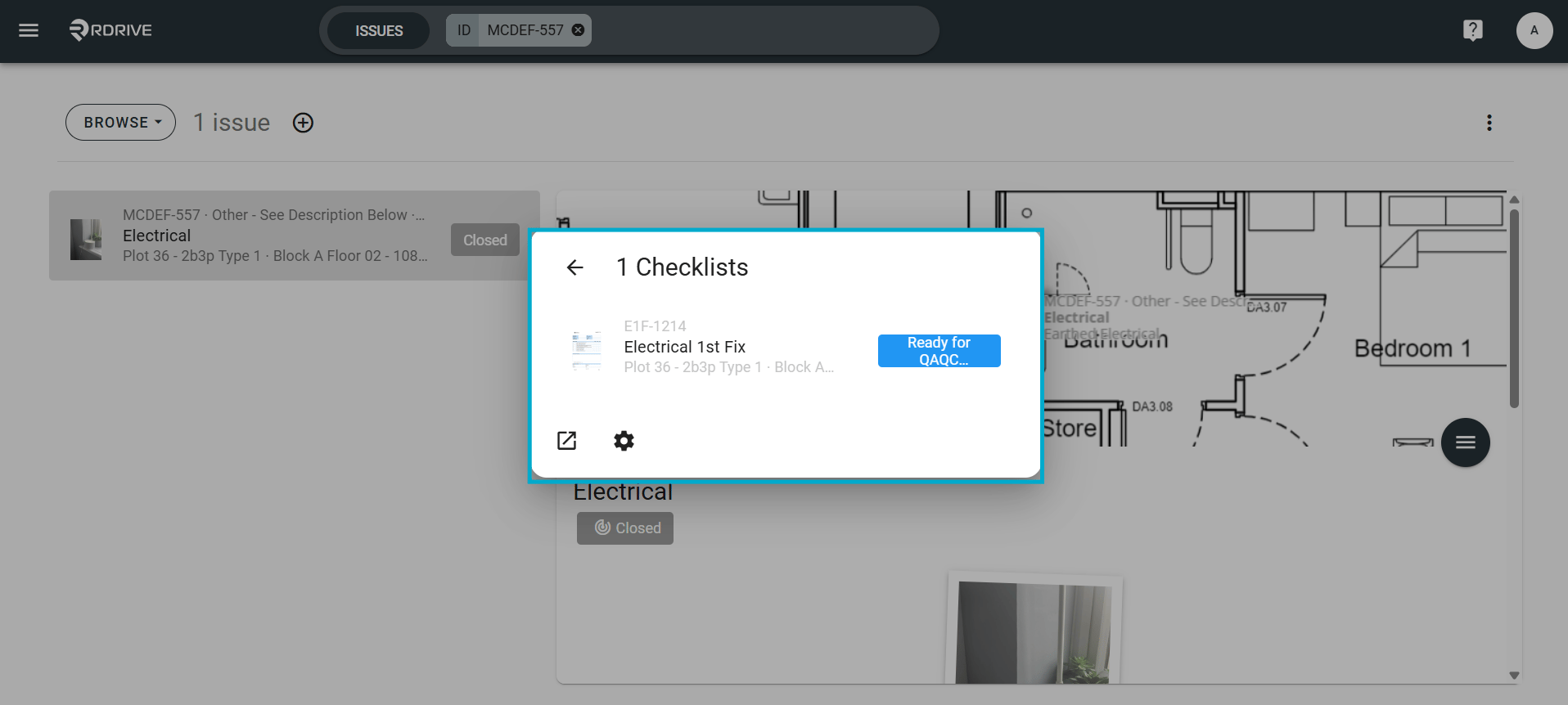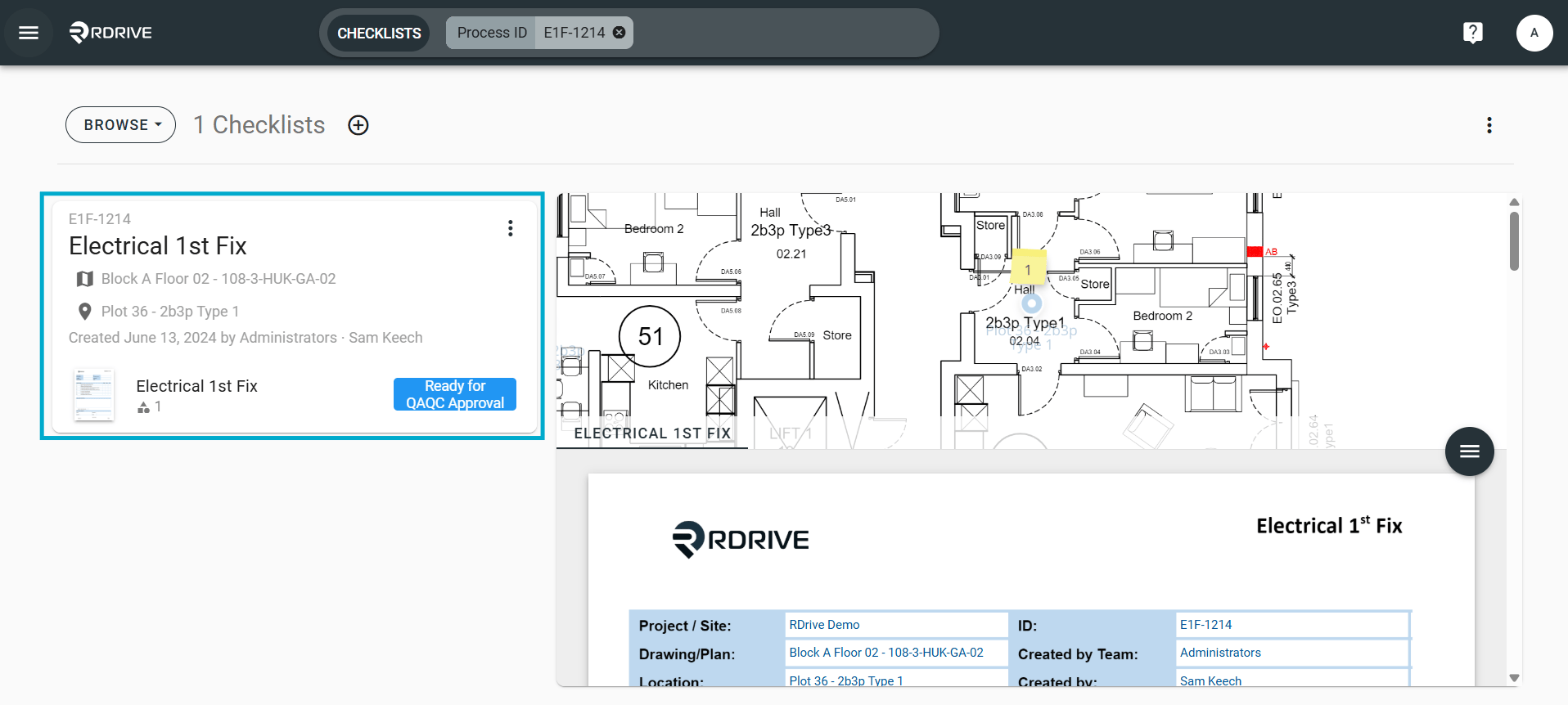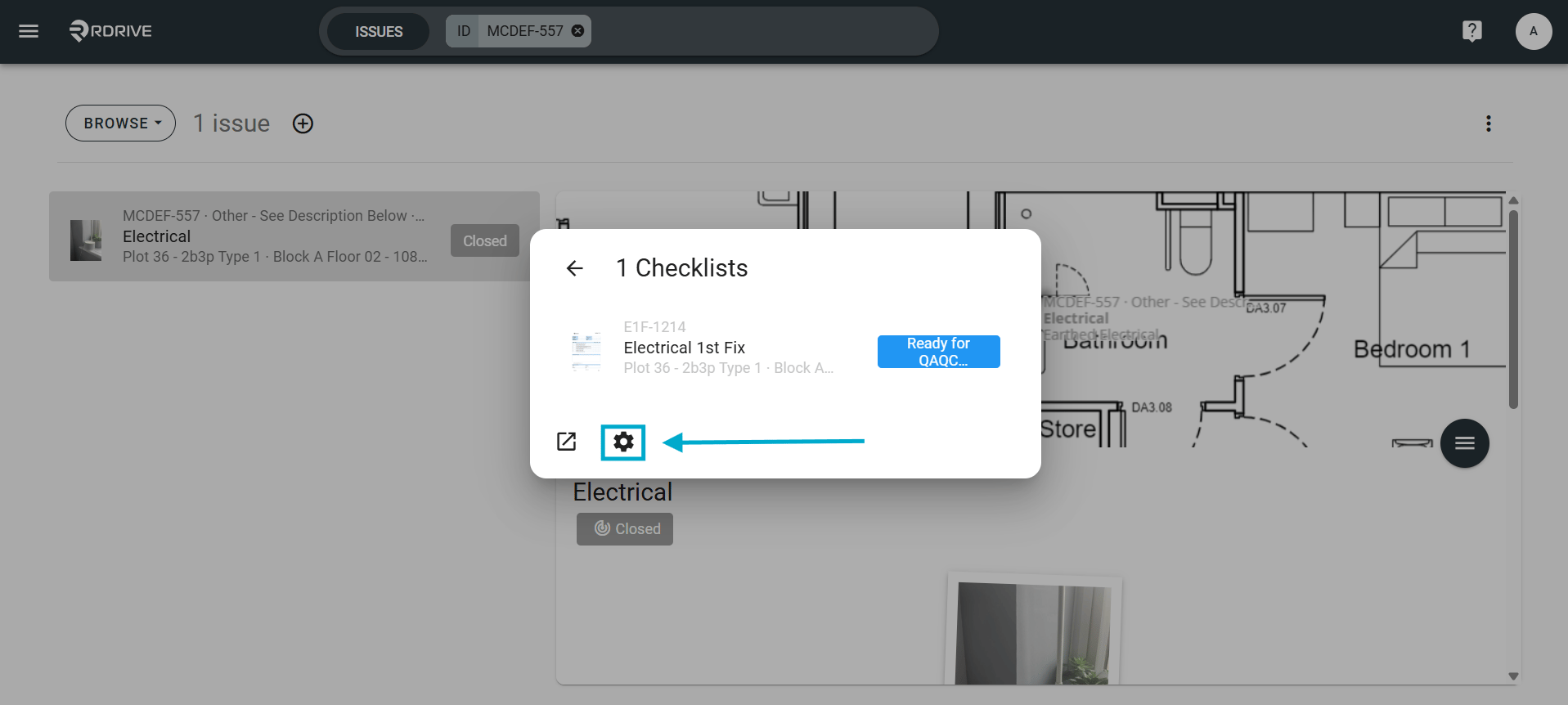

Via Issue Finder Simply press the Menu icon ≡ on the top left corner to unfold the Menu and gain access to the Issue page by selecting the category and subcategory as shown below. Then click the button on the right-hand side of your screen to expand the menu and select “Links” via the “View” option as circled/arrowed below. Once chosen, the details will enlarge in a window on your screen. To view the issue/defect/record's linked items To view the issue/defect/record's linked items Select your desired “I****tems” from the category and subcategory. this may be “Links” and/or “References”. To view the issue/defect/record's linked items Choose as required to view the linked items will be shown with the detail window. Press on the desired item to open the issue/defect/record within the Plan Viewer. To view the issue/defect/record's linked items To view the issue/defect/record's linked items Customise the display of the detail? We know every user has their own preference. For this reason, RDrive supports customising your own display list! Please click the “Settings” ⚙️ to design the display to your liking or specific requirements. To view the issue/defect/record's linked items