

Overview
A brief introduction explaining the purpose of this guide.- Purpose: [What is this guide about?]
- Who It’s For: [General users, admins, project teams, etc.]
Prerequisites: [Any necessary setup, permissions, or access required]
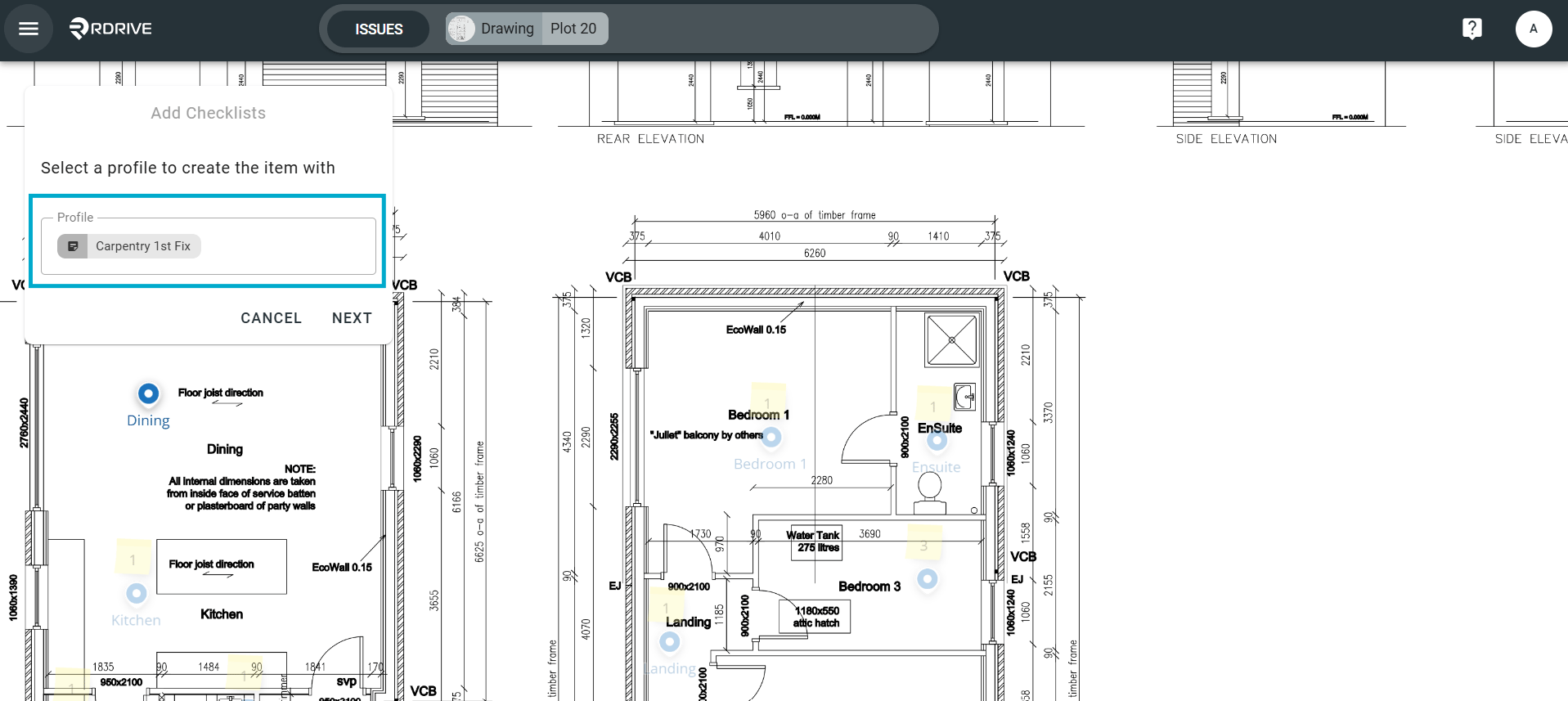
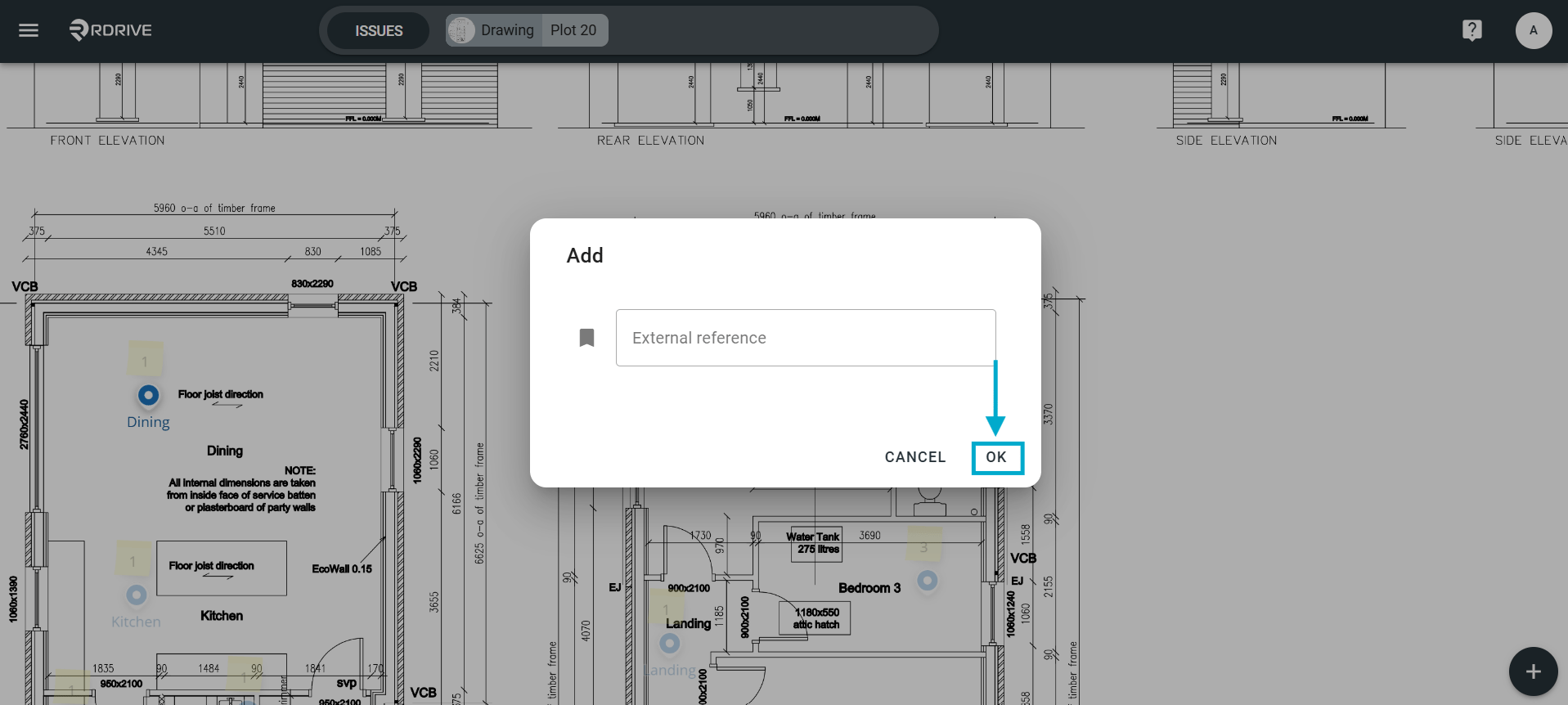
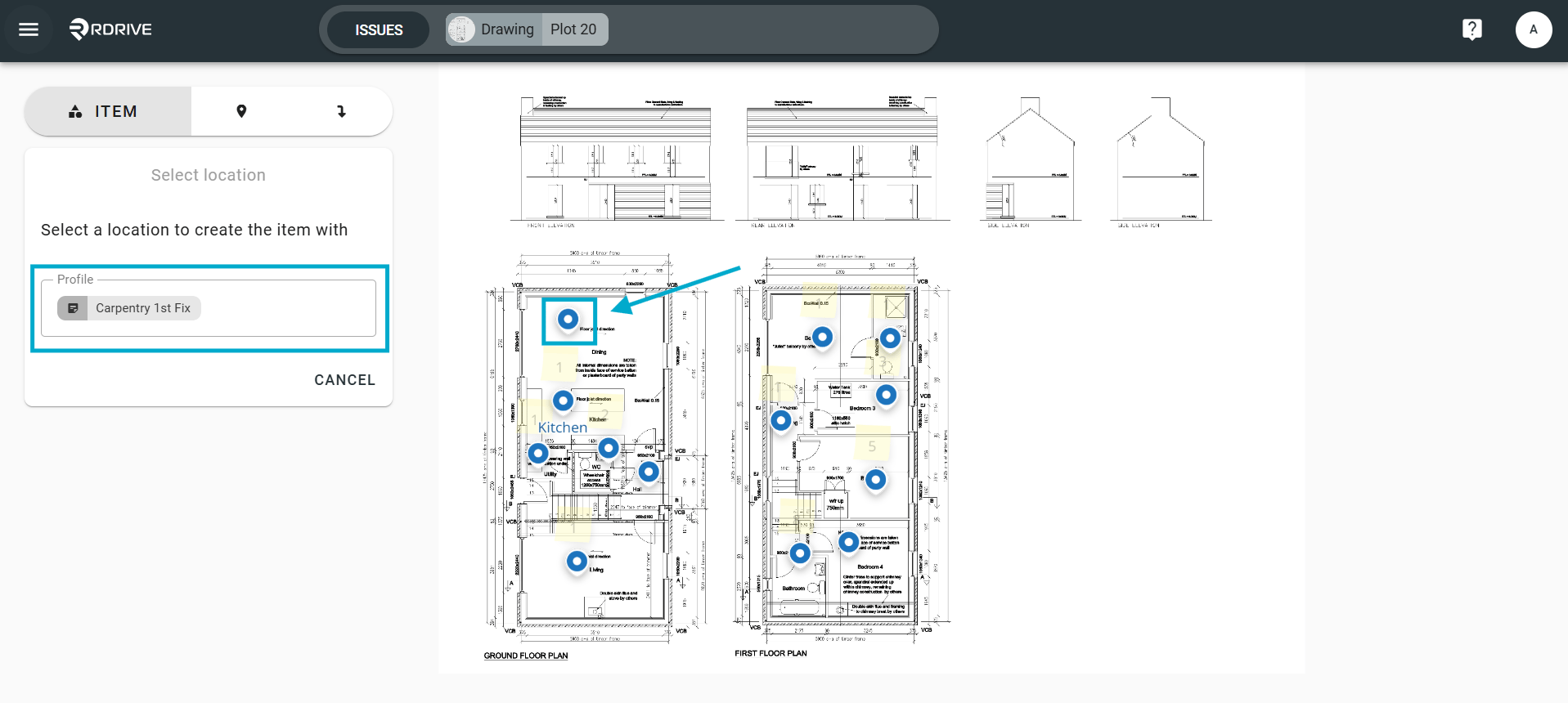
Raising a process/checklist from a location
Click on the blue location pin as shown below.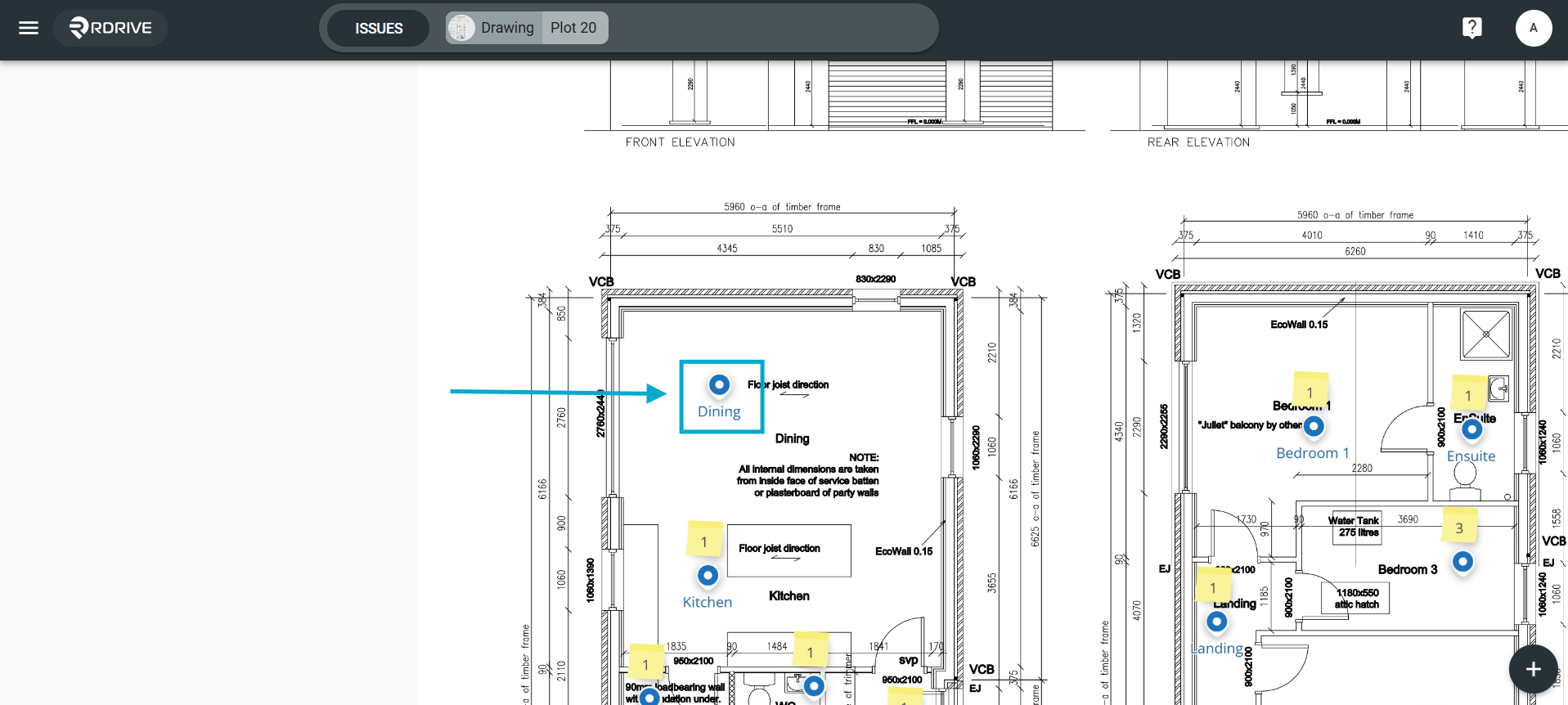
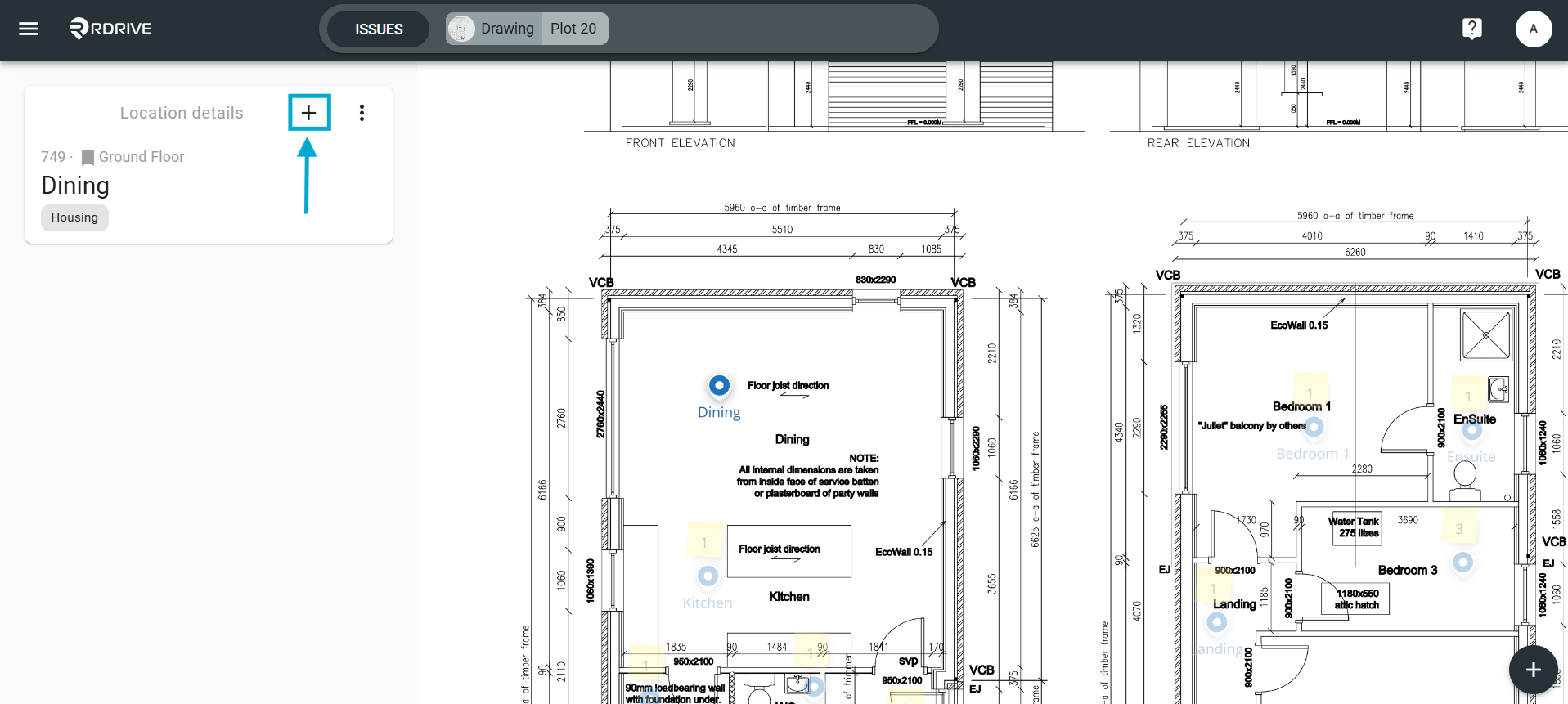
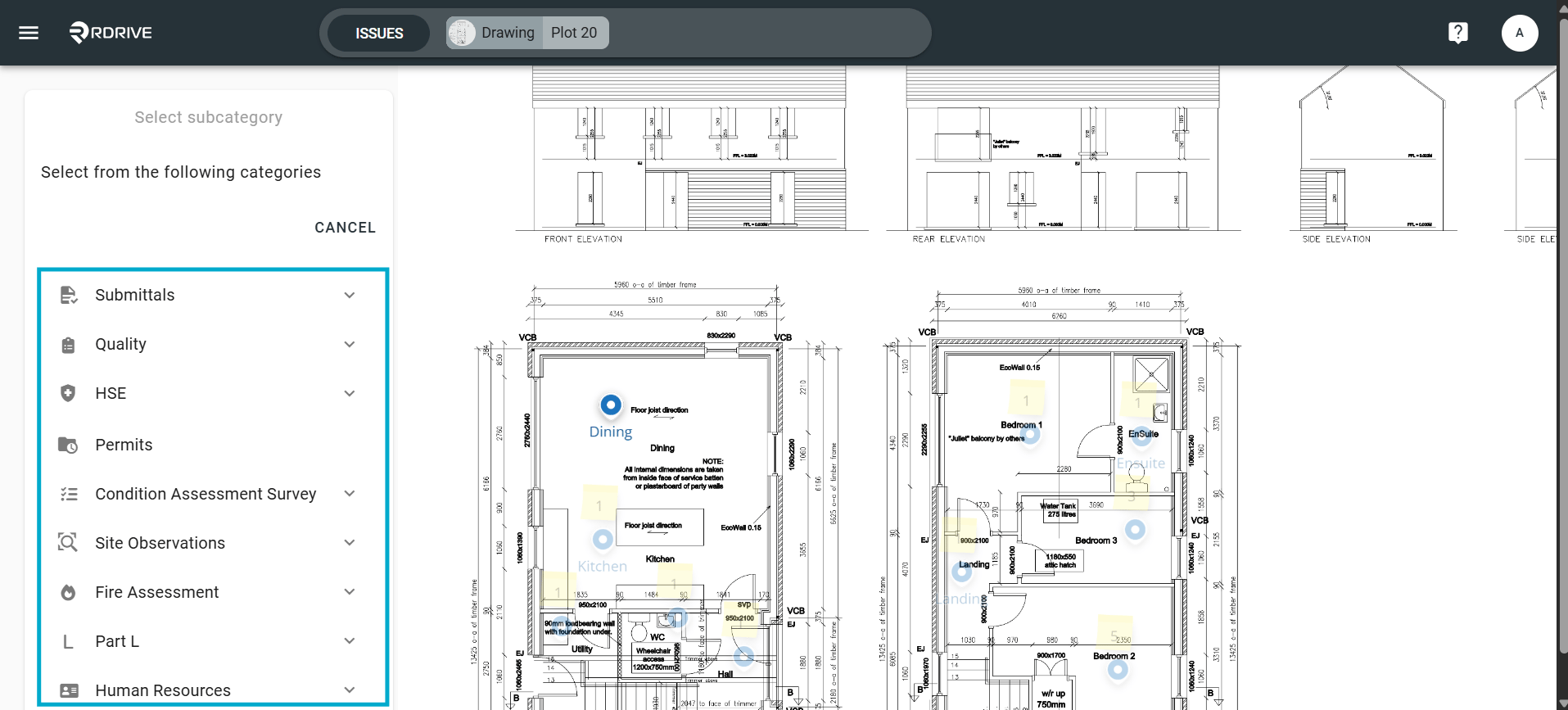
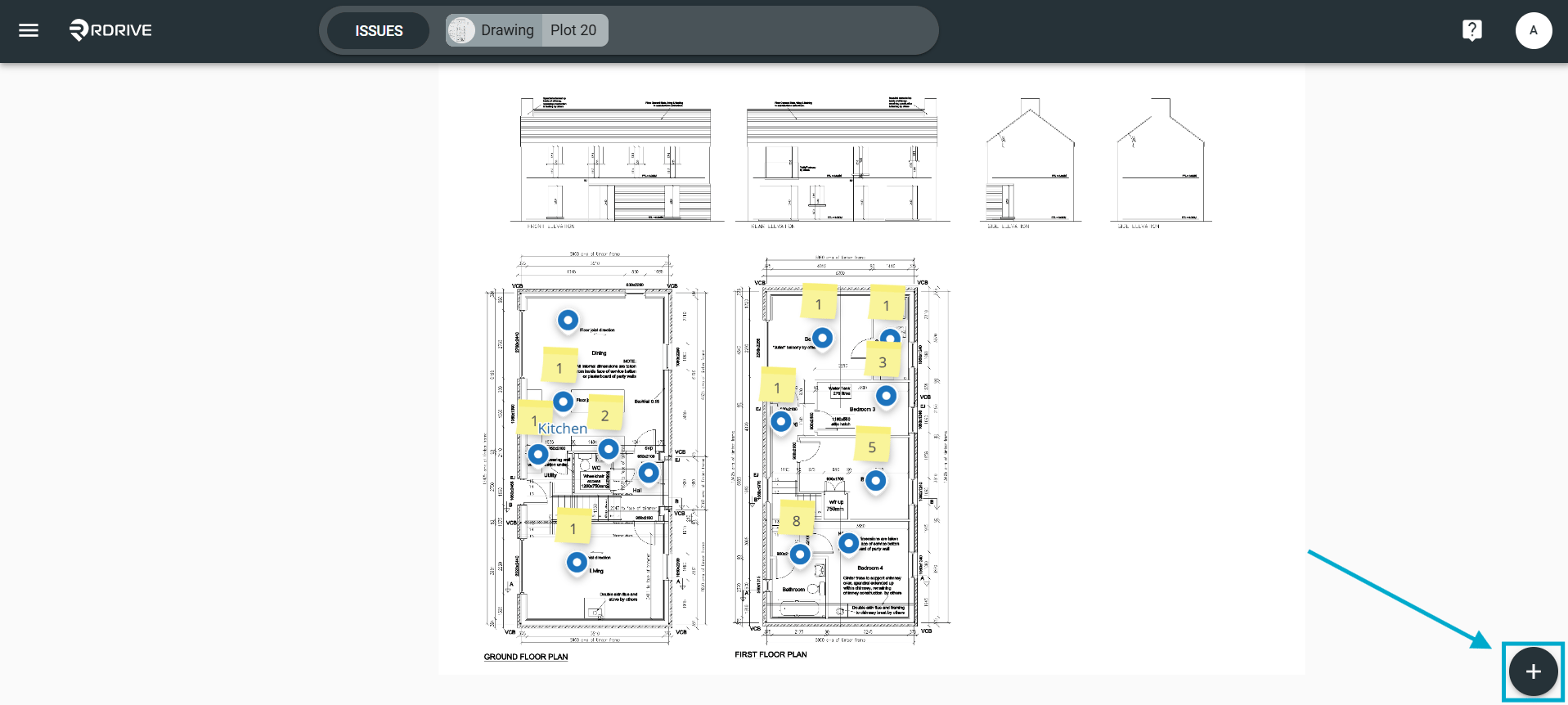
Raising a process/checklist from the “add item” option Press the ✚ button at the bottom right corner.
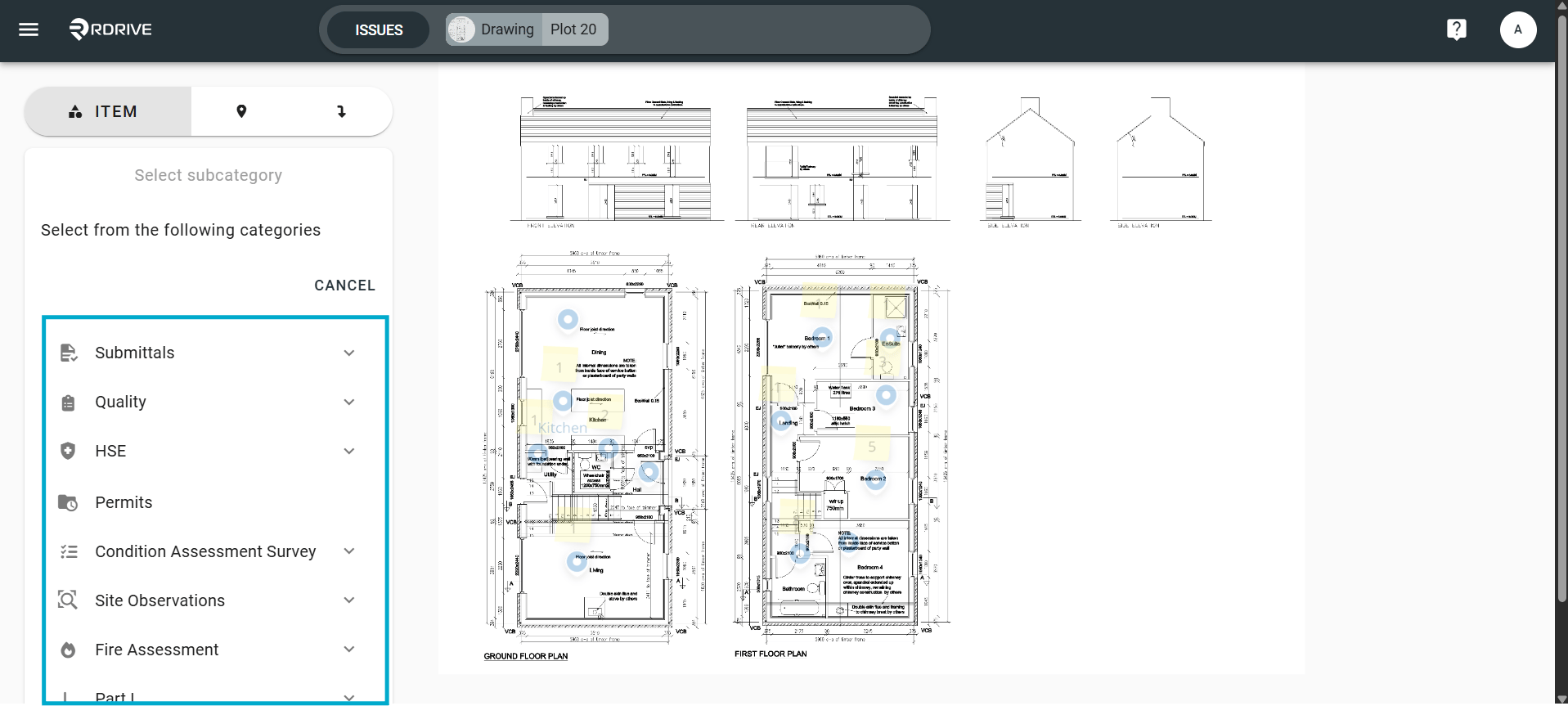
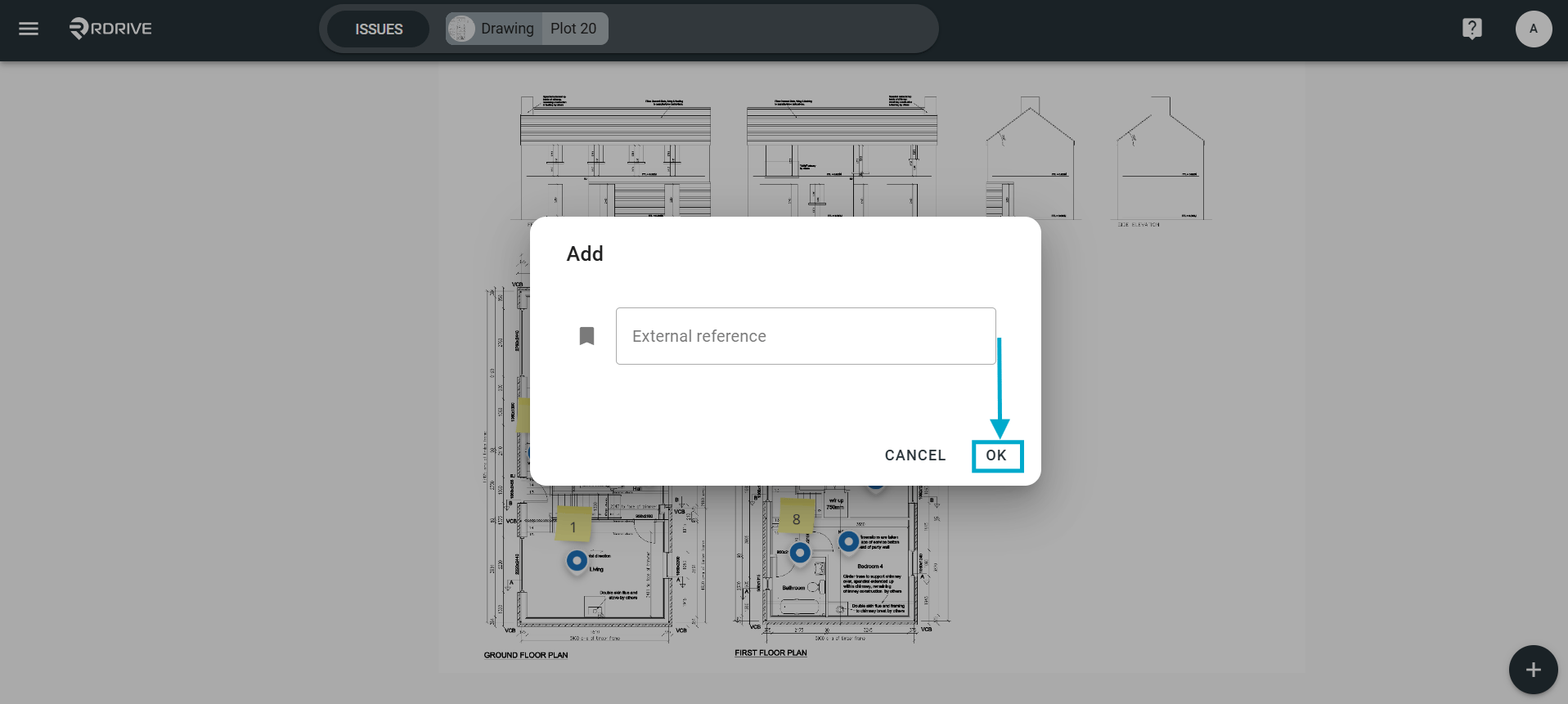
Can’t see the process you want to add? It may be the case that you do not have the permission to create that process/checklist. Please reach out to your Project Administrator for more details.
FAQs & Troubleshooting
Q: Can I add multiple processes or checklists from the Plan Viewer?A: Yes. Depending on your project setup and permissions, you can add multiple processes or checklists directly from the Plan Viewer. Q: Why can’t I see the option to add a process/checklist in the Plan Viewer?
A: The option may be restricted by your user permissions or project configuration. Ensure you have the correct access rights and that the relevant plan has been loaded correctly. Q: Can I add a process/checklist to a specific location on the plan?
A: Yes. When using the Plan Viewer, you can place the process or checklist at a precise location on the drawing or plan for easier tracking and management.