What should you do if you would like to unlink items from a form?Let’s take a look!(You will not be able to unlink items when a form is at closed status. Or som
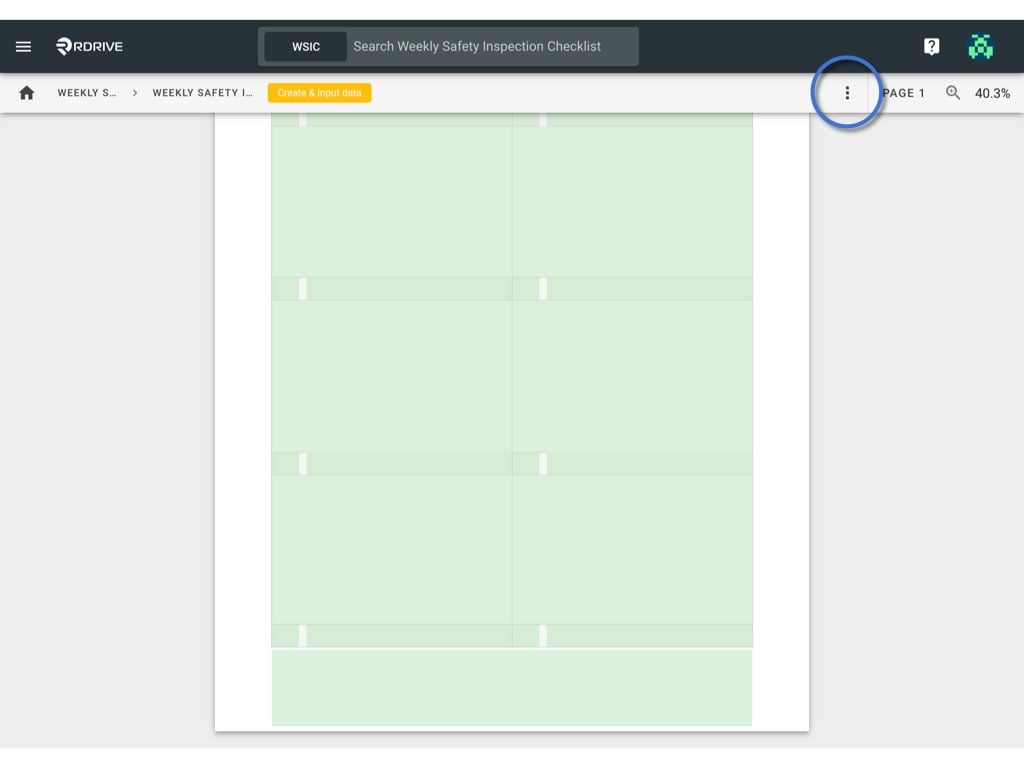
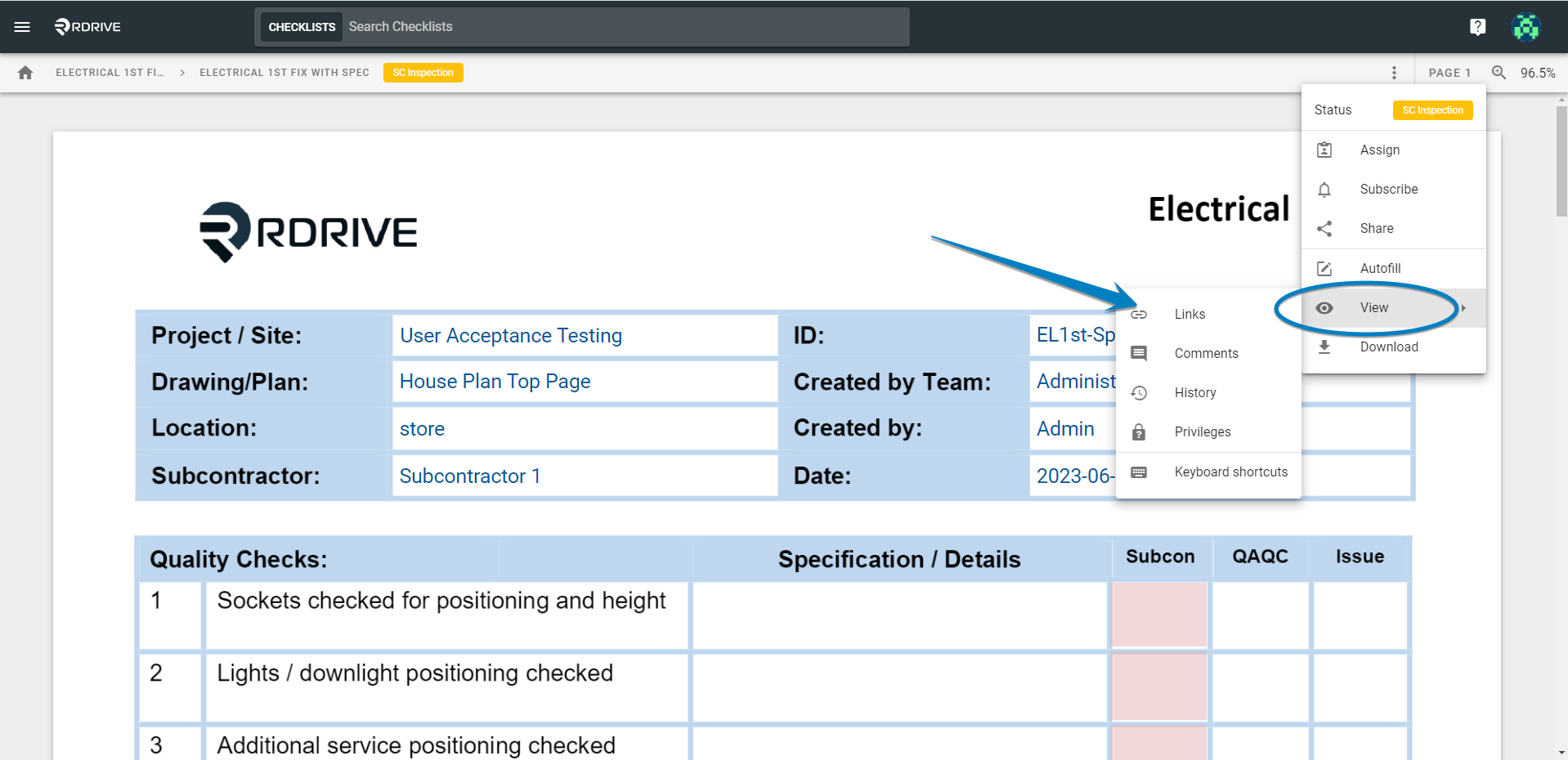
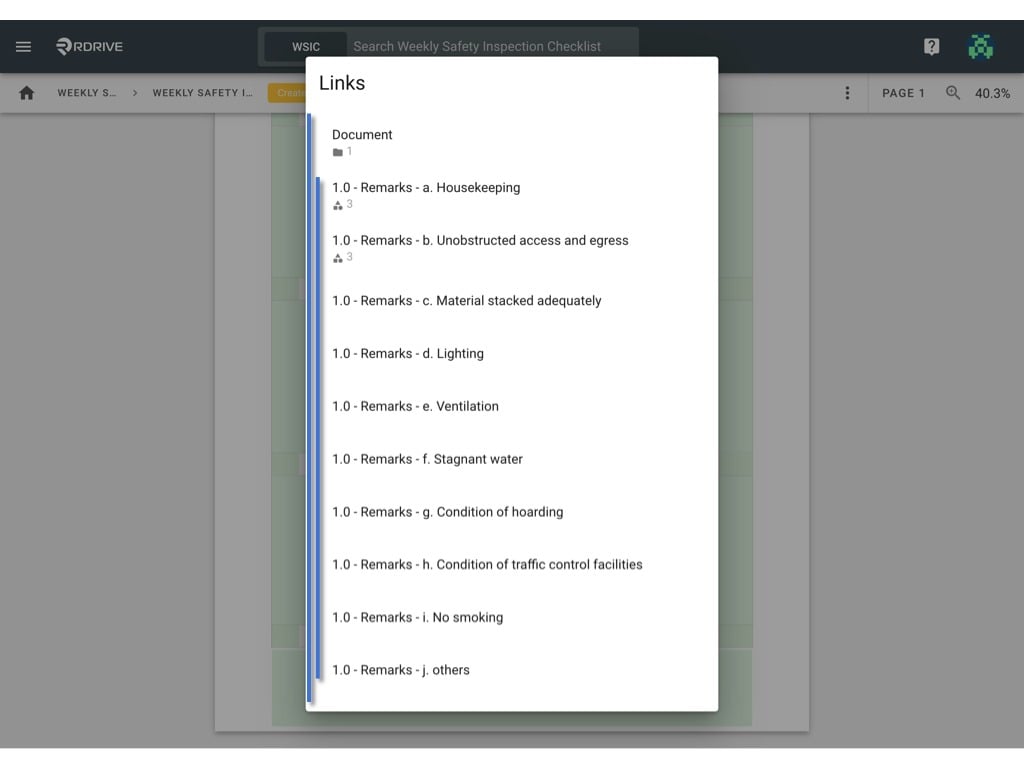
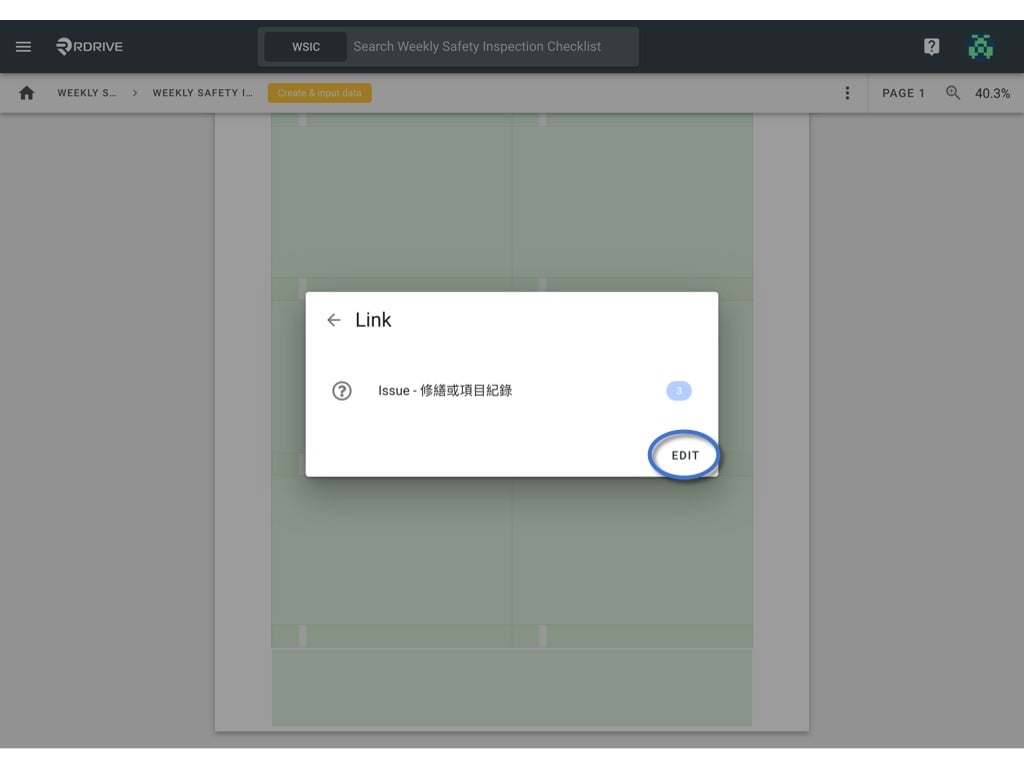
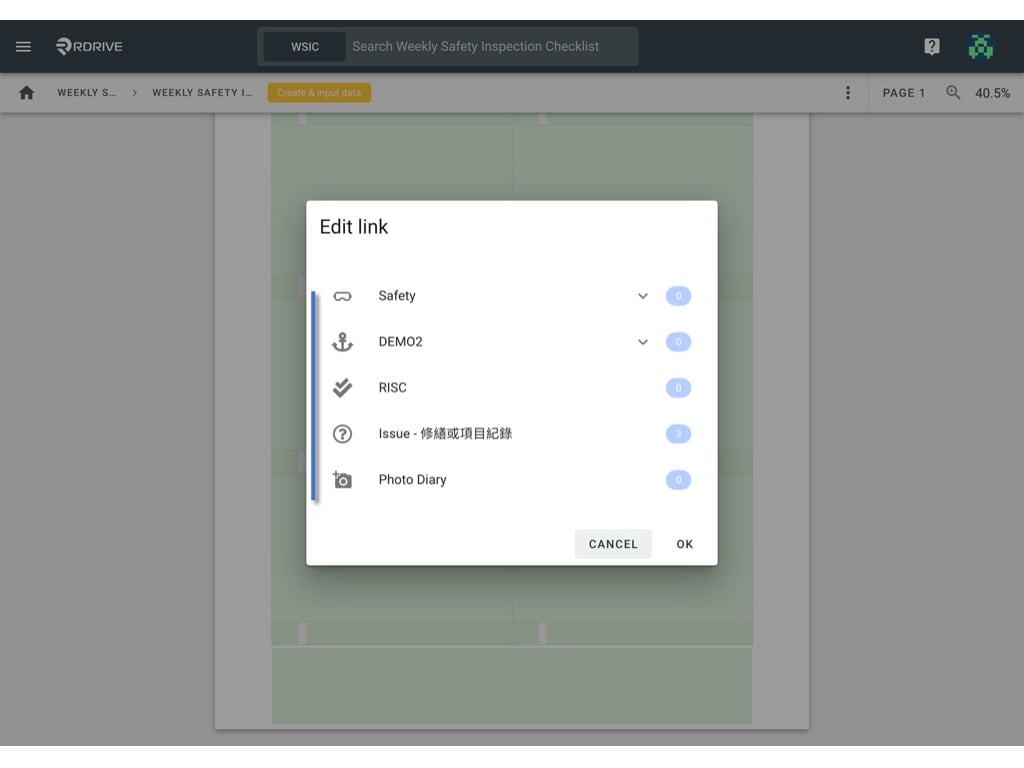
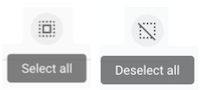
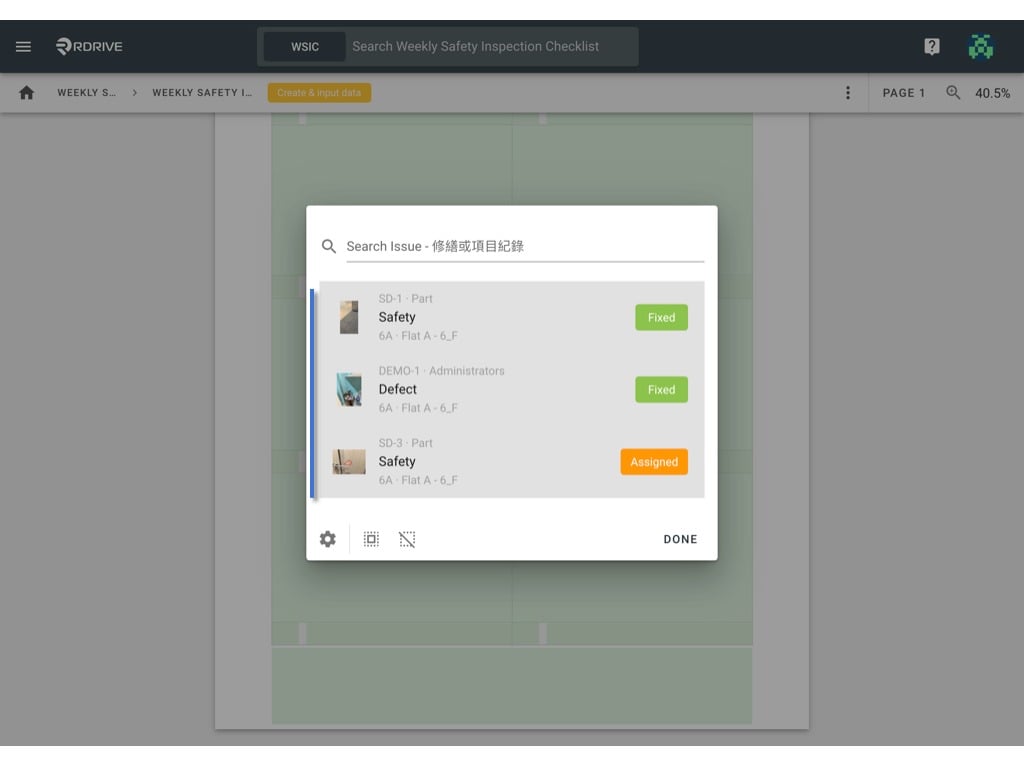
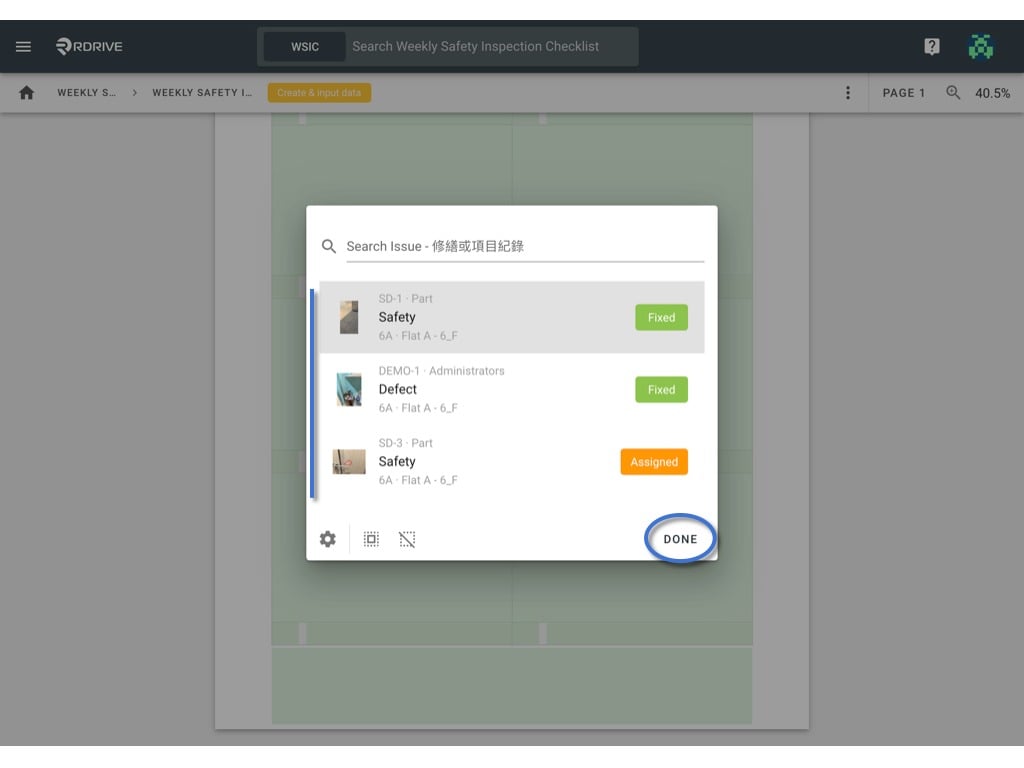
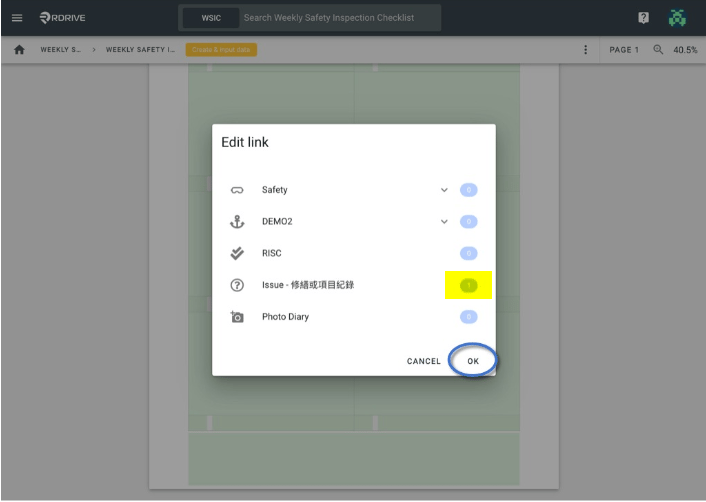
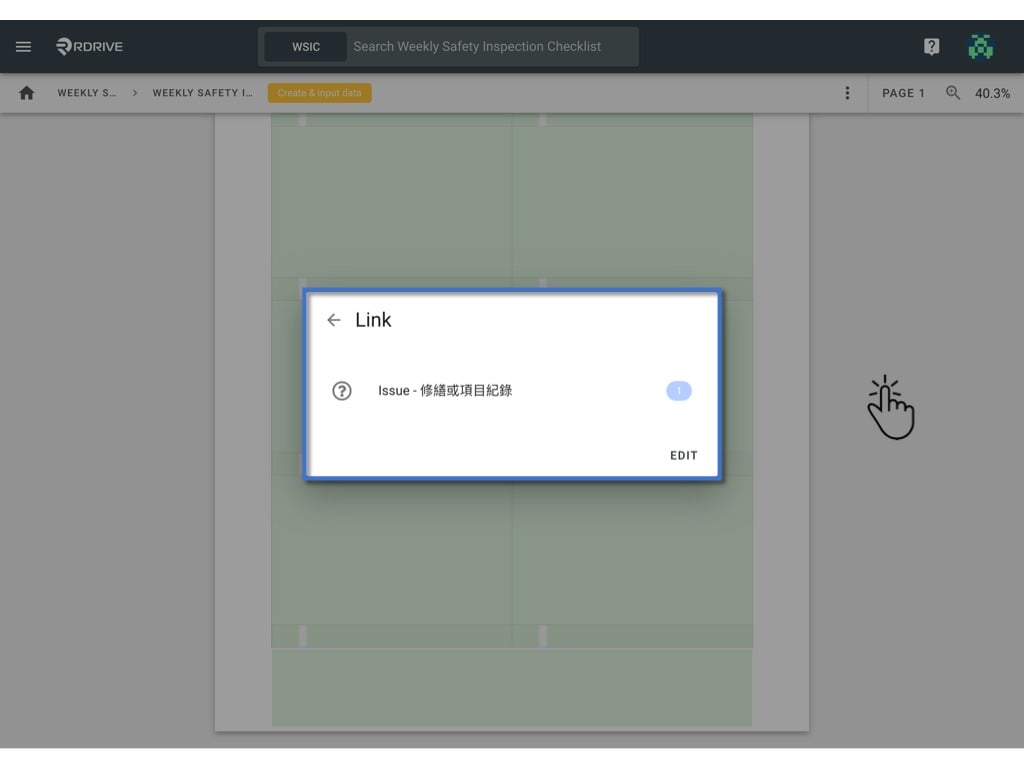
What should you do if you would like to unlink items from a form?Let’s take a look!(You will not be able to unlink items when a form is at closed status. Or sometimes, attaching items are only available at certain status. It depends on the form settings)Gain access to the form viewer page by selecting your category and subcategory. Once you are in the form viewer, simply press the 3 dots ⋮ icon to explore the dropdown menu and select “Links” via the view option in the Menu as shown below.All the link fields of this form will be listed by the field title for your selection as shown below. Now simply select the relevant documentation to unlink as required.(Please note that this page would be skipped if there is only one link field on the form)Press “EDIT” to proceed.Select the items you wish to unlink by the relevant category and subcategory.Click to select any issues you would like to unlink from the resulting window or press the “D****eselect all” button to deselect all of the issues. Please see the icons below for clarity.You should no longer see a grey background for any of the unlinked items as shown below and press “DONE” to confirm.Your items are now unlinked.You will see confirmation of this in the Edit Link window as shown highlighted below, as you can see 1 document is now remaining as 2 have been unlinked. Now you can simply press “OK” to save your work.Pressing outside of the Link window or pressing the Esc key will close your action.You have now removed links from the linked item list!