Purpose: Adding a comment and tagging a user in a process
Who It’s For: General users
Prerequisites: Able to read the item
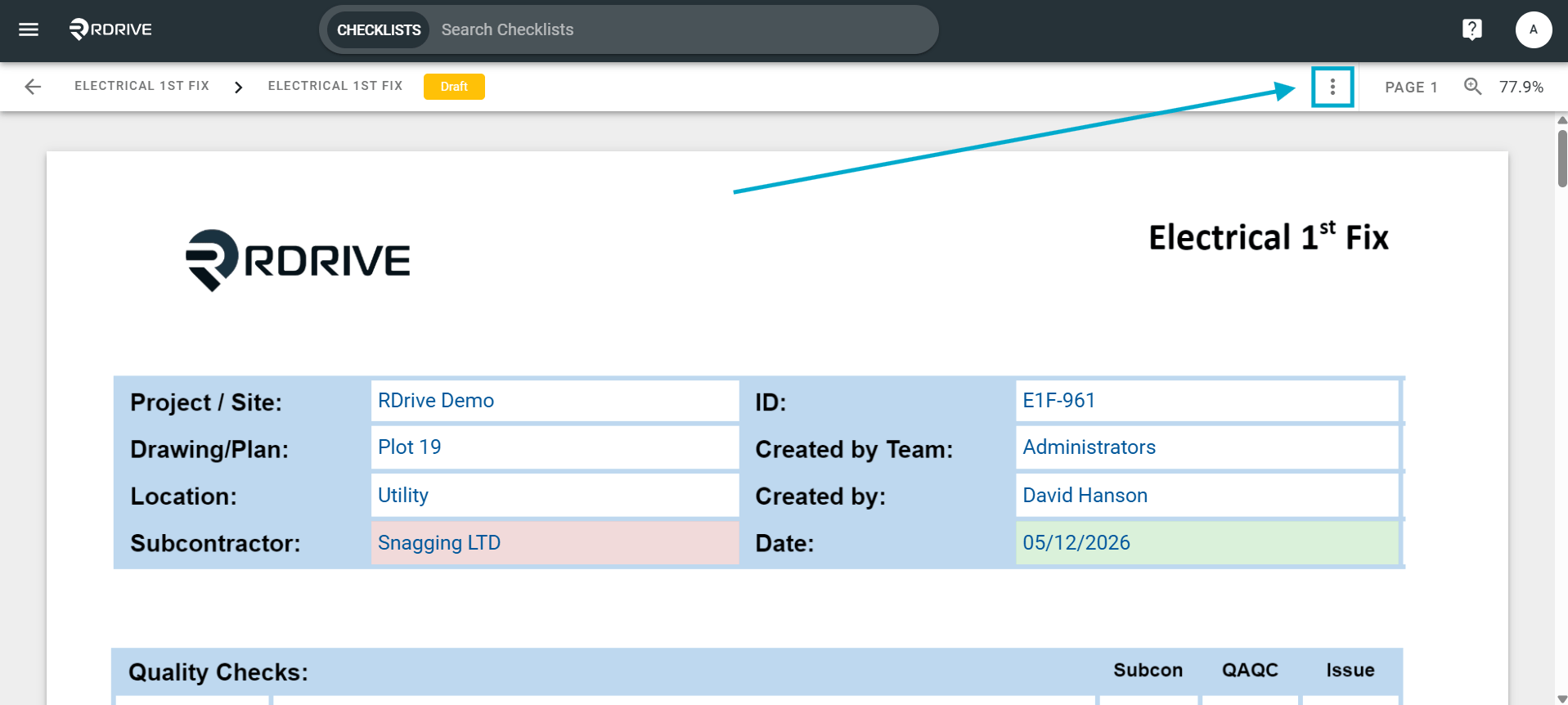
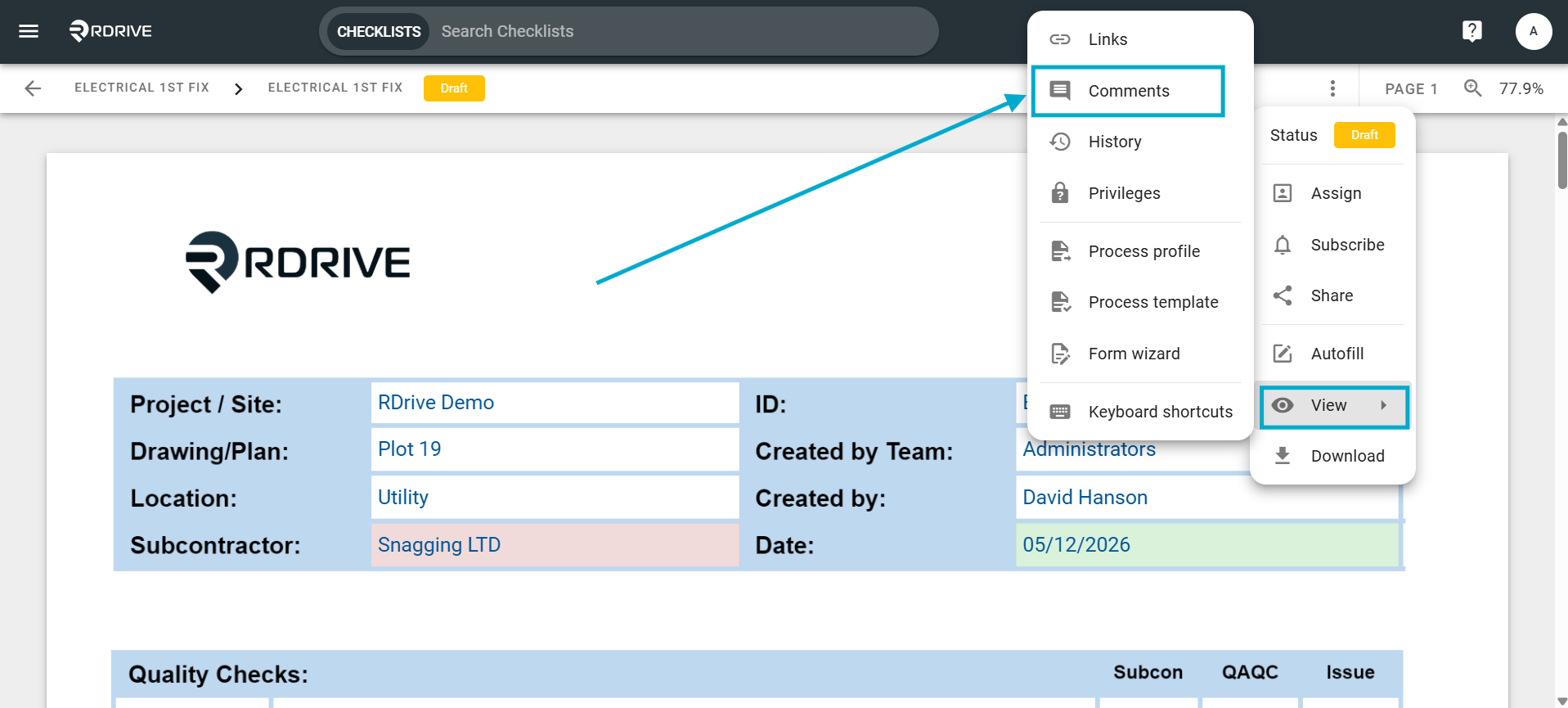
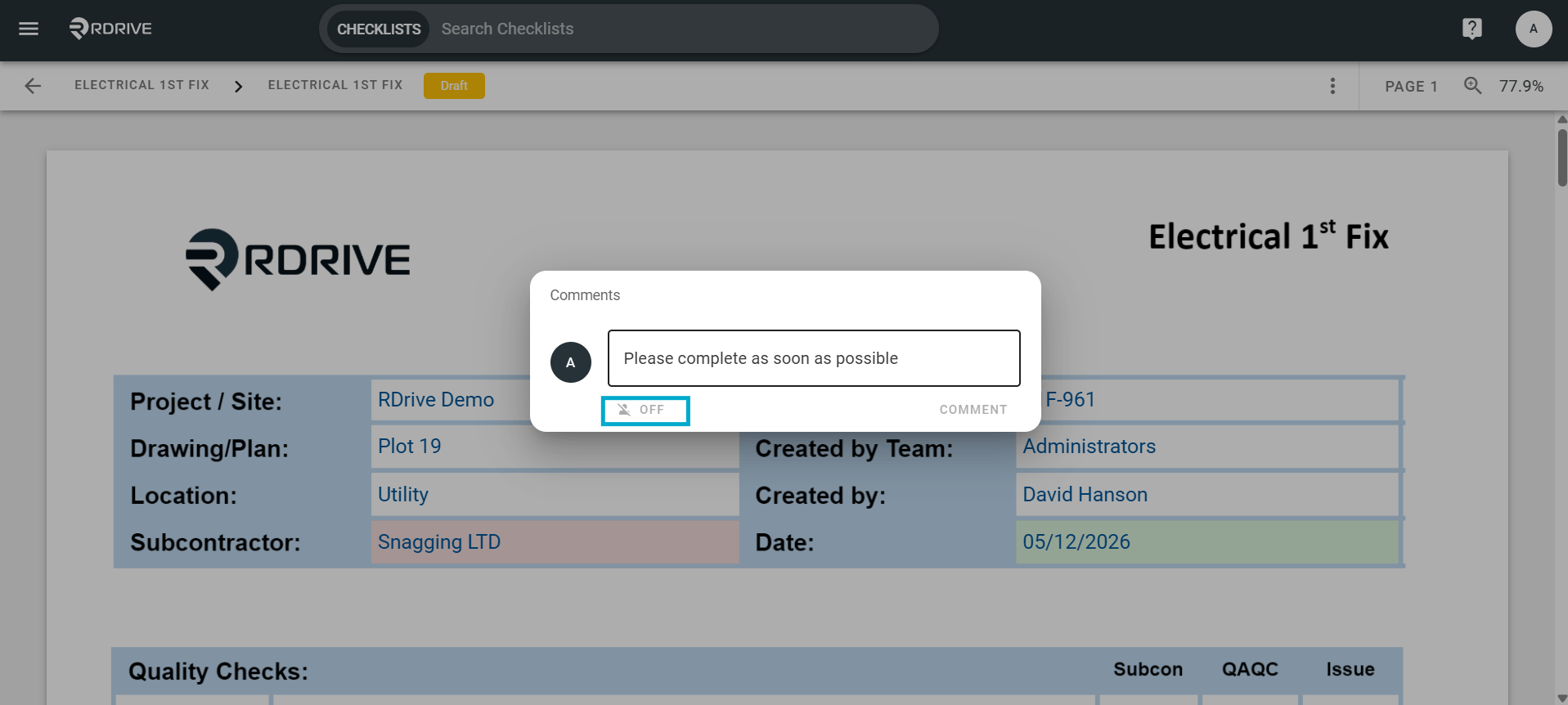
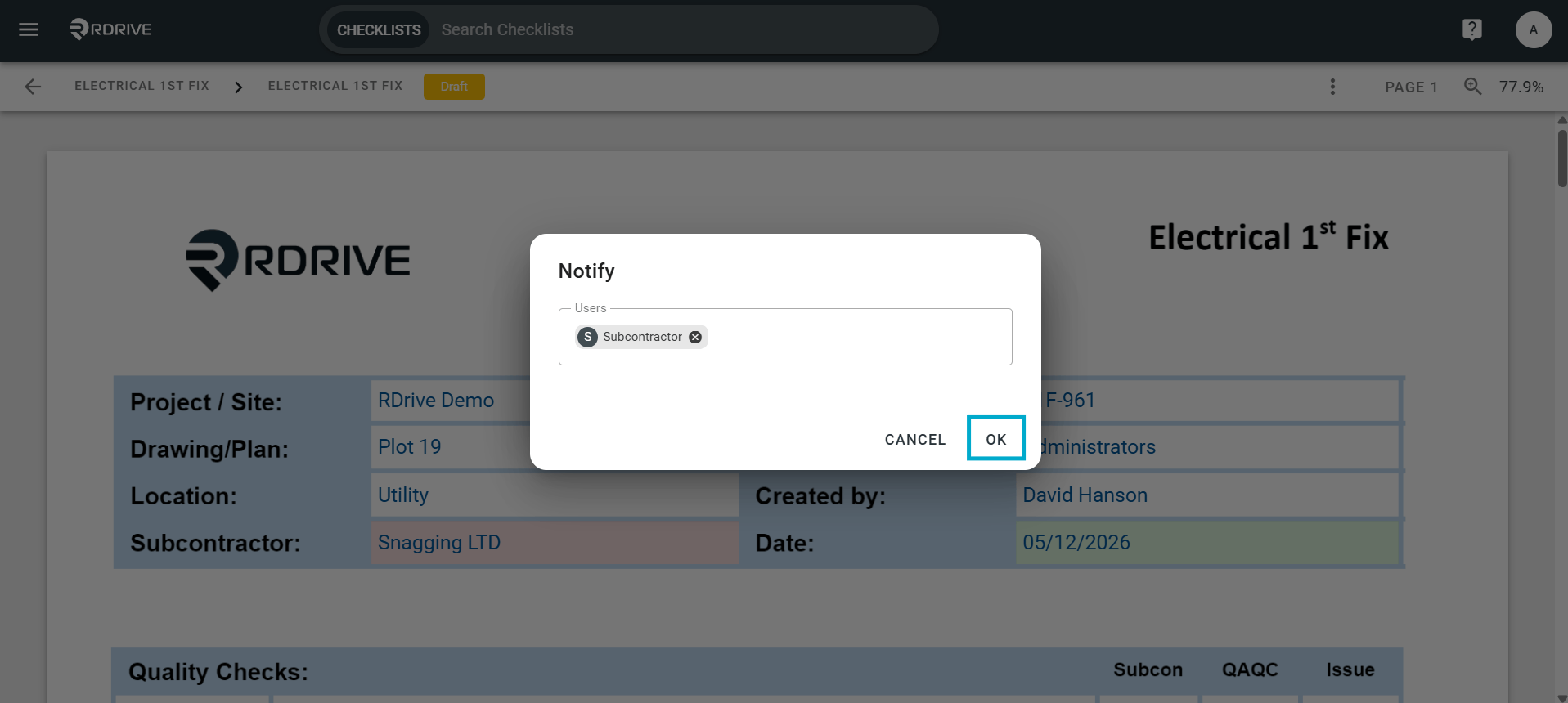
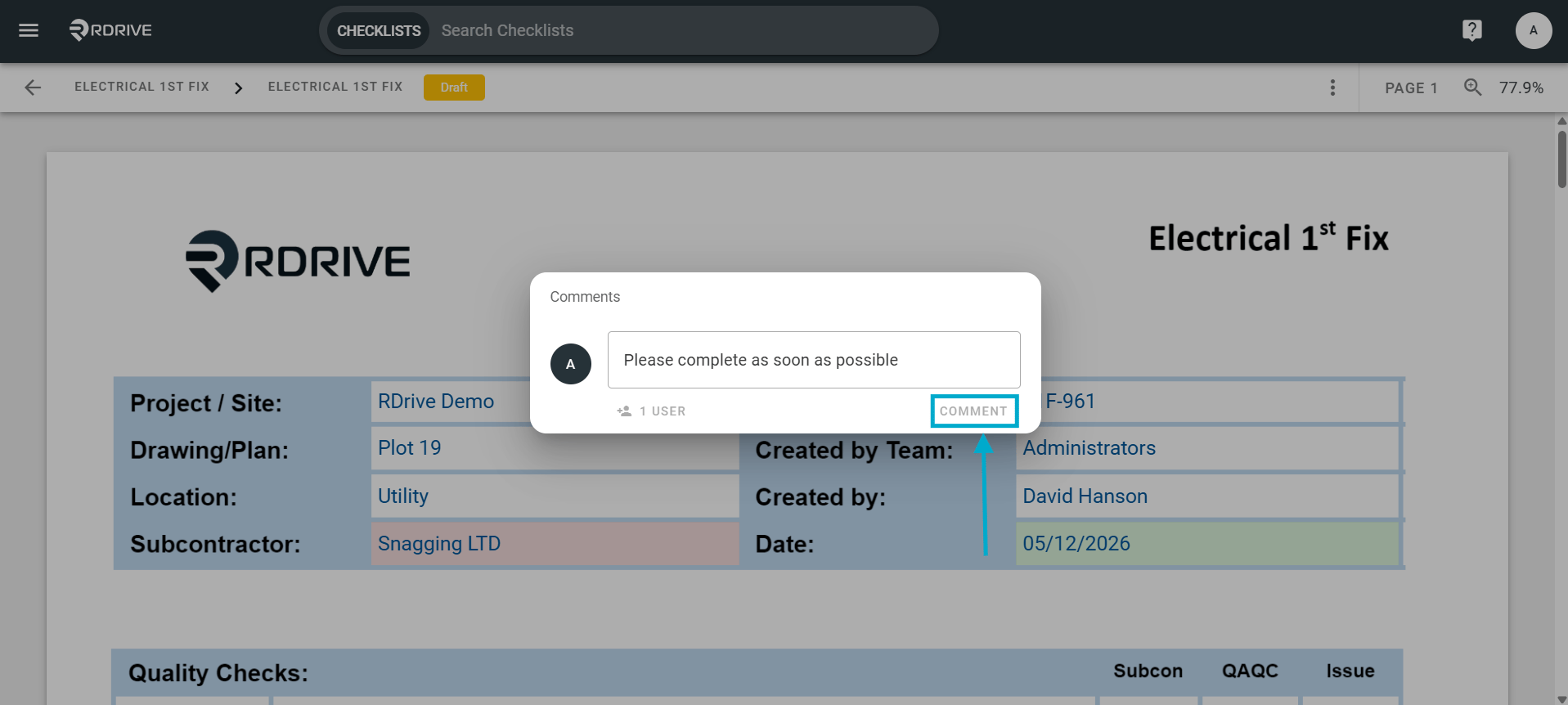
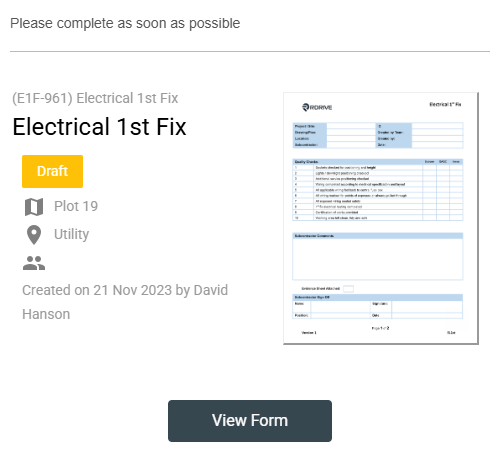
On RDrive, there is a comment function for you to leave a comment on any given process/checklist form for your co-workers. An App/Email notification will also be sent to a user.Here’s how to add a comment to a process/checklist form, firstly, you will need to have your form open in the form viewer. Once in the form viewer, simply press the 3 dots icon highlighted below: Then select comments via the view option in the Menu dropdown as shown below.Your options are as follows:Leave a general comment by typing in the text window.If you would like to leave a comment to someone in particular, prompting a notification email, press the “Add User” icon highlighted below. When the User(s) have been added, press “OK” to confirm.Select the user from the dropdown and then select “OK”.When you finish entering your comment, press “COMMENT” to save.Any user(s) you selected will receive an email/app notification of your comment as shown below. Also, other users not added will also be able to reply to your comment. An example of the notification received is below.