


Moving non-custom positioning items by batch?
- Purpose: This guide explains how to batch move items within the system while considering limitations related to custom positioning and read-only content.
- Who It’s For: General users who need to relocate multiple items efficiently.
Prerequisites: own the MOVE permission
Step-by-Step Instructions
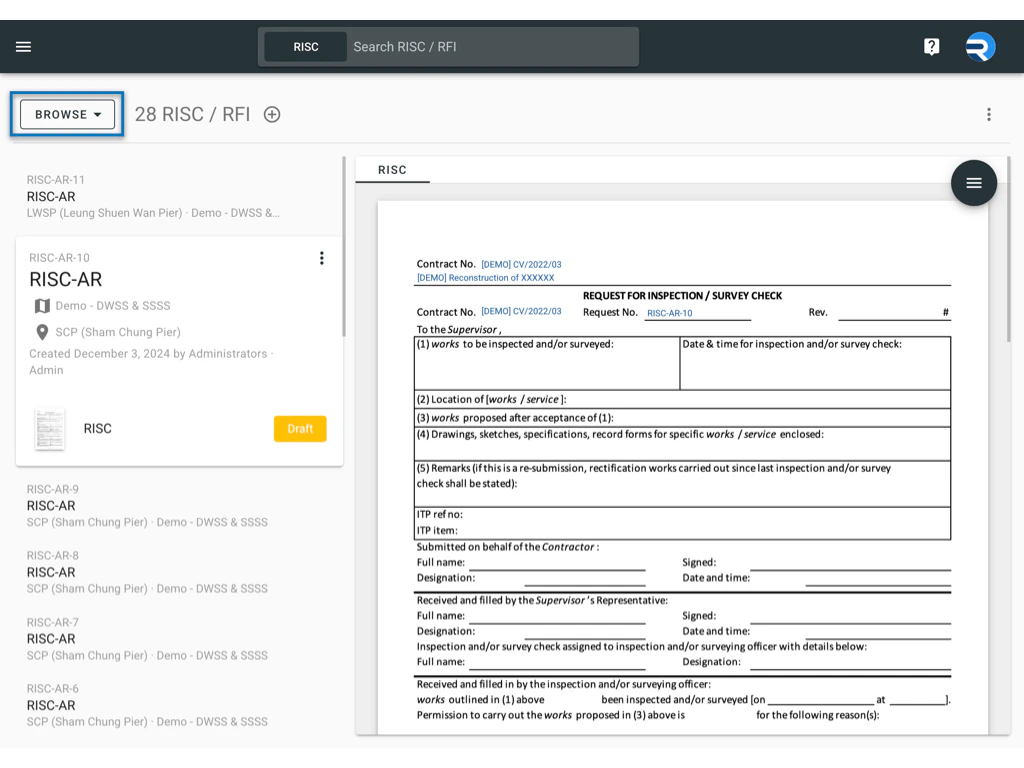
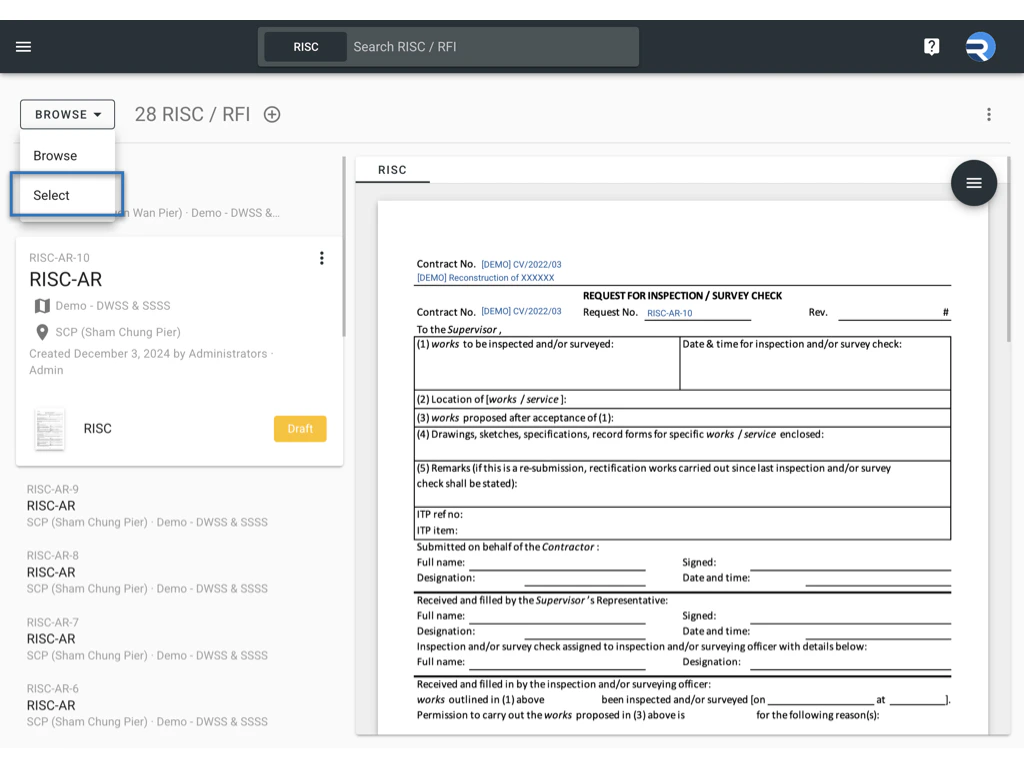
✅ Step 1: Access FinderNavigate to the system and open the Finder tool. Ensure you have the appropriate access permissions. ✅ Step 2: Switch Mode to “SELECT”
Locate the mode selection option and switch it to “SELECT” to enable multiple item selection.\
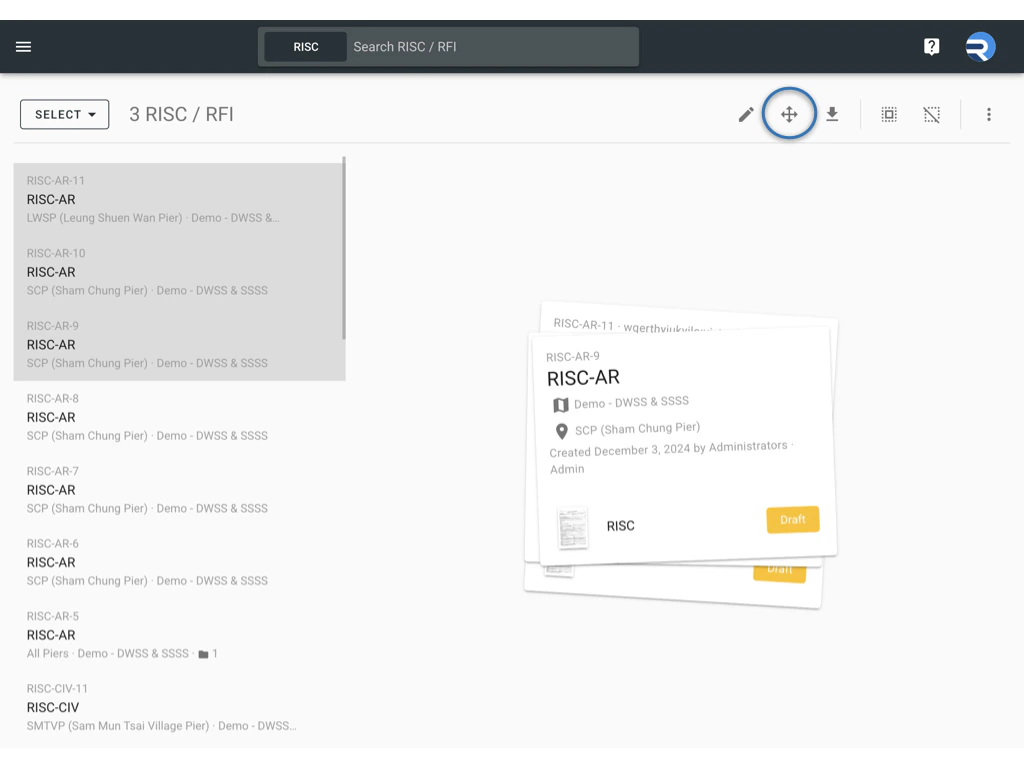
Click on the items you wish to move. Selected items will be highlighted.
 ✅ Step 4: Click the Move Button
Once items are selected, the “Batch m****ove” button will appear. Click on it to proceed.

- A prompt will appear asking you to select a drawing and location for the move.
- Choose the appropriate destination for the items.
Click OK to complete the process. Items will be relocated to the new location.

Note: If the item content, drawing, or location title is read-only, this information will not change during the move. It will remain as originally created.
FAQs & Troubleshooting
Q: **Why can’t I move certain items?**A: Items with custom positioning (Pin) are restricted from being moved. Ensure the selected items do not have custom positioning. Q: What happens if the destination content has read-only attributes fields?A: If the destination contains read-only fields related to the drawing or location on the item, the item will move to the new location. However, the fields marked as read-only will retain their original values and will not be updated or modified during the move process. Q: The Move button is not appearing. What should I do?
A: Ensure that you have switched to “SELECT” mode and that at least one item is selected. If the issue persists, check your permissions.