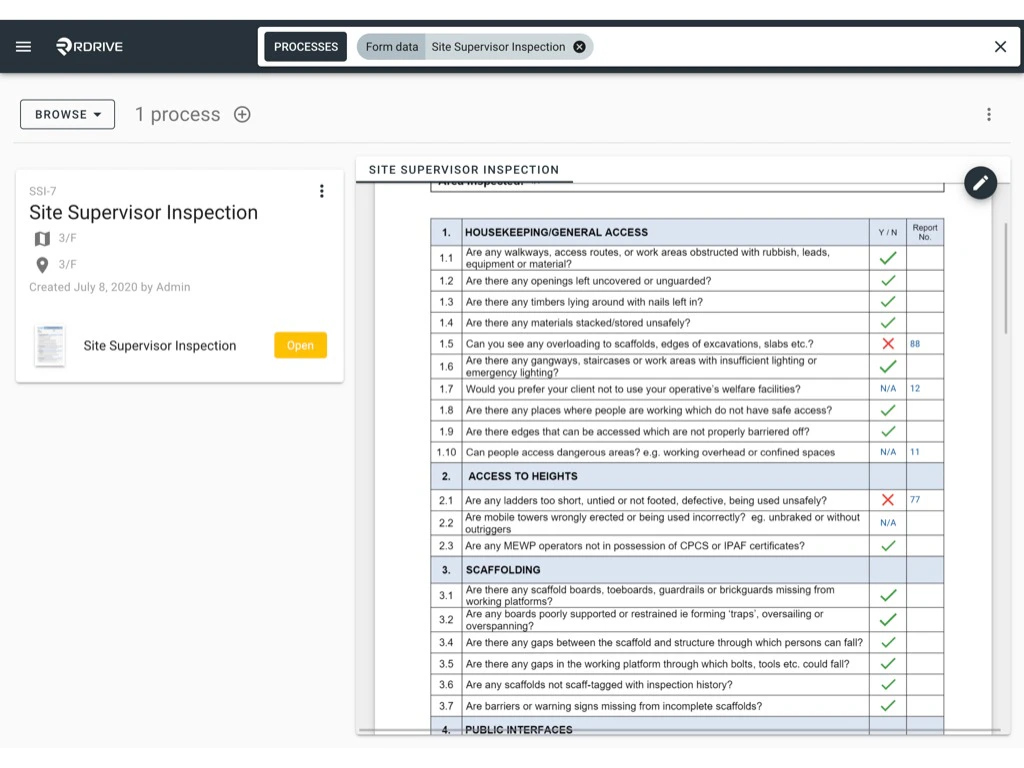
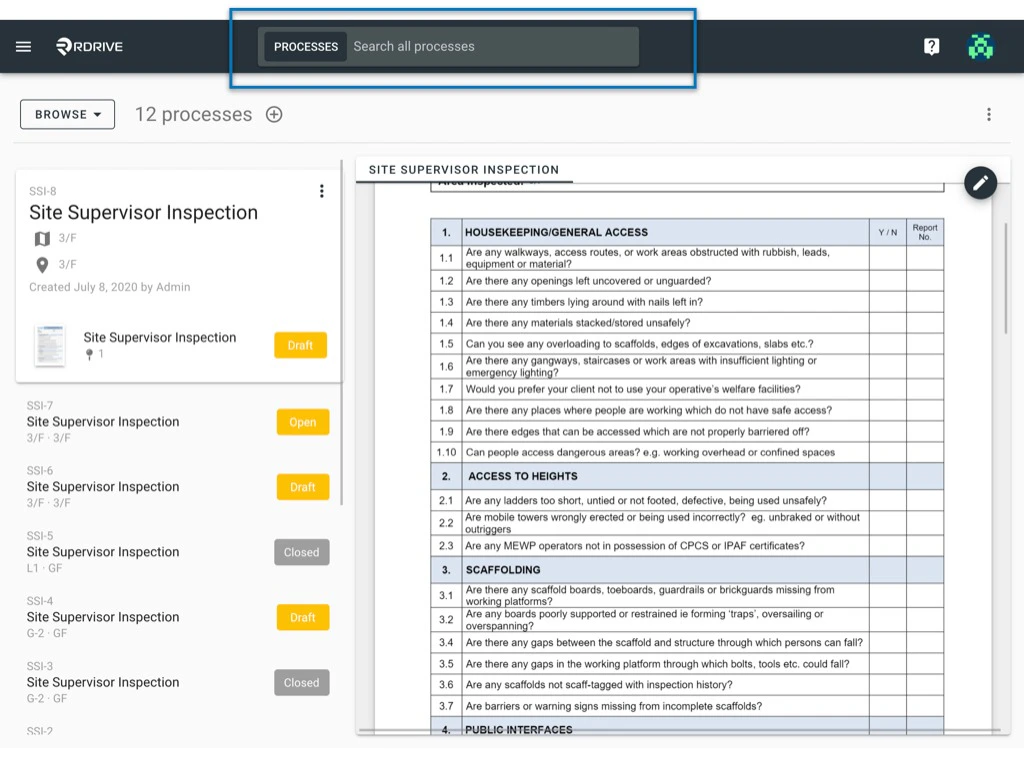
To perform a process/checklist search, you can access the universal search bar at the top of your screen. This allows you to search processes/checklists by form data enabling you to search processes through the inputted field value. You can use the universal search bar to search process/checklist by its content through either Plan Viewer or Process/Checklist Finder. Below is an example of how this works.

Example: 

Searching process “Site Supervisor Inspection” if “✔️” is inputted in the form field “NWV5_1.1” 


via Process/Checklist Finder

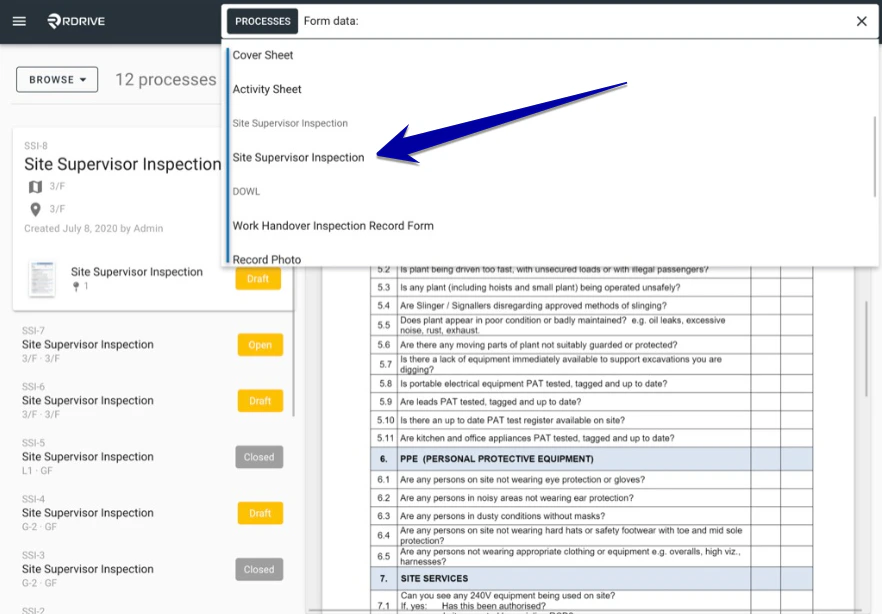
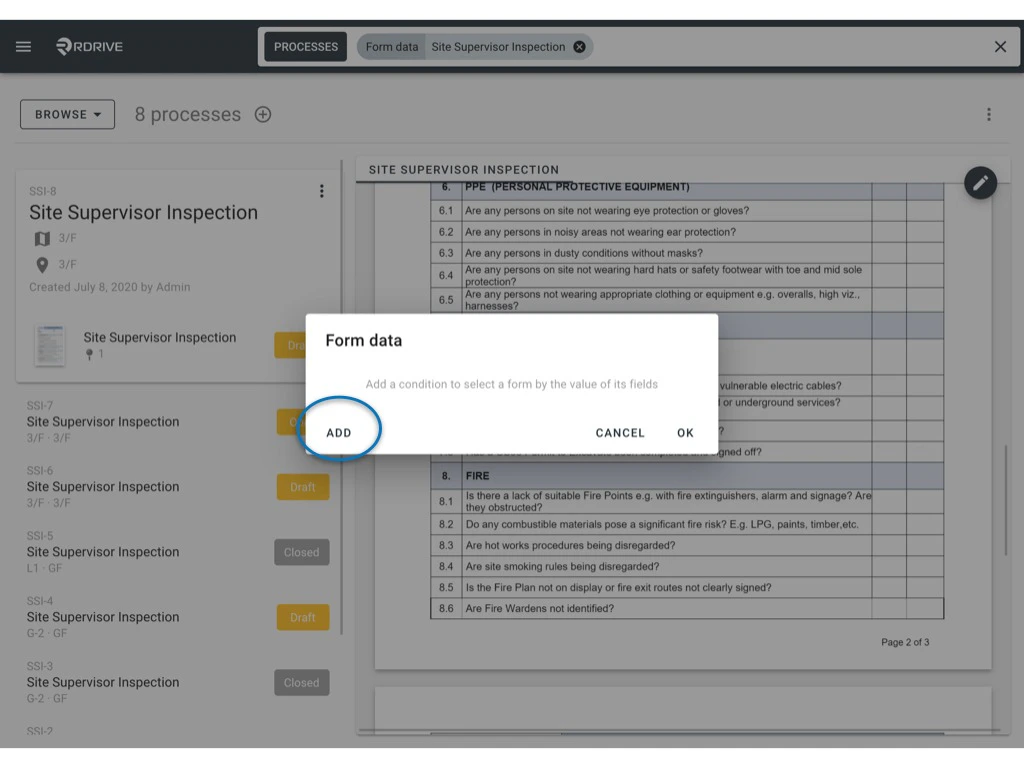
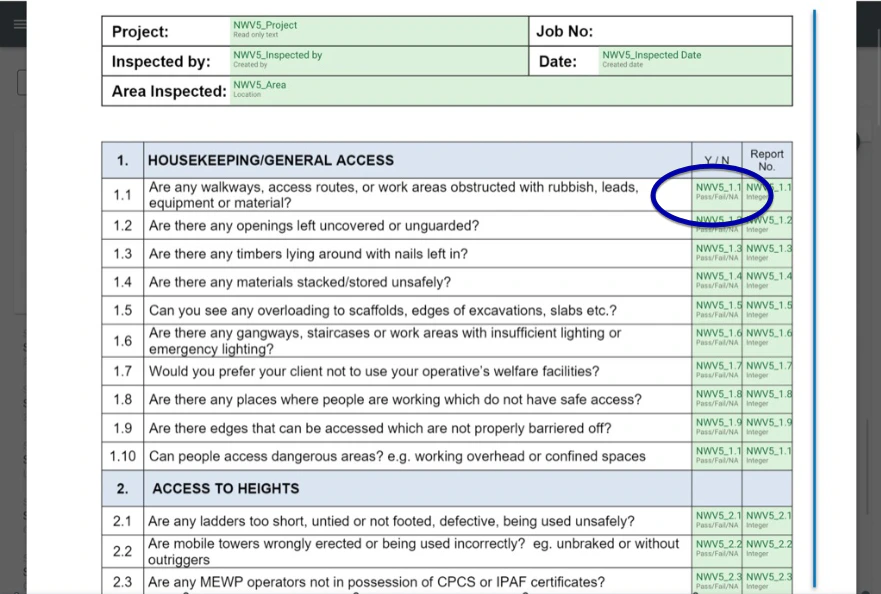
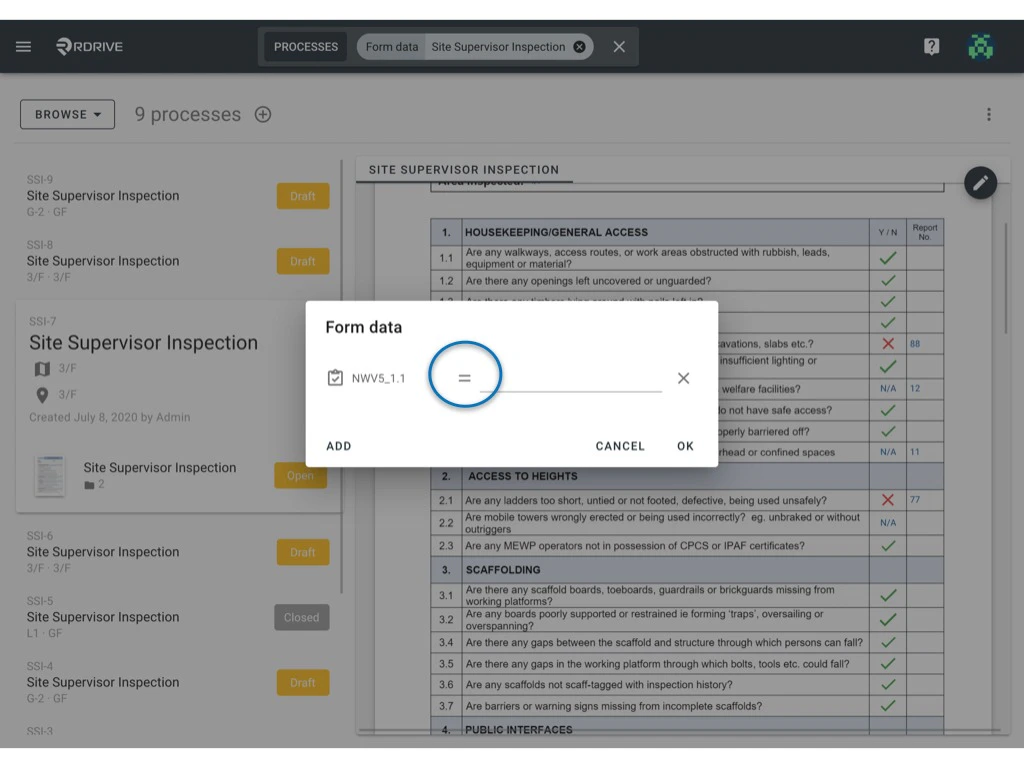
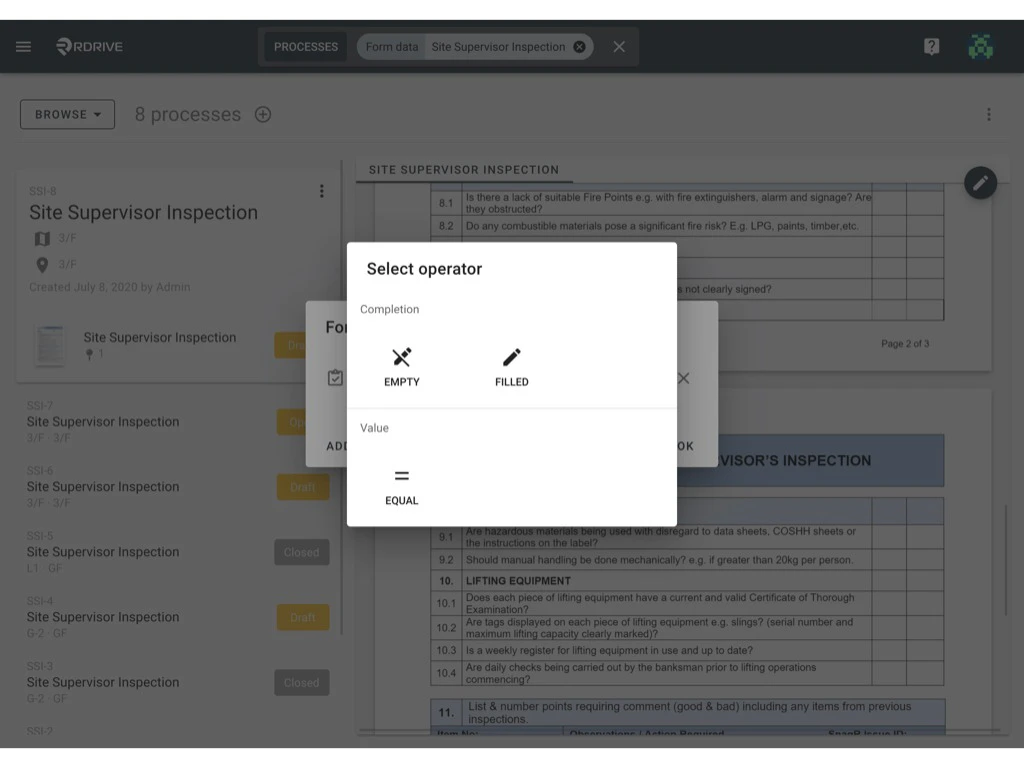
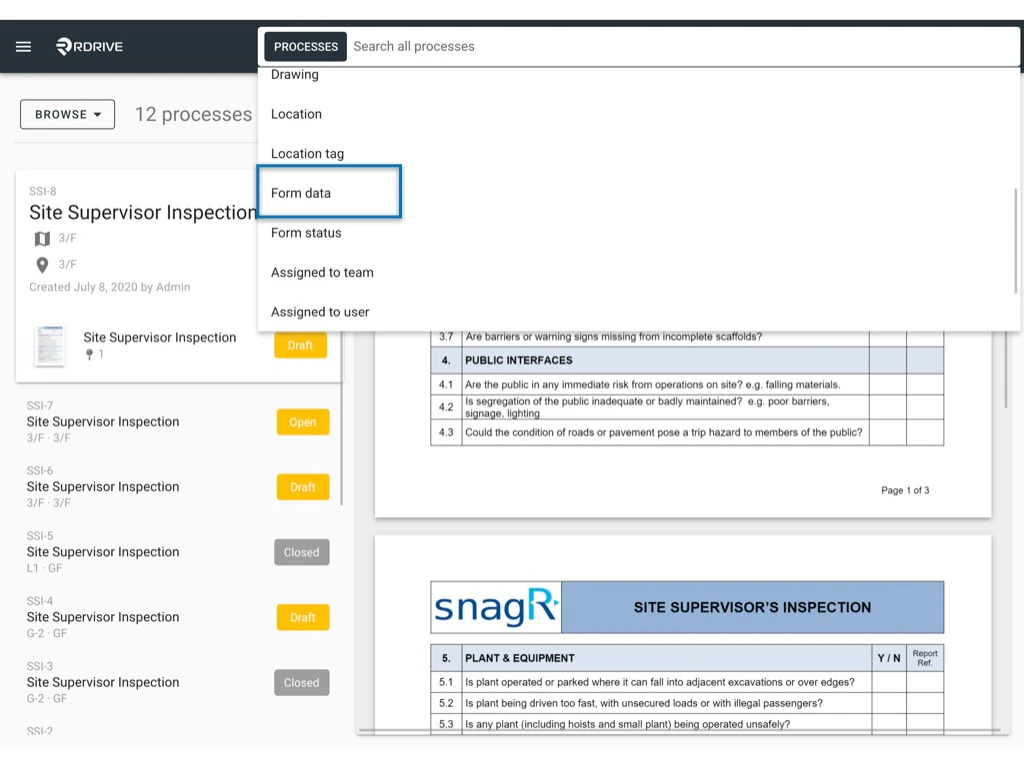
Simply press the Menu icon ≡ in the top left corner of your screen to unfold the Menu and gain access to the Process/Checklist page by selecting the category and subcategory.  Once you have the process/checklist page opened you will need to search via the process/checklist unified search bar as shown below. Can I search for a Process/Checklist form by its content? For the purposes of this example, we will select “Form Data” as your search criteria.  Once selected, the options will appear unfolded below the search bar. Then press the relevant form, for this example, this will be “Site Supervisor Inspection”. Can I search for a Process/Checklist form by its content? Can I search for a Process/Checklist form by its content? The Form Data Window will appear on your screen as below. Now click “ADD” to select the form field. Can I search for a Process/Checklist form by its content? We can now select the relevant form field. For the purposes of this example, we will choose field “NWV5_1.1” as circled below. Can I search for a Process/Checklist form by its content? When the relevant form field is chosen, the Form Data options will enlarge in the centre of your screen. Now you can click on the icon in the middle to select the operator in order to customise the search. You can choose to search a process if the field is
-Empty
-Filled
-Equal to a value
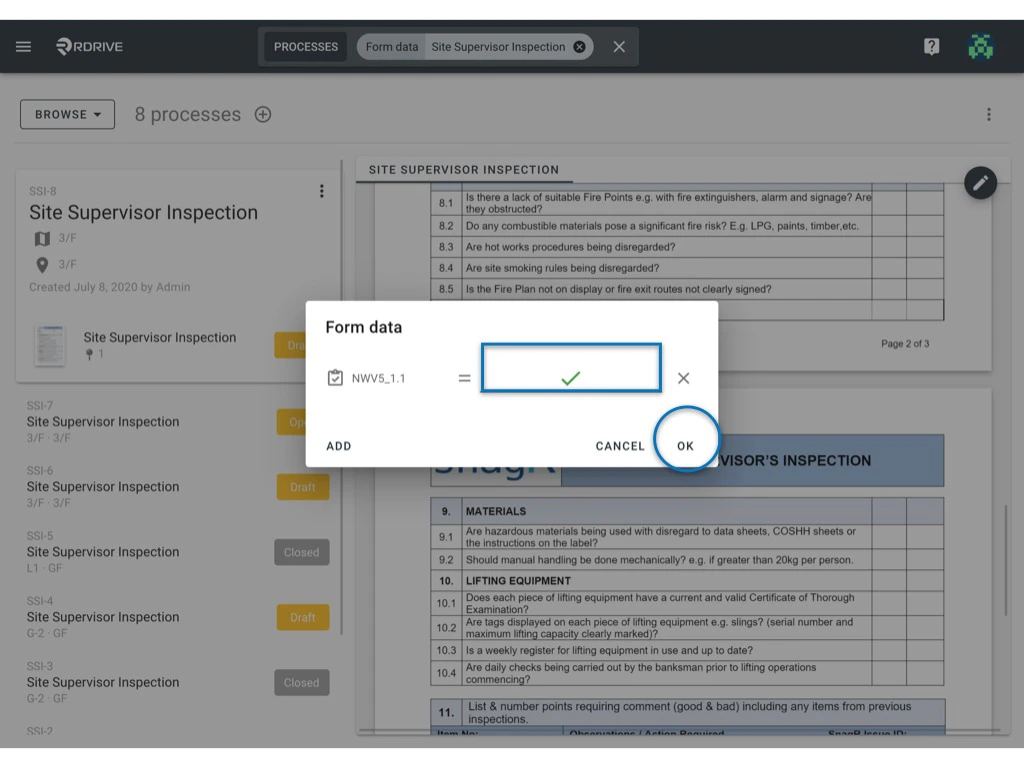
Can I search for a Process/Checklist form by its content? Can I search for a Process/Checklist form by its content? In this example, “Equal to a Value” is selected. Can I search for a Process/Checklist form by its content? Then, you can input the field value and click “OK” as shown below. In this example, “✔️” is our targeted value. Can I search for a Process/Checklist form by its content? Your process has now been filtered. Can I search for a Process/Checklist form by its content? You may redirect to Mastering Universal Search Flexibility to know more.