In order to view the attached documents to a form, you must first gain access to the form viewer page by selecting the relevant category and subcategory.
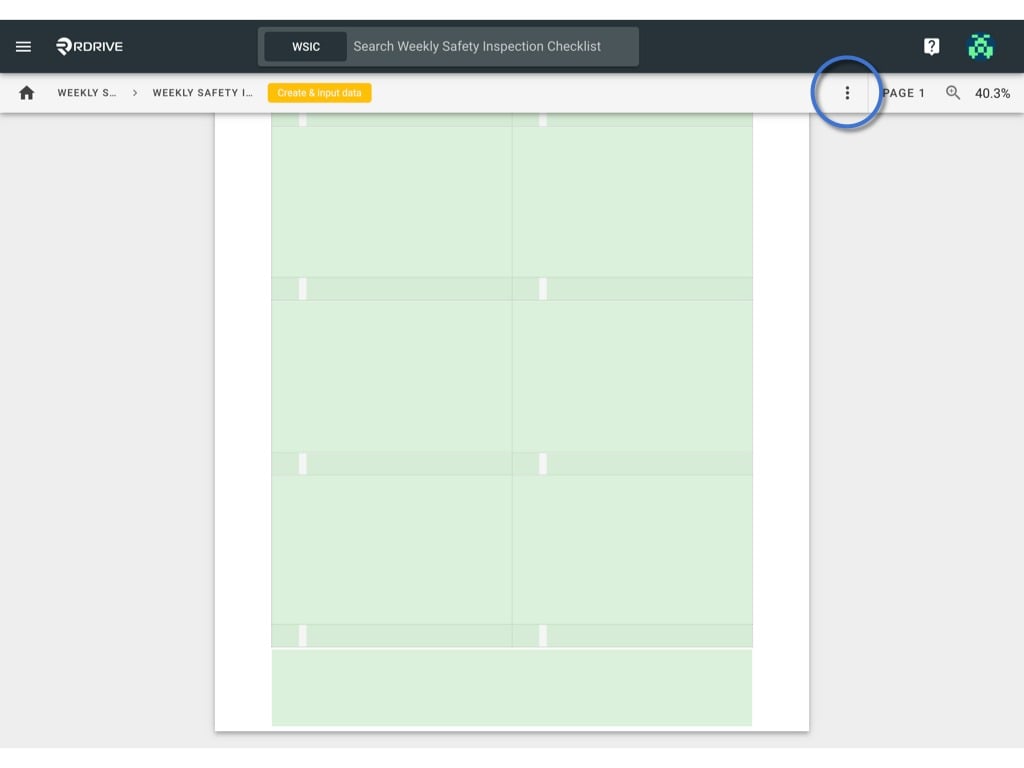
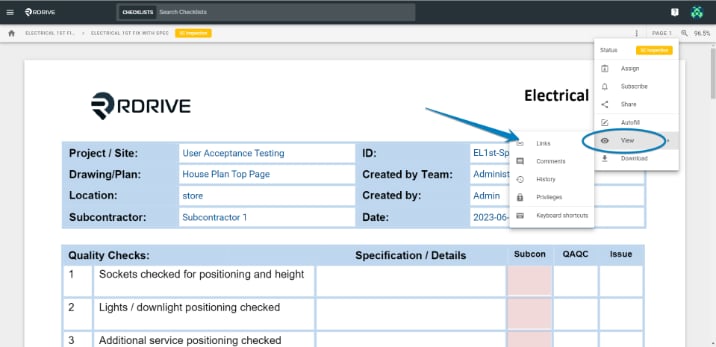
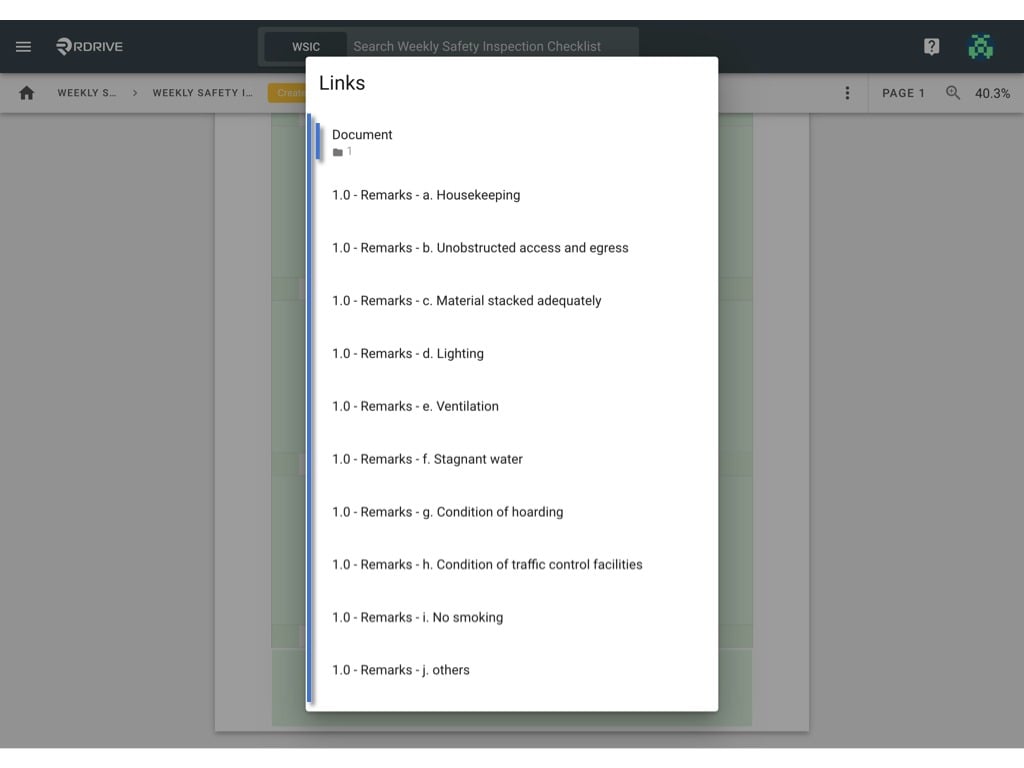
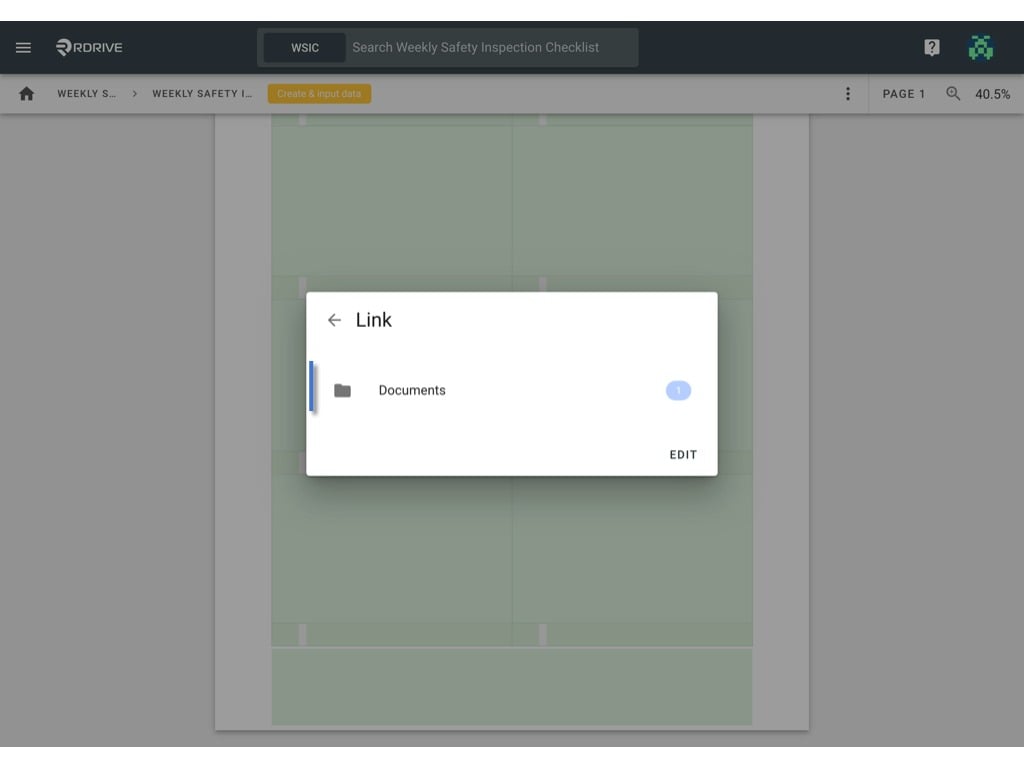
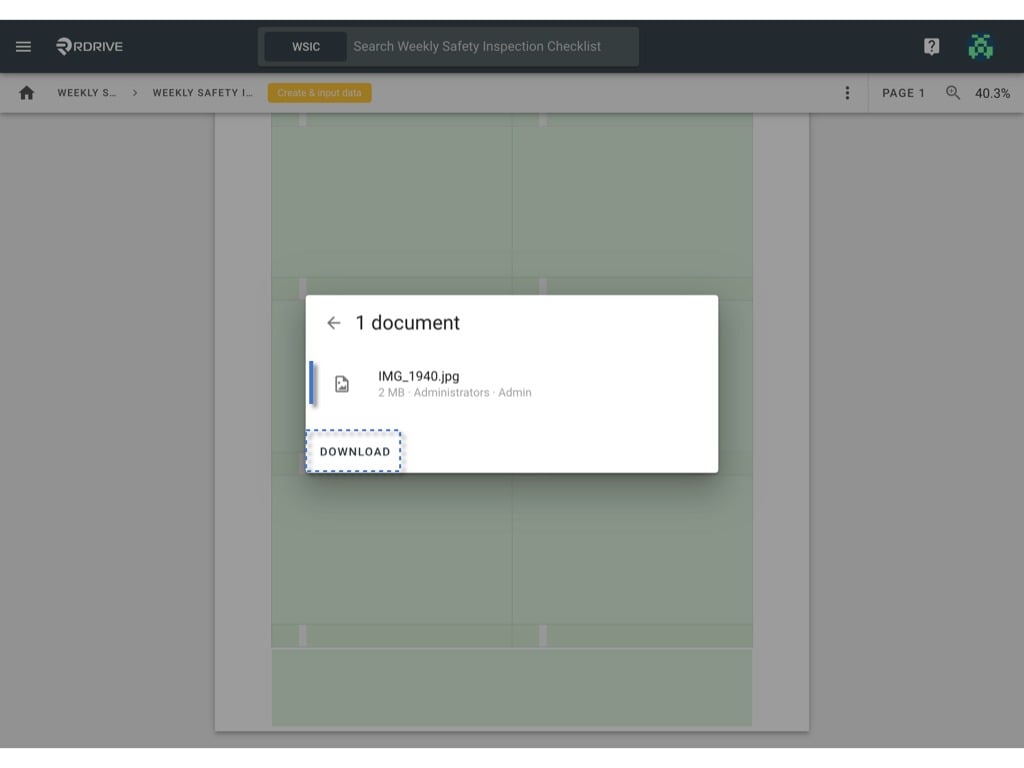
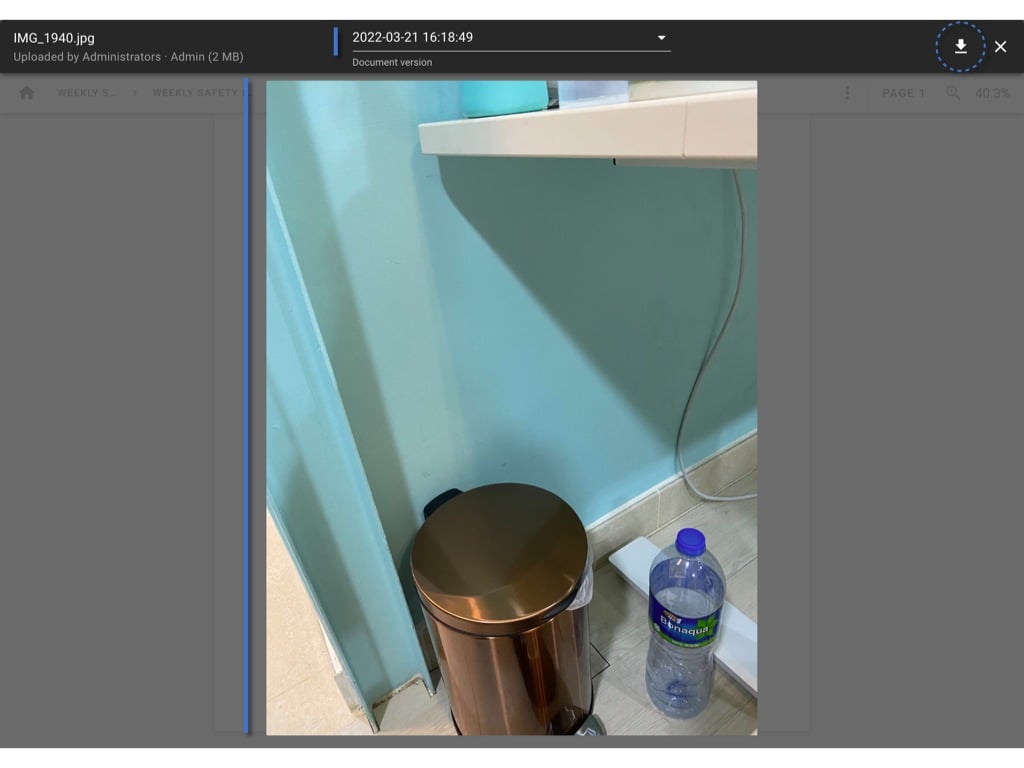
In order to view the attached documents to a form, you must first gain access to the form viewer page by selecting the relevant category and subcategory. Once in the form viewer, simply press the 3 dots ⋮ icon to explore the dropdown menu and select “Links” via the view option in the Menu as shown below**.** All the link fields of this form will be listed by the field title for your selection as shown below. Now simply select the relevant documentation as required.(Please note that this page would be skipped if there is only one link field on the form)Click on “Documents” as shown below.The linked documentation would be shown in the resulting window. Now, simply press “DOWNLOAD” to download all the documentation attributed to this form.If you would prefer to preview the documentation, you can press on the document to check online.If you choose to download from the preview page, you can do so by pressing the download icon in the upper right-hand corner of your screen as shown below.