
Overview
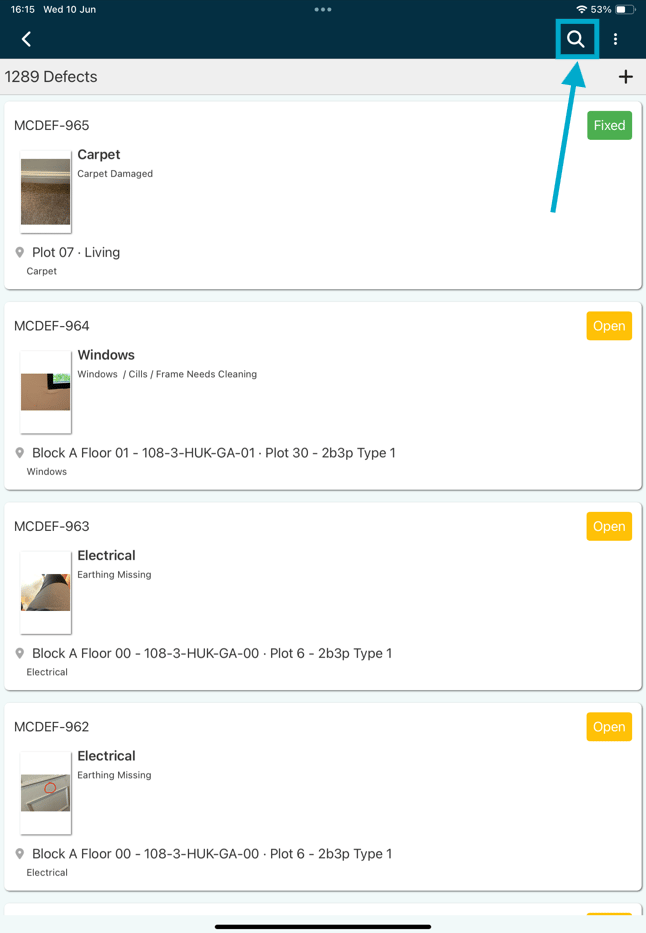
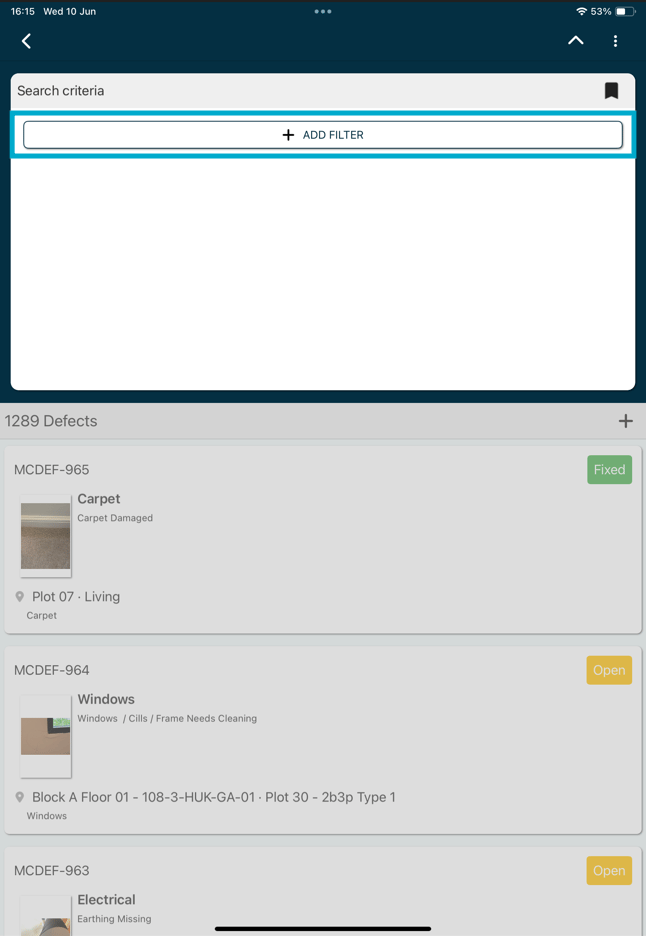
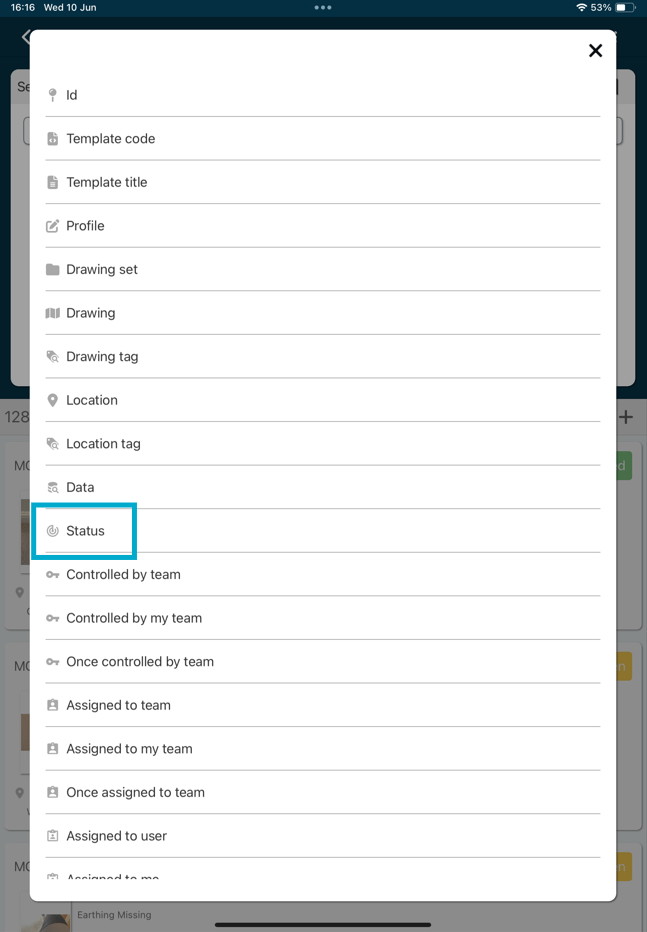
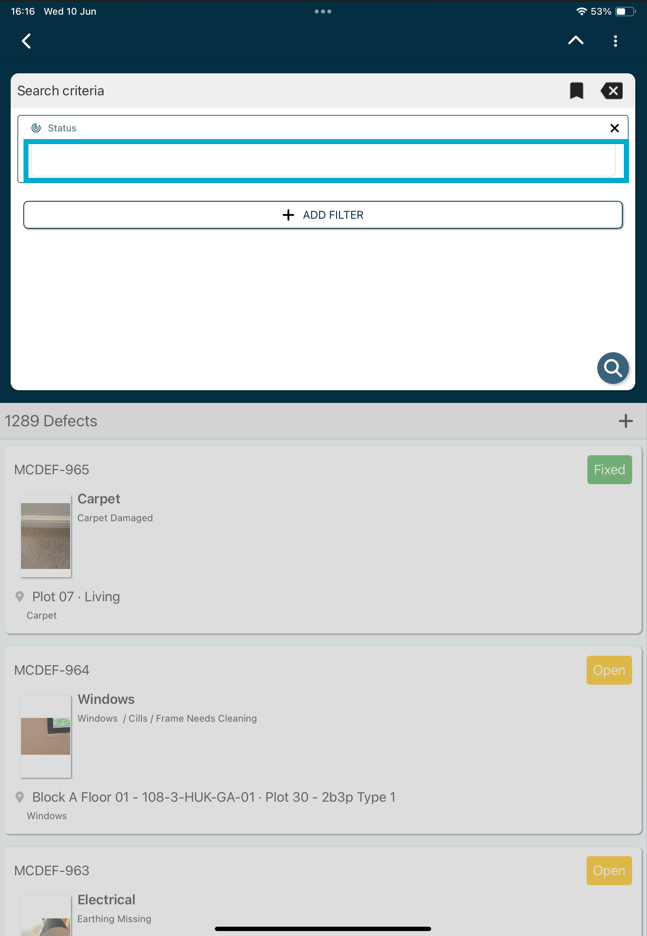
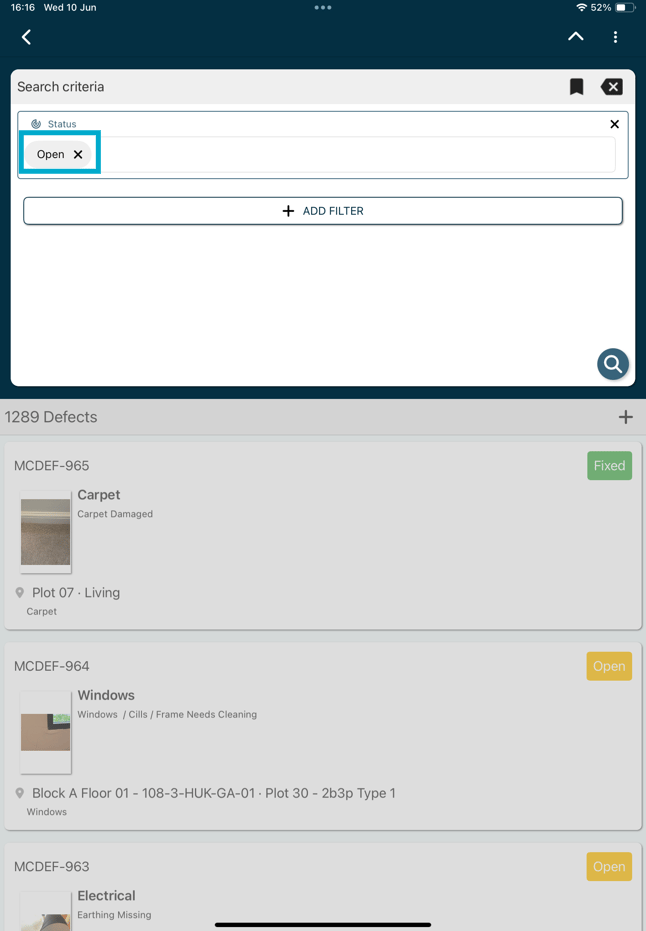
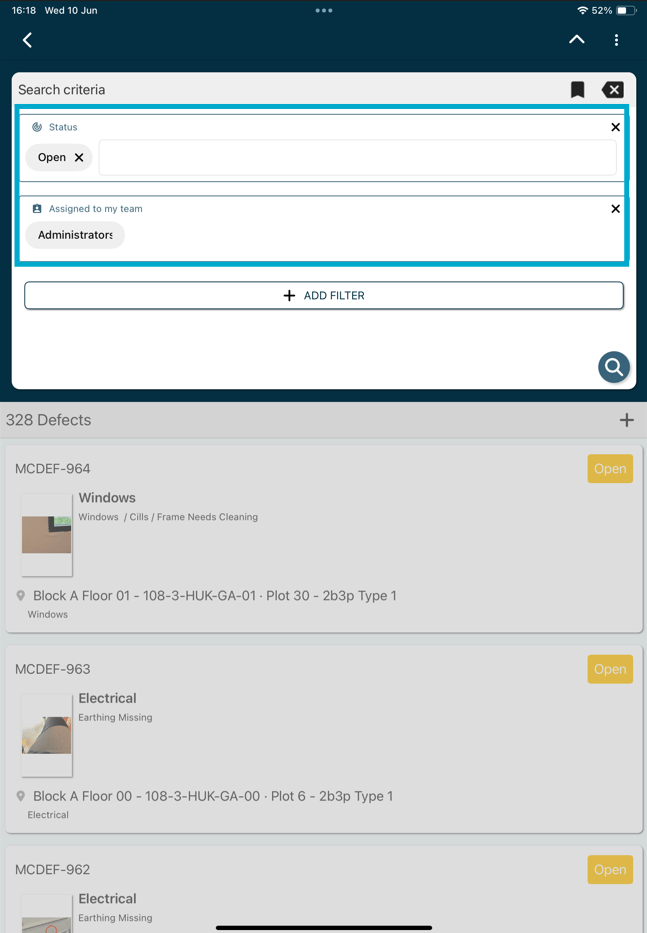
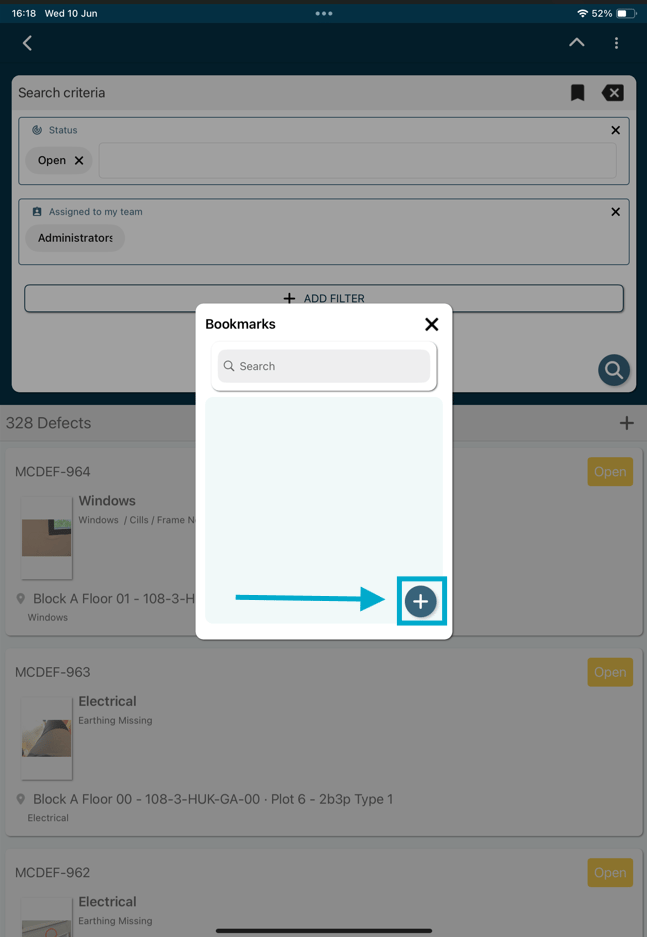
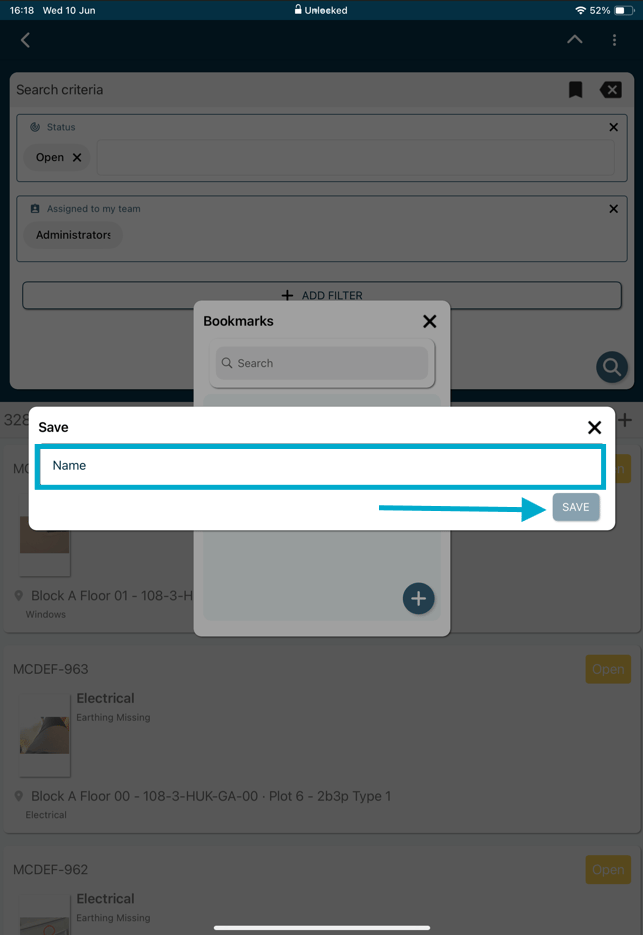
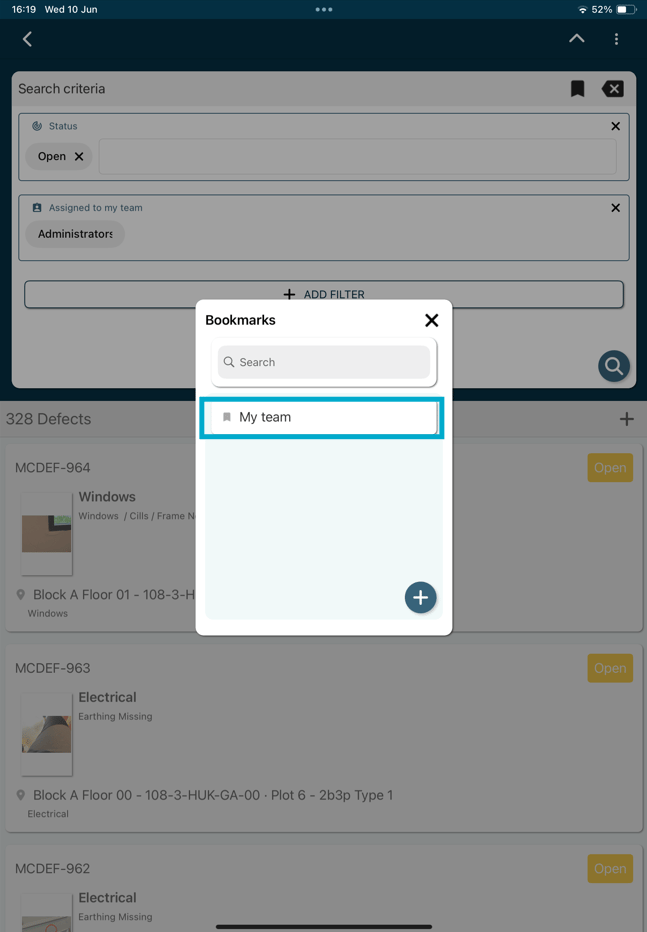
How to save a bookmark for later use within RDrive- Purpose: How to add and save a filter bookmark on RDrive
- Who It’s For: General users
Prerequisites: RDrive access
FAQs & Troubleshooting
Q: What is a saved filter bookmark?A: A saved filter bookmark allows you to save a set of filter criteria for quick access in the future. This helps you avoid reapplying the same filters each time you view your data. Q: Can I save multiple filter bookmarks?
A: Yes. You can create multiple bookmarks for different views, projects, teams, statuses, or reporting requirements. Q: Will my saved bookmark be visible to other users?
A: In most cases, saved bookmarks are personal to your account. If your system supports shared bookmarks, your administrator will be able to advise on availability and permissions.