
Let’s find it out!? This article will show you how to do it on the RDrive app.
Via Plan Viewer
If you would like to search/find the process by drawing, this is the way for you! 1. Go to plan viewer 2. Click on the drawing title at the top
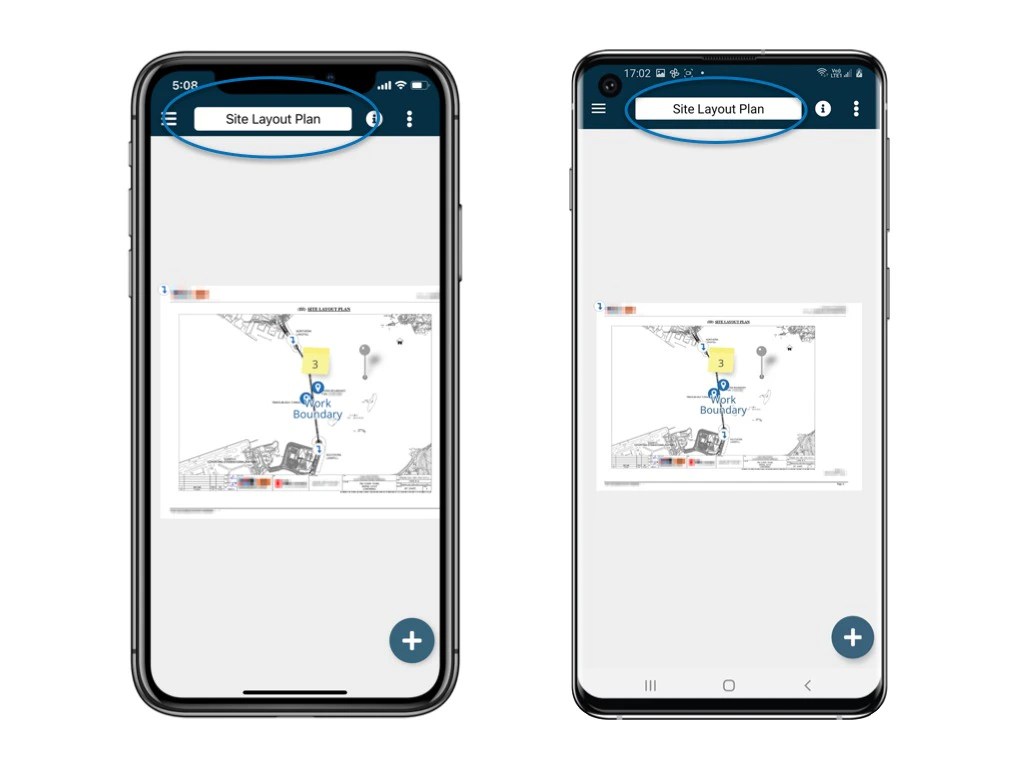
 Then, you can view the selected drawing as well as the location pins and the processes created.
Click the Memo icon above each location pin.
Then, you can view the selected drawing as well as the location pins and the processes created.
Click the Memo icon above each location pin.
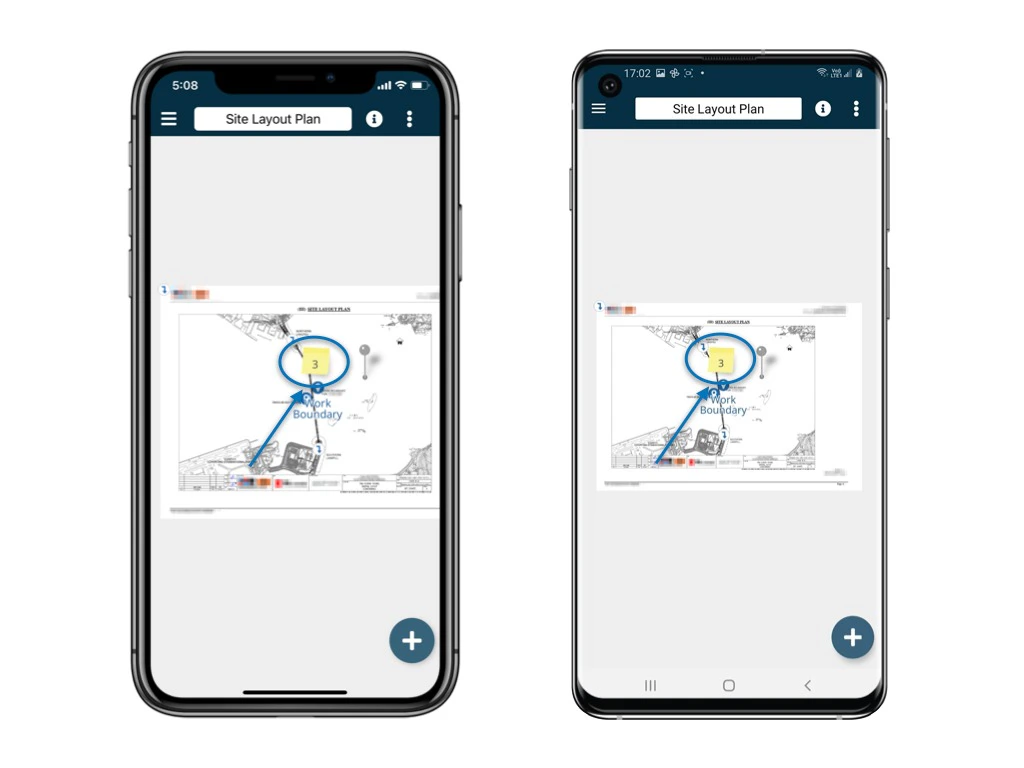
What are those numbers shown on the memo? 1. The number on the memo represents the number of processes of that particular location. 2. On the app, the number includes closed processes while it does not include closed processes on the website. 3. Different users may see different numbers subject to their access permission to different process templates.

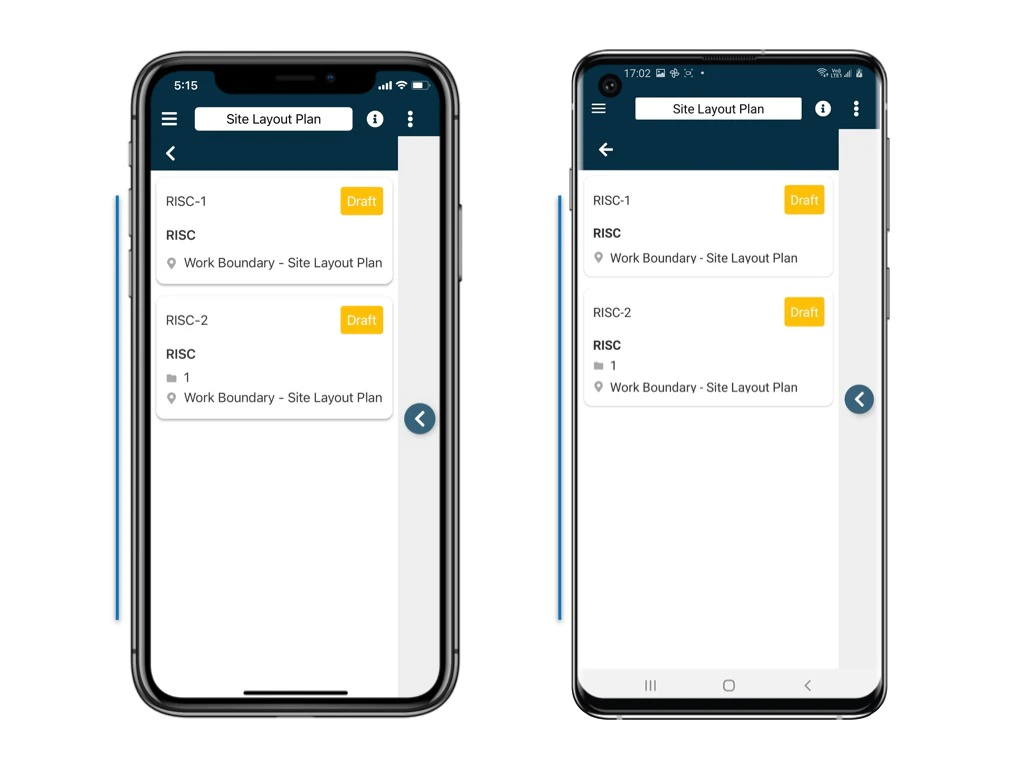
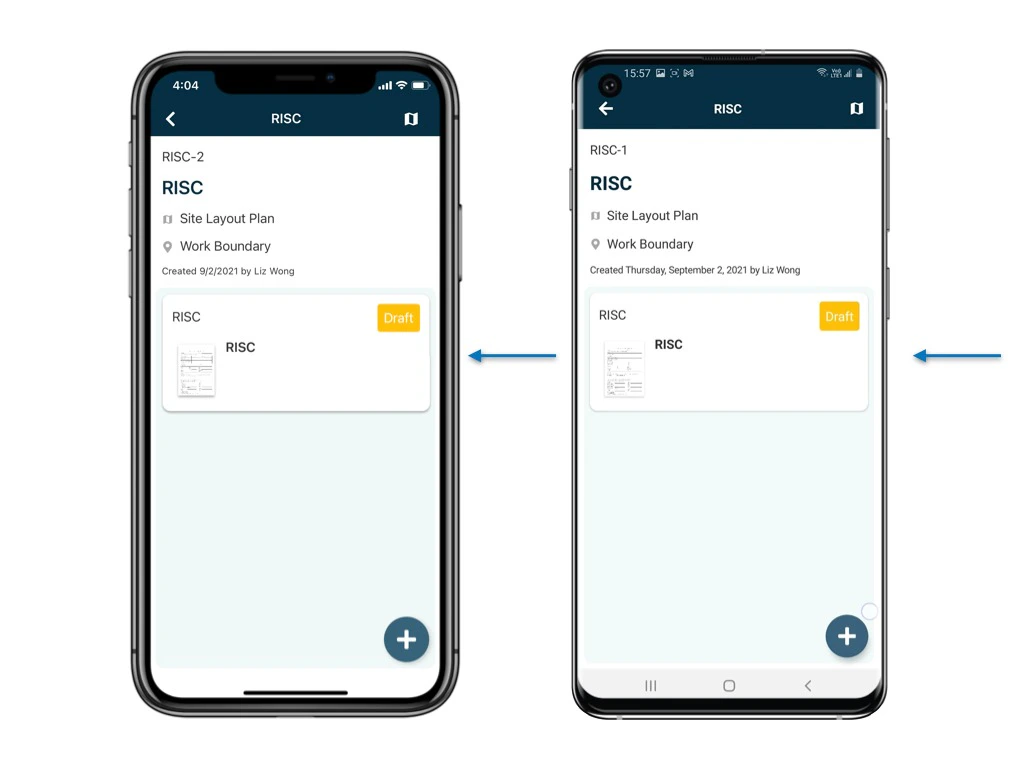
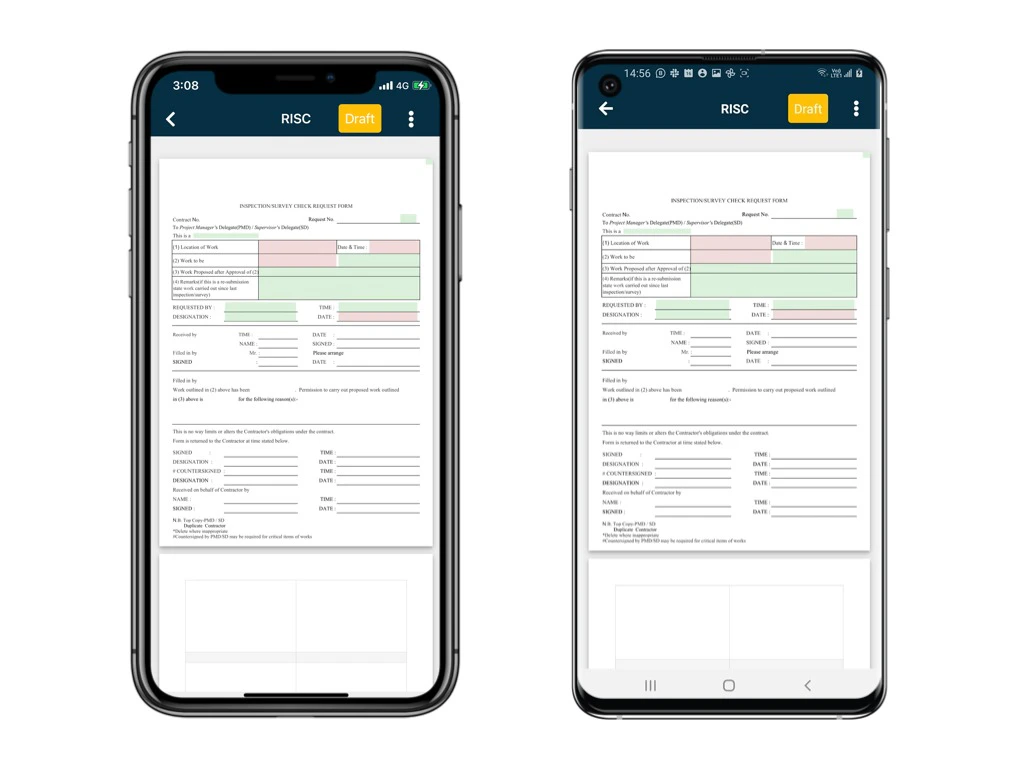
Having too many processes on the list? Alternatively, you can search the process via Finder. This would help! Let’s have a look!
Via Finder
Back to the main menu.Select Categories > Subcategory.

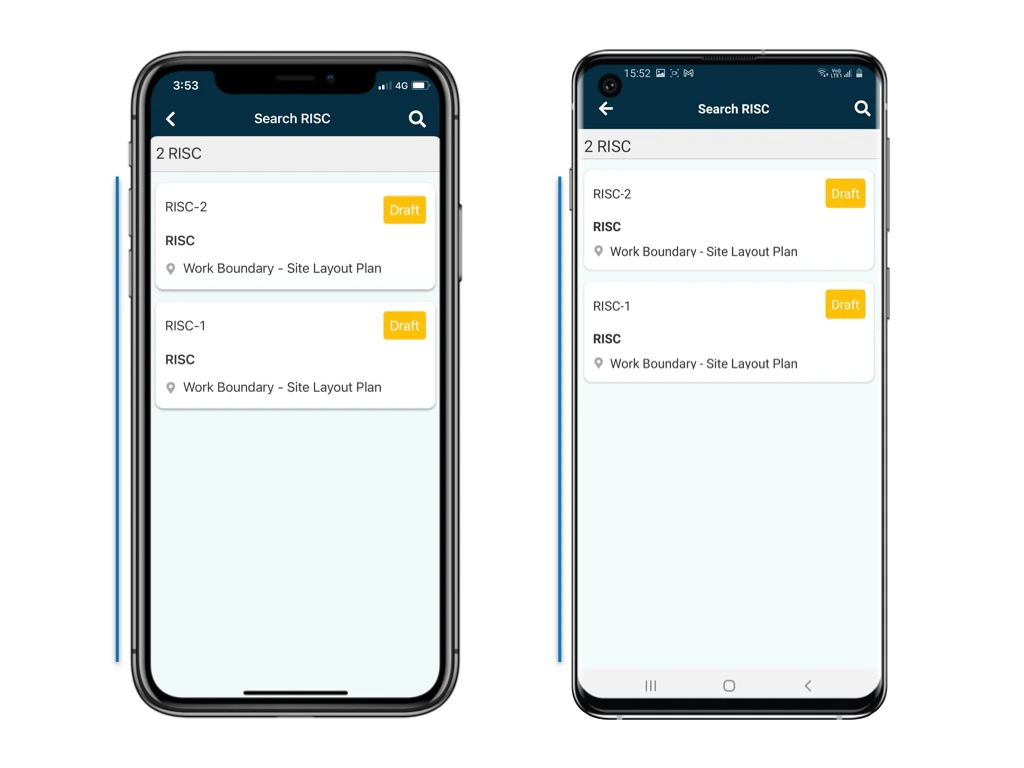
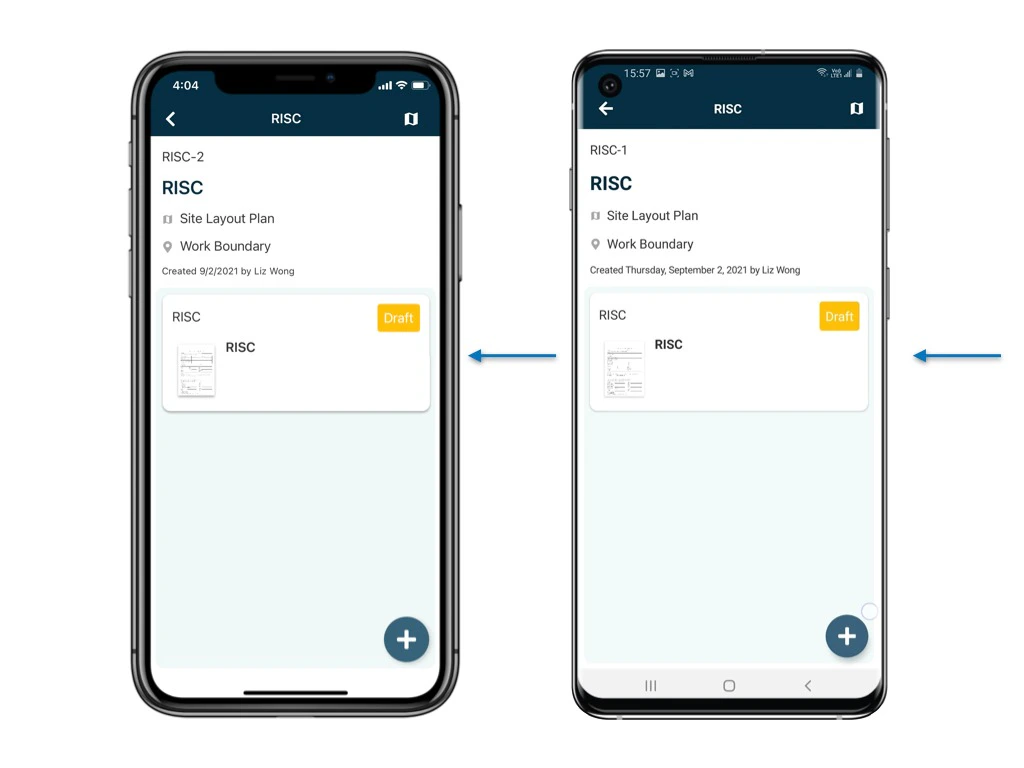
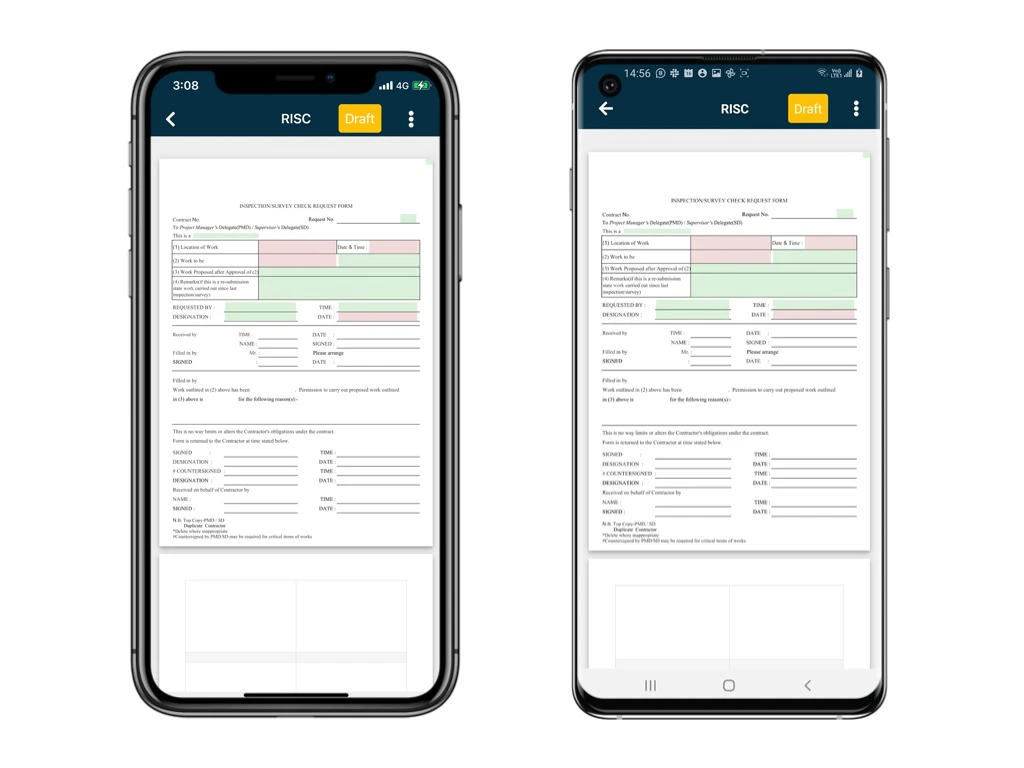
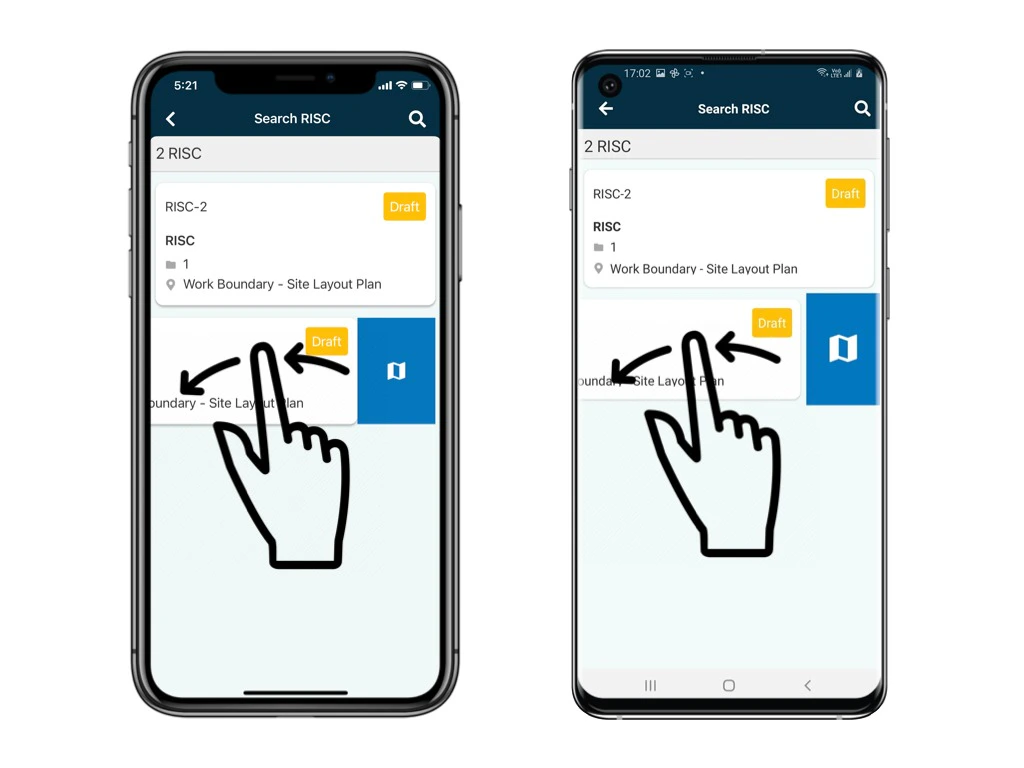
Filter
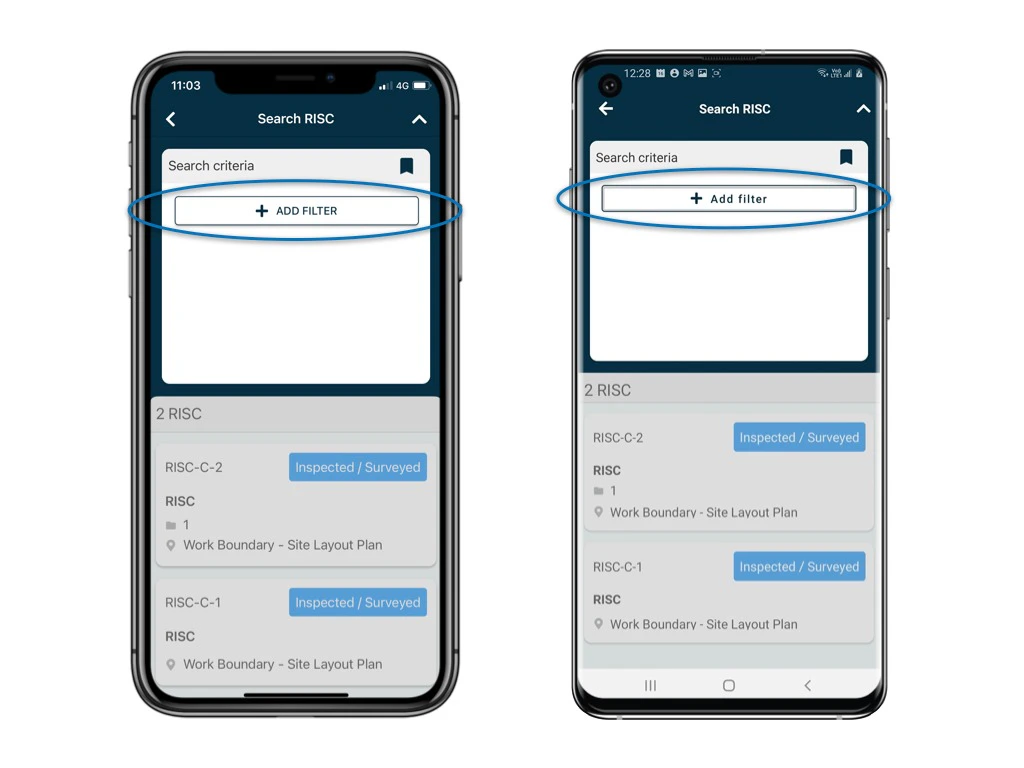
You can add filters by any critical to search the processes on Finder. Click the magnifier icon at the top right corner to search for specifics.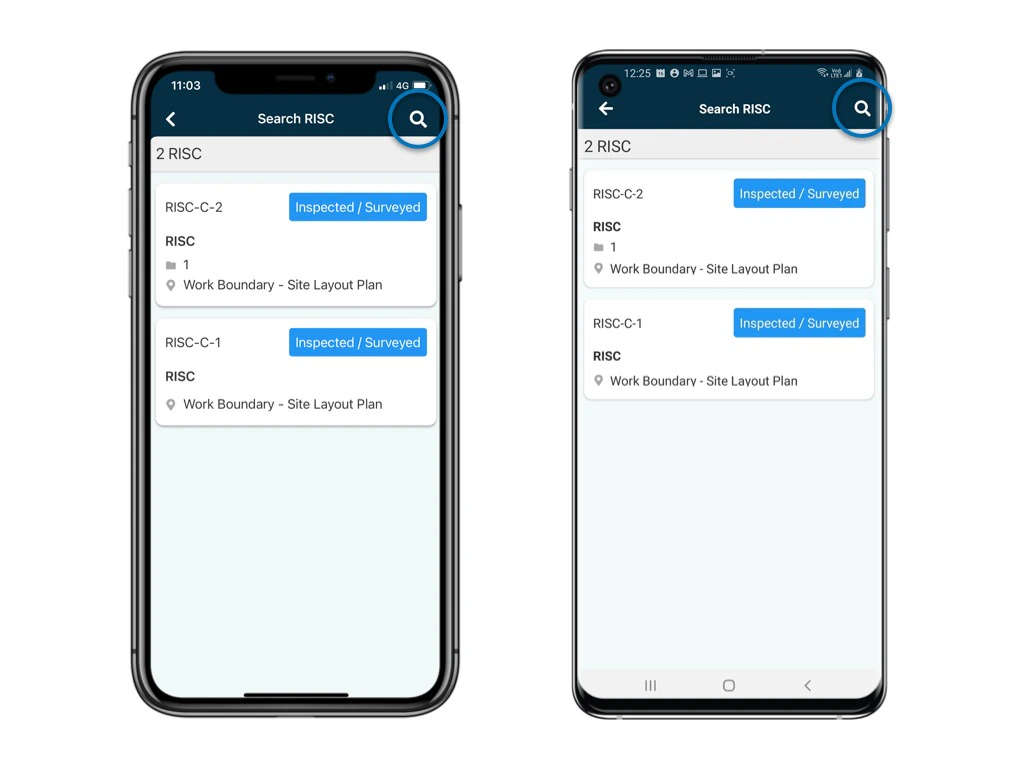

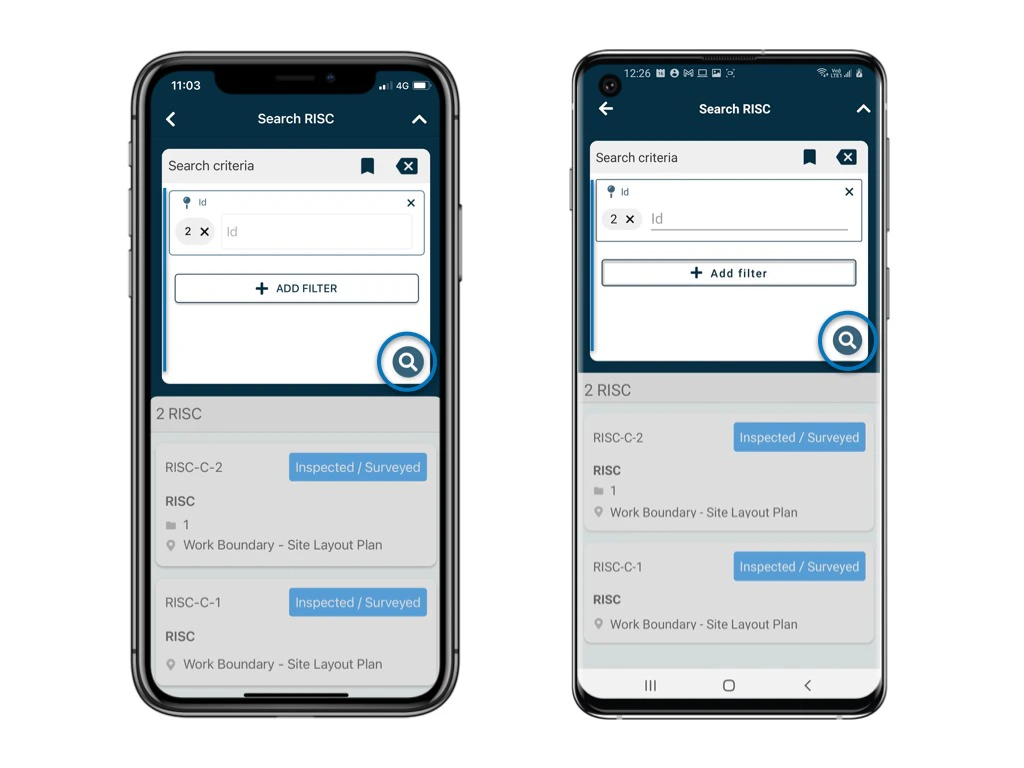
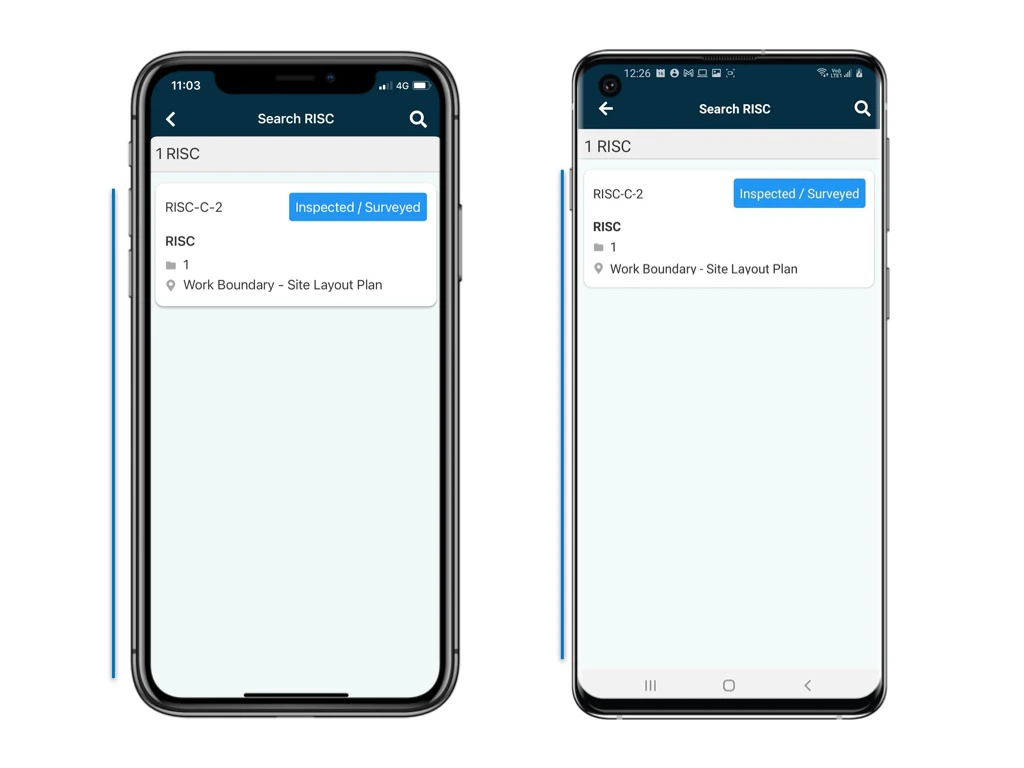
Don’t panic if you cannot see all of the processes created. Users may have different permission settings associated with them. Therefore, it is possible that you are only viewing some of the processes that you are allowed to.