
Overview
A brief introduction explaining the purpose of this guide.- Purpose: How to see work assigned to my team
- Who It’s For: Users
Prerequisites: RDrive access, Items assigned to your team
✅ Step 1: Accessing my Assigned Items
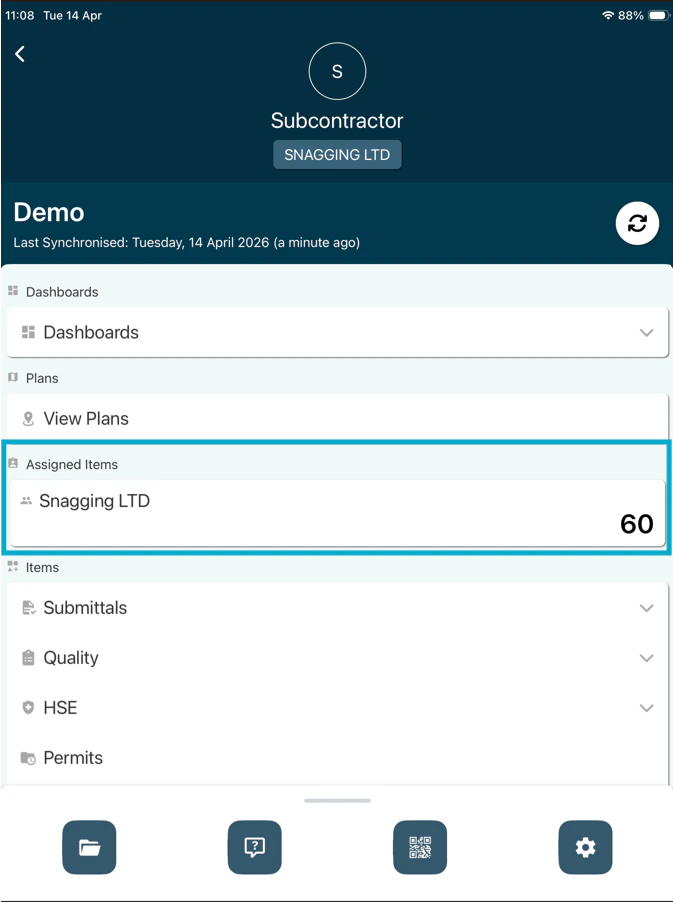
- From the main menu screen we should see the option for “Assigned Items” tab with a number of items assigned to your team. Click your team name under “Assigned Items” to open this.
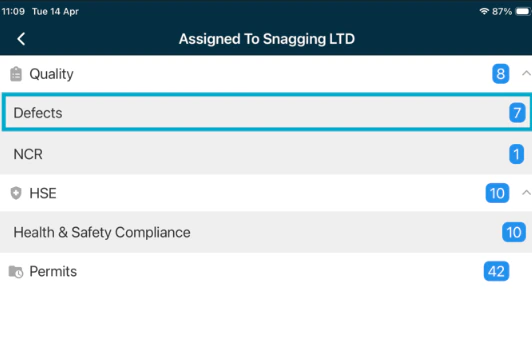
- This will then show the item/record types and the amounts of each at the end, clicking this will then expand these items to view.
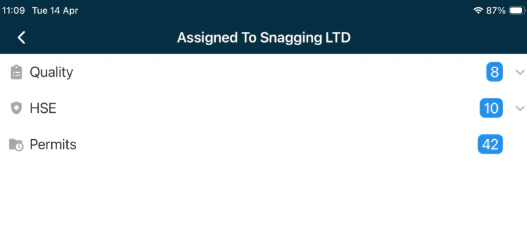
- Expand the item type required then click into this, we will select “Defects” in this example.
FAQs & Troubleshooting
Q: Why can’t I seen an item another user can?A: This is typically down to items being assigned to another team you aren’t working in, if this is for your team please sync and this should update the items assigned. Q: Why can’t I press “Save”?
A: This is usually due to a mandatory (”*”) field not being completed, fill this field in and you should be able to continue.