
Overview
A brief introduction explaining the purpose of this guide.- Purpose: How to download and access additional projects in RDrive
- Who It’s For: All RDrive app users with access to multiple projects
Prerequisites: RDrive app installed and user access to multiple projects
Step-by-Step Instructions
✅ Step 1: Navigate to the project management page
- From the main menu page within the app, select the “Back” arrow button in the top left corner to access the project management screen.
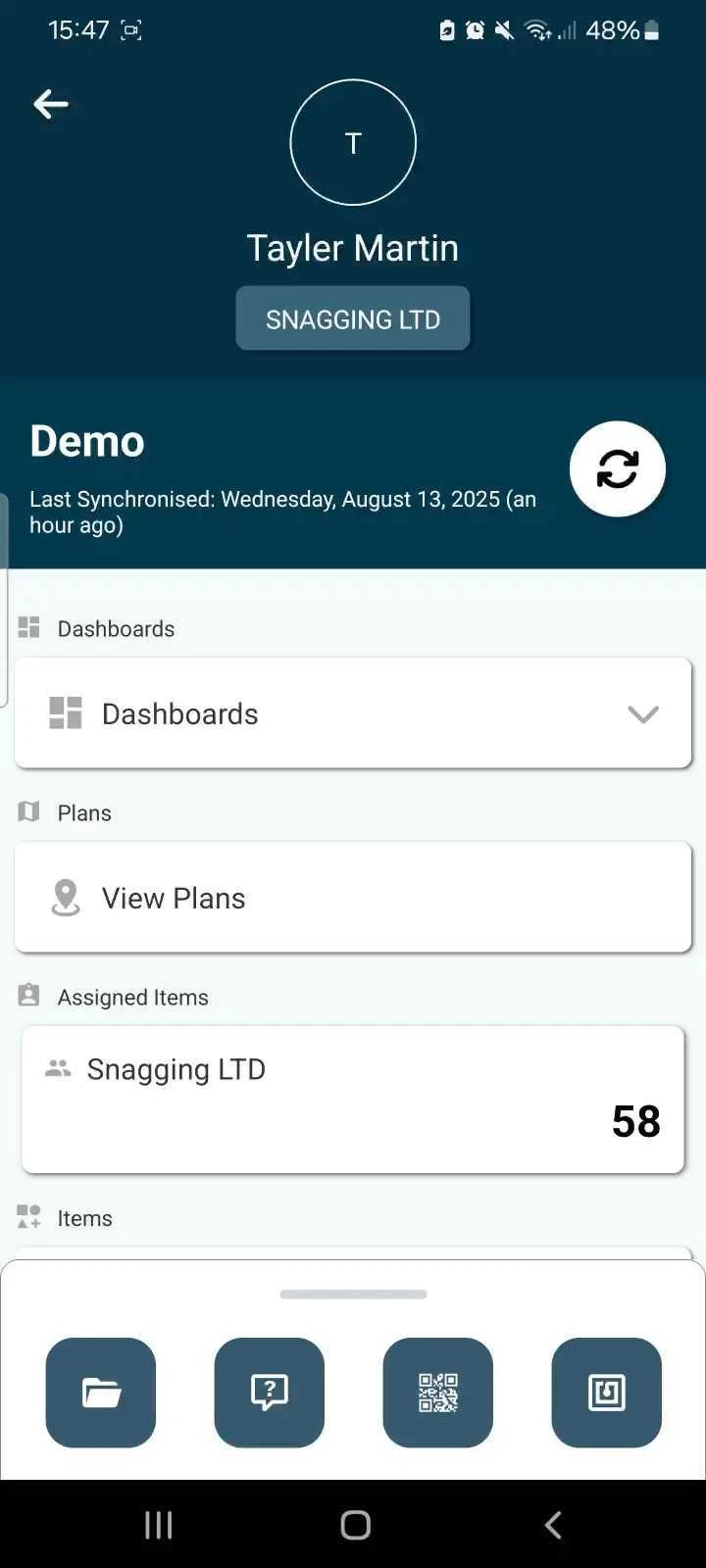
✅ Step 2: Select the project to download to your device
-
Tap the “+” button in the top right corner of the screen.

-
This opens a list of all projects available for you to download, Browse or search for the project you wish to access.

-
Tap the download arrow and select your project mode (Online/Offline) to begin the download process.
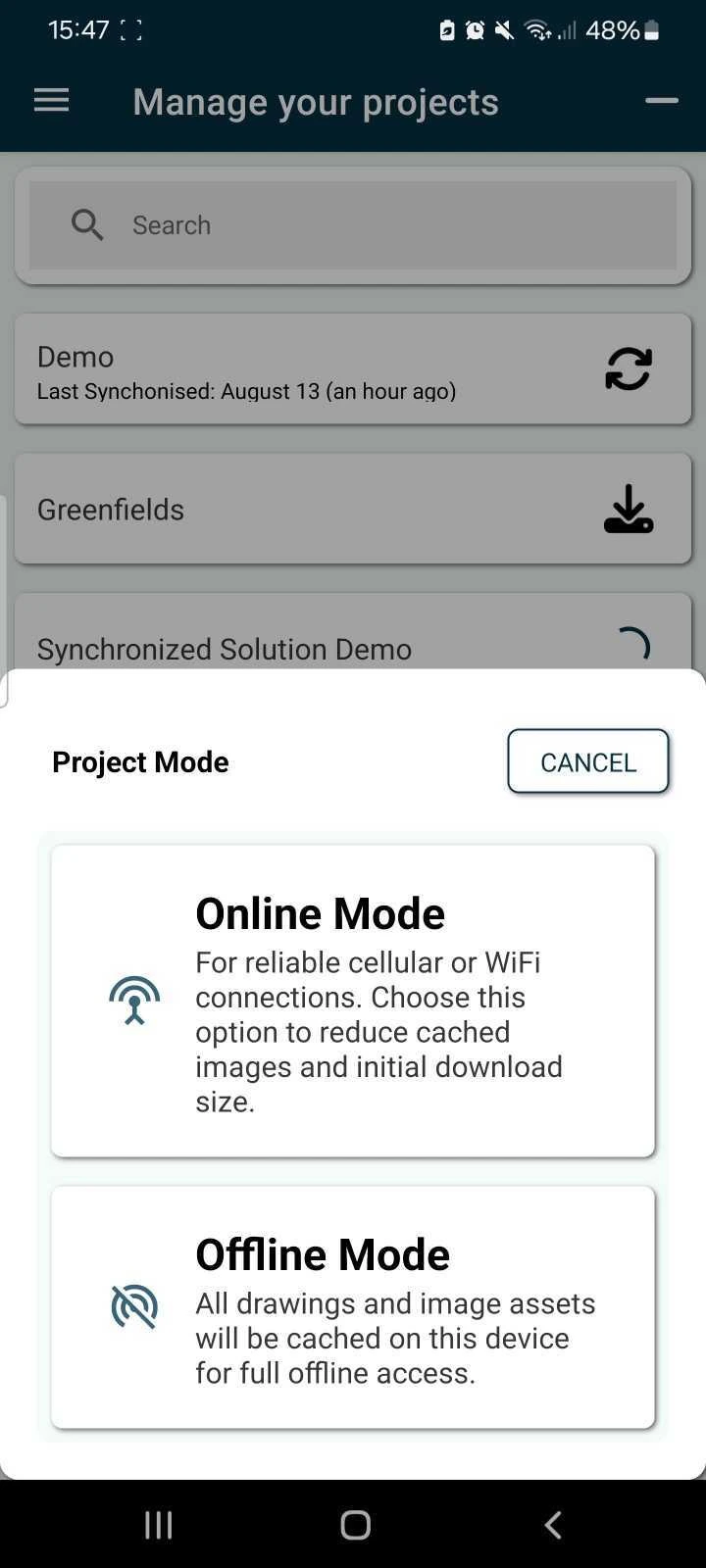
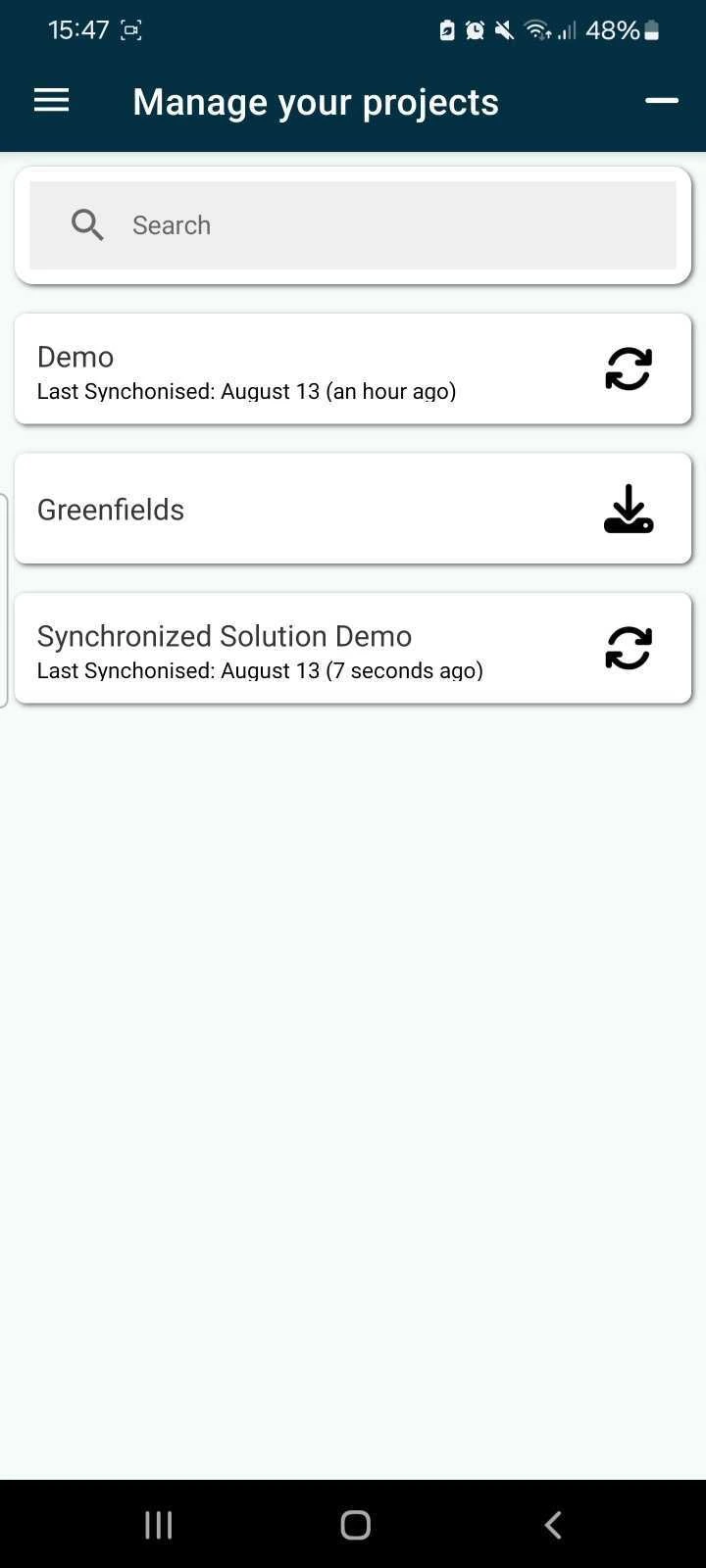
Once downloaded, the project will appear in your main project list and be available for offline access.
Best Practices & Tips
-
Sync First
Before switching or adding new projects, ensure your current project is fully synced to avoid data loss. -
Wi-Fi Recommended
Use a Wi-Fi connection when downloading new projects, especially if they include high-resolution plans or attachments. -
Storage Check
Ensure your device has sufficient storage space for downloading large project files. -
Offline Access
Once a project is downloaded, it can be accessed and updated even without an internet connection.
FAQs & Troubleshooting
Q: I don’t see the project I need. What should I do?A: Make sure you have been granted access to the project by your administrator. If not, contact your project lead or system admin.
Q: Can I switch between multiple projects?
A: Yes, you can freely switch between downloaded projects in the “Projects” section. Ensure you sync each project before switching to keep your data up to date.
Q: How do I remove a project from my device?
A: Dragging the project name to the side will allow you to delete the project from your app and device, you can add this back using the same steps above.